
Mastering linkedin posts specs: A Quick Guide
linkedin posts specs: A concise reference for LinkedIn post dimensions, limits, and file sizes to optimize images, videos, and carousels.
Getting your LinkedIn post specs right is one of those small things that makes a huge difference in how professionally you come across. The sweet spots are generally 1200 x 627 pixels for images and links, a 3,000-character limit for text, and keeping videos between 3 seconds and 10 minutes.
Your Quick Reference for LinkedIn Post Specs
When you’re juggling a dozen other tasks, the last thing you want to do is hunt down the right dimensions and file limits for a LinkedIn post. That’s why I’ve put together this quick reference guide—it gives you all the crucial specs at a glance, helping you avoid those frustrating upload errors. Proper formatting isn’t just about looking good; it ensures your content is crisp and clear on any device.
This infographic breaks down the core requirements for text, image, and video posts.
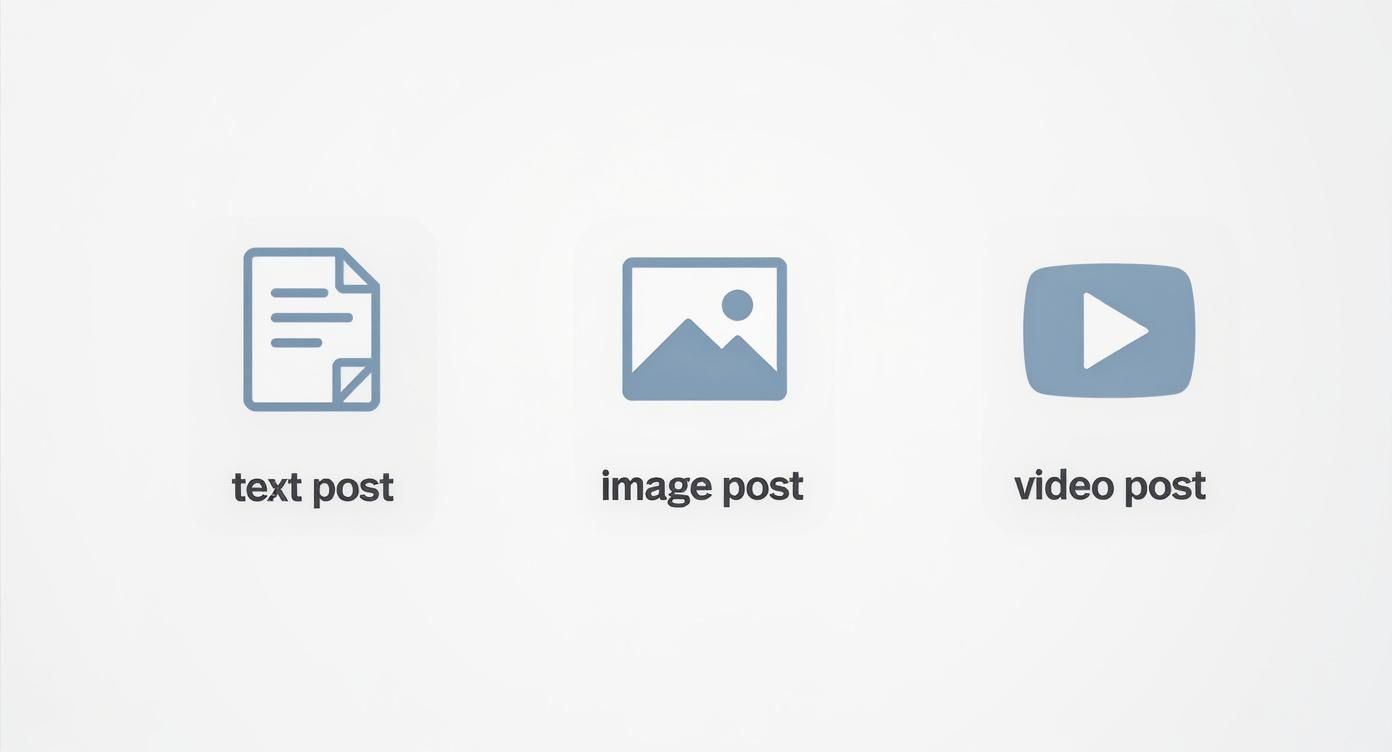
As the visual shows, while text posts give you plenty of room to write, images and videos really depend on hitting the right pixel dimensions and file sizes to look their best. It’s a detail worth mastering. For example, did you know that posts containing links can get up to 45% more reach? This makes nailing the hyperlink specs especially important. In Germany, where 30.5% of adults are on LinkedIn, getting these technical details right is a key part of engaging with a savvy professional audience.
Of course, knowing the specs is only half the battle; you still need great ideas. If you’re looking for inspiration, check out these social media content ideas to get your creative juices flowing.
To make things even easier, here’s a comprehensive table with the most important data right at your fingertips. You can use it to format every piece of content perfectly.
Getting Text and Link Posts Right
Let’s start with the basics: text-only posts and posts that share a link. These are the bread and butter of LinkedIn, giving you a straightforward way to share your thoughts, start a conversation, or send people to your latest blog post. Knowing the rules for these posts is the first step to making them work for you.
When you’re just sharing text, LinkedIn gives you a pretty generous amount of space to play with.
- Maximum Character Count: You get up to 3,000 characters for a standard text post. That’s more than enough room for in-depth stories, a detailed analysis of a recent trend, or a complex question to get your network thinking.
Of course, no one wants to read a giant wall of text. The key is to make it scannable. Break up your points with short paragraphs, use bullet points for lists, and sprinkle in a few emojis to add personality. This makes a huge difference, especially for people scrolling on their phones.
Crafting The Perfect Link Post
Sharing a link is where things get a bit more visual. When you paste a URL into your post, LinkedIn automatically pulls in a preview card. This card is your post’s billboard—it’s what grabs attention and convinces people to click.
The single most important part of this preview is the thumbnail image.
The ideal size for your custom thumbnail image in a link preview is 1200 x 627 pixels. This 1.91:1 aspect ratio is the magic number that ensures your image looks sharp and isn’t awkwardly cropped, whether someone sees it on their desktop or their mobile.
You should also keep an eye on the text in that preview card. The title is usually pulled straight from the webpage, but you can often tweak it. Getting this right is a core part of mastering your LinkedIn game. For a deeper dive, check out our guide on the LinkedIn link preview card to learn how to control how it looks.
Image Post Dimensions and Formats
Let’s face it, visual content is what stops the scroll on LinkedIn. But if your images get awkwardly cropped, it looks unprofessional and completely kills your message. Getting the dimensions right isn’t just a nice-to-have; it’s a must for making your content look polished and professional.
When you’re posting a single image, you’ve got a few solid options that look great on both desktop and mobile. Each one serves a slightly different purpose, so you can pick what’s best for the story you’re trying to tell.
- Landscape (1.91:1 Ratio): The sweet spot here is 1200 x 627 pixels. This is the standard size LinkedIn uses when you share a link with a preview image, and it’s perfect for any standalone horizontal photo.
- Square (1:1 Ratio): Go with 1200 x 1200 pixels. Square images take up a lot of screen real estate, especially on mobile, which is exactly what you want.
- Vertical (4:5 Ratio): For a mobile-first approach, 720 x 900 pixels is your best bet. It fills up the screen on a phone without getting important parts chopped off.
Getting File Types and Multi-Image Posts Right
Beyond the size, you also need to think about the file itself. LinkedIn is pretty flexible, but it does have its limits.
Make sure your image is a JPG, PNG, or GIF. To keep things loading smoothly for everyone, you’ll want to keep the file size under 5MB. Anything bigger risks slow load times or even upload errors. If you’re looking to create perfectly sized, eye-catching visuals without the fuss, check out some of the best AI LinkedIn photo generators out there.
Now, what about carousels? When you upload more than one image, LinkedIn automatically arranges them into a grid. How it crops them depends on how many images you use and whether they’re horizontal or vertical. For example, if you post two landscape images, it will display them side-by-side, often cropping them into squares.
Pro Tip: To keep complete control over how your carousel looks, pre-crop all your images to a square (1:1) aspect ratio before you upload them. This simple step stops LinkedIn’s auto-cropping from messing with your composition, ensuring your visual story unfolds exactly as you planned.
Getting Your LinkedIn Video Posts Right
Video is an absolute powerhouse on LinkedIn these days. It’s a brilliant way to share your story, show off a product, or just prove you know your stuff. But here’s the catch: if you want people to actually stop scrolling and watch, your video needs to play ball with LinkedIn’s technical rules.
Getting the specs right isn’t just about avoiding an error message. It’s about making sure your content looks slick and professional on every single device, from a massive desktop monitor to a tiny phone screen. After all, what’s the point of creating a great video if it ends up looking grainy or distorted?
First Things First: The Core Video Specs
Before you even think about hitting that “upload” button, take a moment to check your video file against LinkedIn’s core requirements. Nailing these details from the start saves a ton of frustration later and guarantees a smooth viewing experience for your audience.
- Video Length: Keep it between 3 seconds and 10 minutes.
- File Size: Your file can be as small as 75KB or as large as 5GB.
- File Format: Stick with MP4. It’s the most reliable format and the one LinkedIn prefers.
Think of these as your foundational checklist for any video you create. If you want a more detailed look at the entire uploading process, our guide on how to post a video to LinkedIn breaks it all down step-by-step.
The Nitty-Gritty: A Full Spec Breakdown
To make things crystal clear, here’s a quick-reference table with all the technical details you’ll need for native video uploads. Getting these specs dialled in is key to making your video look its best.
| LinkedIn Native Video Requirements | | :— | :— | :— | | Specification | Requirement | Best Practice | | Length | 3 seconds – 10 minutes | 1-2 minutes for top engagement | | File Size | 75KB – 5GB | Keep it under 1GB for faster uploads | | File Format | MP4, MOV, ASF, AVI, FLV, MPEG-1, MKV, WebM | MP4 with H.264 video and AAC audio | | Aspect Ratio | 9:16 (Vertical), 1:1 (Square), 16:9 (Landscape) | Square (1:1) or Vertical (9:16) for mobile | | Resolution | 256×144 to 4096×2304 | 1080p (1920×1080) for a crisp look | | Frame Rate | 10 – 60 fps (frames per second) | 30 fps is standard and looks great | | Bit Rate | 192 kbps – 30 Mbps | 5-8 Mbps for high-quality 1080p video |
While LinkedIn accepts a range of formats and specs, sticking to the “Best Practice” column is your surest bet for a professional, high-performing video that captures attention.
Why Aspect Ratios and Captions Are Game-Changers
The shape of your video—its aspect ratio—massively impacts how people see it, especially on their phones. LinkedIn is flexible here, which is great, but choosing the right one can make a huge difference.
- Landscape (16:9): The classic widescreen format. It’s perfect for detailed presentations or cinematic-style videos viewed on a desktop.
- Square (1:1): This is your all-rounder. It looks great on both desktop and mobile feeds without getting awkwardly cropped.
- Vertical (9:16): The king of mobile. A vertical video fills the entire phone screen, making it incredibly immersive and hard to scroll past.
Finally, whatever you do, don’t forget captions. So many people browse LinkedIn with the sound off (think open-plan offices or late-night scrolling). Including a SubRip Subtitle file (.SRT) makes your content accessible to everyone and ensures your message lands, sound on or off. It’s a small step that makes a massive impact on engagement.
Getting Your Document and Carousel Specs Right
Moving beyond simple images and videos, LinkedIn’s document sharing feature is a seriously underrated tool for showing off what you know. It lets you upload multi-page documents that your audience can flick through, slide by slide, right in their feed. Think of it as a mini-presentation, case study, or in-depth guide.
This format is brilliant for delivering real value and keeping people glued to your post for longer. But to nail it, you need to know the specific specs LinkedIn has for documents.
File Format and Size Limits
First things first, you need to make sure your file type is on the approved list. LinkedIn gives you a few common options, so you’ve got some flexibility in how you create your document.
- Supported Formats: You can upload PDF, DOCX, and PPTX files.
- Maximum File Size: Keep your document under 100MB.
- Page Limit: You can’t go over 300 pages.
Honestly, these limits are pretty generous. You’ll have no trouble uploading detailed presentations or comprehensive guides.
Turning a text-heavy document into a slick, visual carousel makes dense information so much easier to digest. People are way more likely to swipe through your content page by page, absorbing your insights as they go.
Design Tips for Killer Carousels
To really make your document pop, you have to design it as a carousel. Just uploading a standard A4 document usually ends up with tiny, illegible text, especially on mobile. A bit of planning here goes a long way.
Try using a square or portrait layout for your slides; they just look so much better on phones. Use big, bold fonts and striking visuals on every page to give people a reason to keep swiping. For a deep dive into optimising this format, check out our complete guide on creating a high-impact LinkedIn carousel post.
And don’t forget the text that goes with it. The post copy itself has the usual 3,000-character limit, and you also need to give your document a punchy title. This title shows up at the bottom of the carousel viewer and is crucial for telling people what they’re about to see.
Technical Specs for LinkedIn Articles and Newsletters
Sometimes, a standard post just doesn’t give you enough room to get your full message across. That’s where LinkedIn Articles and Newsletters come in. They’re built for long-form content, letting you really dig into a topic and establish your authority. But just like any other format, they have their own set of rules you need to know.
The first thing people will see is your cover image, and it’s your best shot at grabbing their attention. Aim for a crisp 1920 x 1080 pixels. This is your standard 16:9 aspect ratio, and it ensures your image looks sharp and professional, basically acting as a billboard for your writing.
Body Content and Promotional Posts
Inside the article itself, you have a massive canvas to work with—roughly 125,000 characters. That’s a huge jump from the 3,000-character limit on regular posts, making it the perfect home for in-depth analysis, detailed case studies, or big-picture thought leadership pieces.
Here’s something you have to remember: when you publish an article, LinkedIn automatically generates a standard feed post to announce it. This promotional post falls under the usual post specs, meaning the intro text is capped at 3,000 characters and the link preview image (which is your article’s cover) will be shown at 1200 x 627 pixels.
Getting this distinction right is key to maximising your reach. The huge character count is for the article, not the post that promotes it. To really connect with Germany’s professional audience, you need to master both. As of early 2025, LinkedIn’s user base in Germany was around 22.1 million, and a big chunk of that is young professionals who are hungry for substantial content. You can find more stats on this demographic over at NapoleonCat.com.
Going beyond the basic specs, though, is what makes a real difference. To get the most from this format, you’ll want to learn how to effectively publish articles on LinkedIn and really make your professional presence felt.
Common Questions About LinkedIn Post Specs
Even with a detailed guide in hand, you’ll inevitably run into specific questions right when you’re about to post. Getting straight answers can save you a ton of hassle and keep your content looking sharp and professional. Let’s clear up some of the most common ones I hear.
One of the biggest headaches is the blurry link preview. You’ve probably seen it: you share a great article, but the thumbnail image looks fuzzy and unprofessional. This almost always comes down to the original image size.
It happens because the image doesn’t meet LinkedIn’s preferred 1200 x 627 pixel size, which is a 1.91:1 aspect ratio. When you share a link, LinkedIn’s crawler looks for the
og:imagetag on that webpage to pull a preview. If that image is too small or the wrong shape, LinkedIn has to stretch or crop it, which is why it ends up looking so bad. The fix? Make sure your website’s metadata points to an image with the correct dimensions.
Another thing people often ask about is what they can change after a post goes live. It’s a good thing to know before you find yourself in a bind.
Optimising for Mobile and Making Edits
Since most people are scrolling LinkedIn on their phones, thinking mobile-first isn’t just a good idea—it’s essential. This is especially true for video. A square (1:1) or vertical (4:5 or 9:16) video will take up much more of the screen on a phone, grabbing attention far better than a standard widescreen video. And always, always include SRT captions; most people watch videos with the sound off.
So, what if you’ve already hit “Post” and then spot a mistake?
-
Can you edit media after publishing? No. Once an image, video, or document is live, you can’t swap it out. You can only edit the text that goes with it. If the media itself is wrong, your only option is to delete the post and start over.
-
What is the maximum GIF size? LinkedIn is a bit more generous with GIFs. While a standard image is capped at 5MB, you can upload an animated GIF up to 10MB. For the best results, try to keep the GIF’s dimensions close to the recommended image sizes, like 1200 pixels wide. This helps it display clearly without looking pixelated or taking forever to load. It really pays to double-check these specs beforehand.
Ready to create perfectly formatted LinkedIn posts every single time without having to memorise a single spec? With Postline.ai, you can brainstorm, write, and schedule standout content in minutes. Our AI-powered tools help you focus on your message while we handle the formatting, making sure your posts always look their best. Start your free trial at Postline.ai and transform your LinkedIn presence today.

Run every client pipeline in one place
Give each LinkedIn profile its own voice, calendar, approval flow, and analytics. Start in minutes.
Start free trial