
How to Add a LinkedIn Button on Website for Better Engagement
Learn how to strategically add a LinkedIn button on website to boost engagement and grow your professional network. A practical guide with actionable tips.
Placing a LinkedIn button on your website is one of the smartest, simplest ways to link your digital hub directly to your professional network. It’s a small addition that can make a big difference, turning casual browsers into engaged followers and even future clients by closing the gap between your site and your LinkedIn presence.
Why Your Website Needs a LinkedIn Button
Think about it: how many potential connections, partners, or customers visit your website and then disappear without a trace? Adding a LinkedIn button isn’t just a box to tick on your web development checklist. It’s a strategic move that transforms your site from a static online brochure into a living, breathing hub for building professional trust.
Amplify Your Professional Brand
A LinkedIn button acts as a quiet, persistent invitation for visitors to connect with your brand on a professional platform. It removes friction, making it incredibly easy for them to follow your company page or share content they find valuable. This simple action instantly extends your brand’s reach far beyond its original audience.
Of course, before you send people there, you need to make sure your profile is ready for guests. It’s worth taking the time to create an impactful LinkedIn Company Page that actually speaks to your ideal audience.
Drive Targeted Traffic and Engagement
Every click on that “Follow” or “Share” button strengthens your entire LinkedIn ecosystem. This is especially vital in markets like Germany, where LinkedIn is the undisputed professional network. As of March 2025, the platform had an impressive 22 million users—that’s 29.8 percent of the adult population.
This direct link from your site to LinkedIn is a powerful tool. It helps you:
- Build a Relevant Audience: You’ll attract followers who are genuinely interested in what you do because they’ve already been on your website.
- Boost Content Visibility: When visitors share your blog posts, case studies, or service pages, they’re amplifying your voice and positioning you as a thought leader.
- Enhance Social Proof: Let’s be honest, a healthy follower count signals authority. It tells new visitors that you’re a trusted name in your field.
By funnelling website traffic to LinkedIn, you create a feedback loop where your site builds your network, and your network drives more qualified visitors back to your site.
This integration is a low-effort, high-impact tactic that keeps the networking going long after someone has left your homepage. If you’re looking for more ideas, check out our guide on https://postline.ai/blog/2/how-to-increase-linkedin-engagement.
Choosing the Right LinkedIn Button for Your Goals
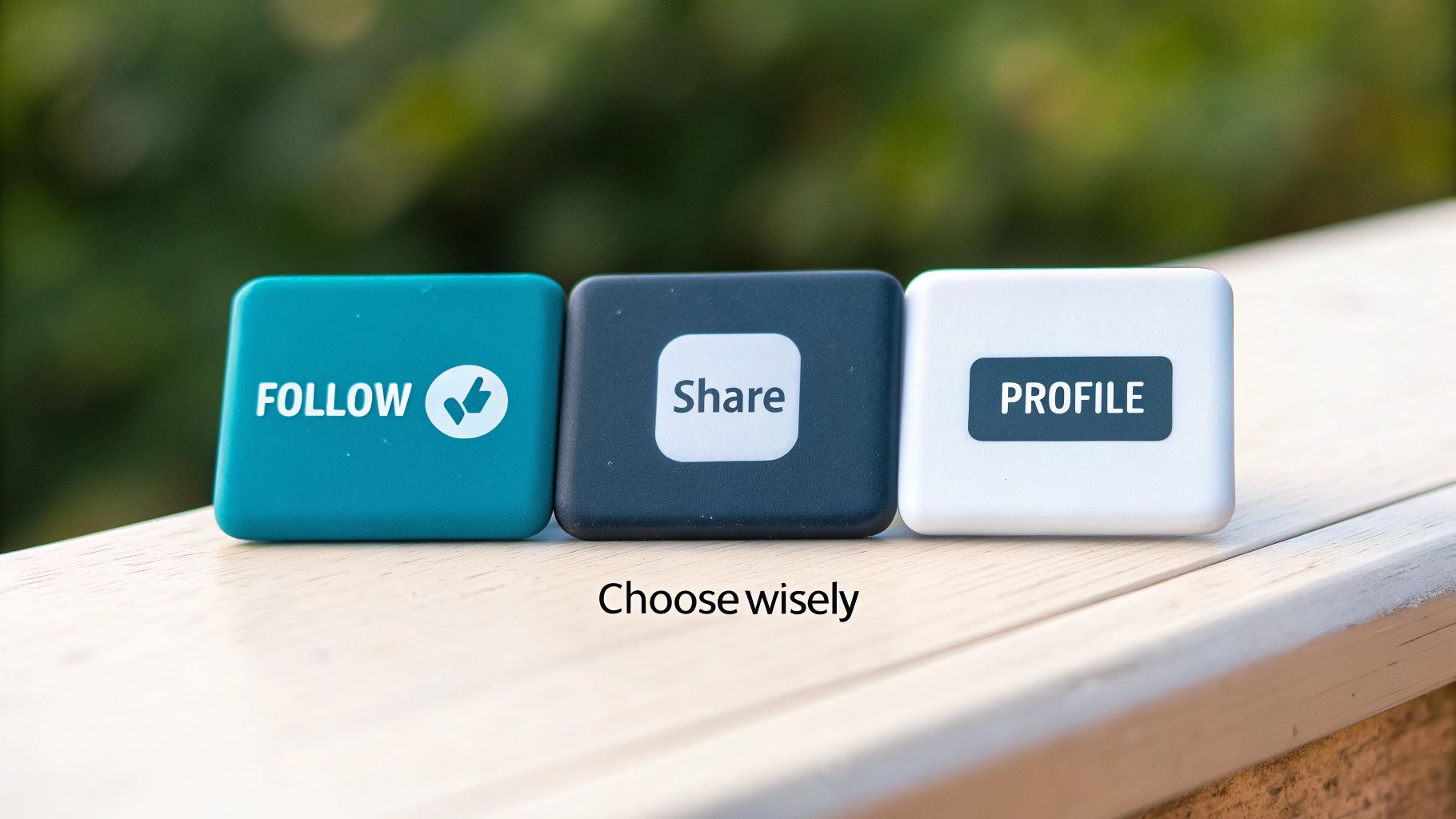
Adding a LinkedIn button on your website is a great first step, but just grabbing any old button won’t get you the results you want. The trick is to think strategically about what you’re trying to achieve. Are you looking to grow your company’s follower count, get more eyes on your latest blog post, or maybe showcase your personal credentials?
Each of these goals calls for a different kind of button. If you get it wrong, you’re just wasting valuable screen real estate. For instance, a “Share” button on your homepage doesn’t make much sense—what are visitors supposed to share? A “Follow” button, on the other hand, is a perfect fit.
Let’s dig into the main options so you can pick the one that will actually move the needle for your business.
To Grow Your Audience: The Company Follow Button
The purpose of the Company Follow button is simple and direct: it’s all about getting more followers for your LinkedIn Company Page. One click, and a website visitor is now part of your audience, ready to see your updates in their feed. It’s the best way to turn casual website traffic into a dedicated community you can engage with over the long term.
So where should you put it? Think about places where people are already curious about who you are as a company.
- Your website footer: It’s a classic spot for a reason—it’s on every page.
- The ‘About Us’ page: Someone reading your company story is in the perfect frame of mind to hit “Follow.”
- On your contact page: If they’re looking for ways to get in touch, following you on LinkedIn is a natural next step.
To Amplify Your Content: The Share Button
While the Follow button is for building your own audience, the Share button is your tool for content amplification. It lets visitors take a specific piece of content—a blog post, a new case study, an industry report—and share it with their professional network. This is how you generate organic reach and get your content in front of a whole new audience.
It’s essentially digital word-of-mouth. For example, technical writer Tom Johnson saw that people were already discussing his articles on LinkedIn, so he smartly added a “Comment on LinkedIn” button (which functions like a Share button) to encourage that behaviour right from his site.
By making it effortless for people to share, you’re turning your readers into brand advocates. They do the heavy lifting of extending your content’s reach for you.
To Build Your Personal Brand: The Member Profile Button
If you’re a consultant, freelancer, founder, or thought leader, the Member Profile button is your best friend. This button doesn’t point to a company page; it links straight to your personal LinkedIn profile, putting your expertise front and centre.
This is a must-have for building professional credibility and trust.
- In your author bio: Right at the end of an article you’ve written.
- On a personal portfolio site: Add it to the header, footer, or contact page.
- Next to your speaker profile: Perfect for event websites where you’re presenting.
It gives potential clients, partners, and employers a direct path to verify your experience and connect with you personally, which is often what seals the deal.
Getting the Code and Putting It on Your Website
Alright, let’s get down to the practical part: actually adding a LinkedIn button to your website. You’ll be relieved to know LinkedIn makes this surprisingly painless with its official plugin generator. This tool spits out the exact HTML and JavaScript you need, so you can get this done even if you have zero coding experience.
Think of the generator as a simple web form where you plug in your details and pick how you want your button to look. It’s the official, safest, and most reliable way to make sure your button works perfectly and won’t break when LinkedIn updates its platform.
Using LinkedIn’s Official Plugin Generator
First things first, head over to LinkedIn’s plugin documentation. This is where you’ll find the generators for all the button types we’ve talked about, whether it’s for following a company, sharing content, or linking to a personal profile. You’ll need the URL for your company page or personal profile to get started.
If you’re not sure where to find that, our guide on how to get your LinkedIn URL will show you in a few quick steps. Got the URL? Great, you’re ready to create your code.
We’ll use the Follow Company plugin as our main example, but the process is nearly identical for the others. You’ll land on a simple configuration screen.
Here’s a look at the Follow Company plugin generator page. As you can see, you just need to enter a few details to create your button.
You simply type in your company name, select a language, and decide if you want to show off your follower count.
Once you’ve filled that out, the generator instantly creates a code snippet for you. This snippet comes in two parts: a small piece of JavaScript that you’ll tuck away just before your website’s closing </body> tag, and a simple <div> tag that you’ll place exactly where you want the button to appear.
Customising Your Button and Code
The generator gives you a couple of key customisation options right on the page, helping the button blend in with your site’s design.
- Language: You can pick from a dropdown list of languages. This is great for ensuring the button text (like “Follow”) shows up in the language your audience speaks.
-
Counter Mode: You get to choose whether to display your follower count. Showing it off can be powerful social proof, letting visitors know you have an active community. You can place the count above the button (
top) or next to it (right).
A quick tip from my own experience: if your page is brand new or still growing, you might want to hide the counter at first. Once you’ve built up a decent following, switch it on to leverage that social proof and encourage even more follows.
After making your choices, just hit the “Get Code” button. The tool will generate two distinct blocks of code for you to copy.
-
The JavaScript SDK: This is a
<script>tag that connects your site to LinkedIn. You only need to add this to your site once. The best place for it is usually in the footer of your website template, so it loads on every page without slowing down your main content. -
The Plugin Tag: This is the
<div>element that serves as a placeholder for the actual button. You’ll copy and paste this little tag into the HTML of your page right where you want the button to appear—maybe in your blog’s sidebar, your author bio, or the website footer.
The beauty of this system is its simplicity. You don’t need to understand what the code is doing. Just copy it, paste it into the right spots, and a professional-looking LinkedIn button will pop up on your website, ready to grow your network.
Strategic Placement for Maximum Visibility and Clicks
Just dropping a LinkedIn button on your website and calling it a day won’t get you very far. Where you put that button is just as important as having one in the first place. The best placements feel natural and intuitive, catching visitors at the exact moment they’re most likely to click. If you get it wrong, your button becomes invisible, and you’ve lost a golden opportunity to connect.
The secret is to get inside your user’s head and think about their journey through your site. Someone browsing your ‘About Us’ page has a completely different mindset than a person who just finished reading a 2,000-word blog post. Each context demands a unique strategy.
Aligning Placement with User Intent
Let’s dig into where each type of button really shines, based on what a visitor is probably thinking or doing on a specific page. Smart placement is all about meeting your audience where they are, not forcing them to go hunting.
-
The Share Button: This button’s natural habitat is right next to your content. I’ve found that placing it at both the top and bottom of an article works wonders. It caters to two different people: the one who shares based on a killer headline and the dedicated reader who wants to share after finishing the entire piece.
-
The Company Follow Button: Think of this as your brand-building button. It belongs on pages where people are actively trying to learn more about you. Your ‘About Us’ page is a no-brainer, and the global website footer is another classic spot. This ensures it’s consistently visible without being obnoxious.
-
The Member Profile Button: This is all about personal credibility. The most logical place for it is in your author bio at the end of a blog post. It’s also incredibly effective on a ‘Meet the Team’ page or within a speaker bio on an event landing page.
A well-placed button doesn’t interrupt the user experience—it enhances it. It should feel like a helpful next step, not a jarring advertisement. By anticipating user intent, you can significantly increase the chances of getting that coveted click.
Advanced Placement Strategies
Once you’ve got the basics down, it’s time to get a bit more creative. Think about placing buttons in spots that tie directly into your conversion goals. For instance, the confirmation page after someone downloads a whitepaper is a fantastic place for a ‘Follow Us’ button. They’ve already shown they value your expertise; inviting them into your community is a natural next step.
Another powerful tactic is integrating share buttons directly within your content. For example, a compelling statistic or a great quote is a perfect moment to add a “Click to Share” prompt. To make those shares even more effective, you’ll want to make sure the preview looks great. We cover how to do that in our guide to the LinkedIn link preview card.
You might also consider a “floating” share bar that sticks to the side of the screen as users scroll. This keeps the option to share front and centre without being intrusive. Ultimately, the goal is to make sharing your brilliant content as frictionless as possible, turning passive readers into active brand advocates.
Tracking Your Success and Measuring ROI
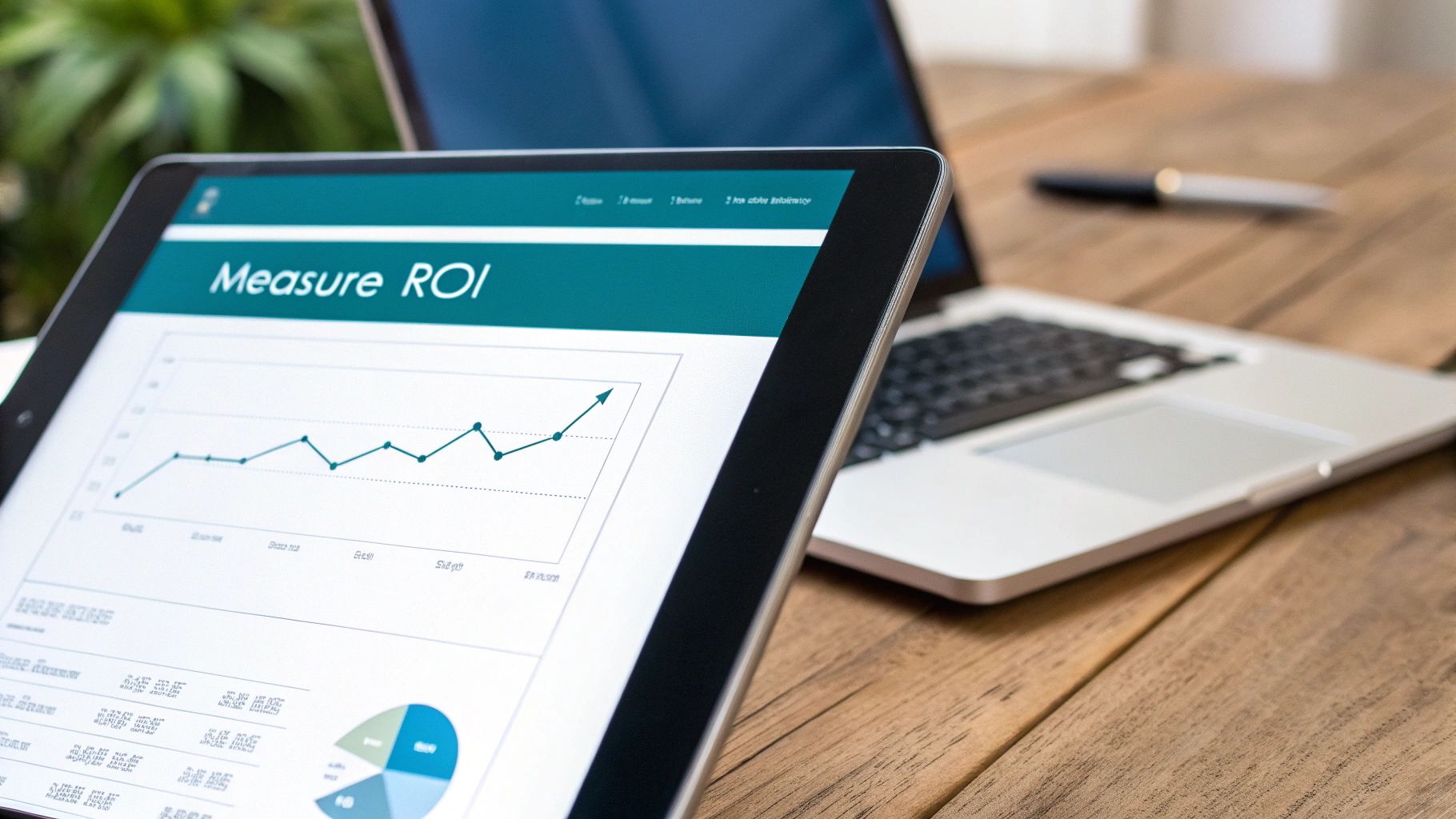
So, you’ve added a LinkedIn button on your website. That’s a great move, but how do you actually know if it’s doing anything? Without tracking, you’re essentially flying blind, just hoping it works. But with a couple of simple measurement tools, you can see precisely how much engagement that button is driving and confidently justify its place on your site.
Measuring this isn’t about chasing vanity metrics. It’s about understanding how people interact with your site so you can make smarter decisions backed by real data. The good news? You don’t need a massive, complex analytics setup to get going. Two key techniques—UTM parameters and event tracking—will give you all the clarity you need.
Using UTM Parameters for Traffic Analysis
One of the easiest yet most powerful ways to track your button’s success is with Urchin Tracking Module (UTM) parameters. Think of these as little breadcrumbs you add to the end of a URL to tell your analytics platform exactly where your visitors came from.
When you create the code for your LinkedIn Profile or Company button, you’re pointing it to a specific URL. Instead of just using the clean link, you can append these UTM tags. This lets you isolate the traffic coming specifically from your website’s button when you look at your LinkedIn analytics.
Here’s a real-world example of what a UTM-tagged URL might look like for a company page button in your website’s footer:
https://www.linkedin.com/company/your-company-page?utm_source=website&utm_medium=social&utm_campaign=footer_follow_button
This small addition packs a punch. It allows you to filter your LinkedIn analytics to see everyone who arrived via that specific link, giving you a clear, undeniable count of clicks from your site. If you want to dig deeper into what you can measure, get familiar with the ins and outs of LinkedIn post analytics.
By tagging your URLs, you’re creating a digital paper trail. This lets you directly attribute new followers and profile views to your website’s LinkedIn button, transforming guesswork into hard data.
Setting Up Basic Event Tracking
If you want to get even more granular, the next step is event tracking. This technique records a specific user action—in our case, a click on the LinkedIn button—as a distinct “event” in tools like Google Analytics 4 (GA4). It’s often set up using Google Tag Manager (GTM).
Setting up an event in GTM isn’t as scary as it sounds. The basic process involves creating a “trigger” that fires anytime someone clicks an element containing your LinkedIn URL. That trigger then tells GA4 to log a custom event, which you could name something intuitive like linkedin_button_click.
This approach provides invaluable data, including:
- Total Clicks: Know exactly how many times people are hitting that button.
- Page-Specific Engagement: Discover which pages—like your blog versus your ‘About Us’ page—are generating the most LinkedIn traffic.
- User Behaviour: Analyse what visitors who click the button do before and after that interaction.
As you evaluate the button’s impact, remember to see it as part of the bigger picture—the total ROI of a modern website design. Every feature, no matter how small, contributes to the overall value your site delivers. By combining UTM data with event tracking, you get a complete, 360-degree view that proves the worth of this small but mighty integration.
Got Questions? Let’s Troubleshoot Your LinkedIn Buttons
So, you’ve got the LinkedIn button code onto your website. That’s a great start, but sometimes things don’t go exactly as planned. You might run into a few common hitches, from buttons playing hide-and-seek to worries about your site’s speed. Let’s walk through the most frequent questions I hear and get your integration running perfectly for every visitor.
One of the most frustrating problems is when the button just… doesn’t show up. Nine times out of ten, this is because of a squabble with another script on your site or an overzealous ad-blocker. The first thing to do is open your site in an incognito or private browsing window with all extensions turned off. If the button magically appears, you know an extension is the culprit. If it’s still missing, open your browser’s developer console (usually by pressing F12) and look for any red JavaScript errors—they’ll often point you right to the source of the conflict.
Will This LinkedIn Plugin Slow Down My Website?
This is a question I get all the time, and it’s a smart one. Performance matters. Will adding another script drag your site’s speed down?
The good news is that LinkedIn’s plugin script is pretty lightweight. However, it still has to make an external request to LinkedIn’s servers, which does add a tiny bit to your total load time.
To keep this impact as small as possible, make sure you place the main LinkedIn JavaScript SDK file right before the closing </body> tag of your website’s HTML. This is a standard best practice that allows all your important page content—your text, your images—to load first. Visitors can start engaging with your site while the script loads in the background, preventing the button from blocking more critical elements from rendering.
Is the LinkedIn Button Mobile-Friendly?
Absolutely. The official LinkedIn plugins are built to be responsive, so they should adjust to different screen sizes without you having to do anything extra. That said, I’ve often seen the container you place the button’s <div> tag into cause weird display issues on phones.
If your button looks squished or broken on a mobile device, take a look at the CSS of its parent element. The problem is often a fixed width or restrictive padding that’s boxing the button in. A quick fix is usually to set the container’s width to 100% or auto, giving the button the flexibility it needs to scale correctly.
This is more important than ever. The fastest-growing demographic on LinkedIn is now the 18-24 age group, an audience that lives on their mobile devices. To learn more about how this is changing the platform, check out this detailed analysis of European LinkedIn usage.
Key Takeaway: Most display issues aren’t with the LinkedIn code itself. They usually come from how it interacts with your website’s existing code or other third-party scripts. Always test in a clean environment first to isolate the problem.
By tackling these common sticking points, you can fine-tune your integration and make sure your LinkedIn button is a reliable tool that helps you hit your networking goals.
Ready to create compelling LinkedIn content that drives clicks and engagement? Postline.ai uses powerful AI to help you write, schedule, and optimise standout posts in minutes. Stop guessing and start growing your professional brand today. Explore Postline.ai.

Run every client pipeline in one place
Give each LinkedIn profile its own voice, calendar, approval flow, and analytics. Start in minutes.
Start free trial