
Master the Link of Linkedin Profile to Elevate Your Brand
Learn how to find, customize, and share the link of linkedin profile. Unlock practical tips to boost your professional brand and networking effectiveness.
Think of your LinkedIn profile link as your digital business card. It’s the one-stop address you give to recruiters, potential clients, and new connections, making it incredibly easy for them to find your professional story online.
Your Professional Digital Handshake
That link to your LinkedIn profile is so much more than just another URL. It’s a core piece of your online professional brand. When you first sign up, LinkedIn gives you a generic, clunky address filled with random numbers and letters. It works, sure, but it doesn’t exactly scream “polished professional.”
The magic happens when you turn that default URL into a clean, customised link—ideally, one that’s just your name. It’s a small change, but it makes you look far more credible and detail-oriented. A personalised URL is easy to remember, looks sharp on a CV or business card, and helps people find you much faster.
Why Your LinkedIn Link Matters
In a crowded professional world, every little detail helps shape your personal brand. Just look at the numbers. In Germany alone, the LinkedIn community grew to 21.0 million members by early 2025. That’s a 16.7 percent jump, showing just how busy the platform is becoming. Standing out is no longer optional.
A clean, memorable link helps you cut through the noise. It has a few very practical uses:
- Effortless Networking: A custom URL is simple to share in emails, direct messages, or even when speaking to someone.
- Polished Job Applications: It adds a professional touch to your CV and online application forms.
- Consistent Branding: It helps align your LinkedIn presence with your personal website or other professional social media.
Your LinkedIn link is the bridge between your offline and online professional worlds. A custom URL ensures that bridge is strong, memorable, and professional, inviting the right people to connect with you.
To truly make your profile a powerful networking tool, you need to know how to optimize your LinkedIn profile for real results. This goes way beyond just the URL, covering every single part of your page. A great profile and a clean link work hand-in-hand to tell a compelling story.
You can also dig deeper into how to build a personal brand on LinkedIn with our complete guide.
Finding and Sharing Your LinkedIn Link in Seconds
Let’s face it, you often need your LinkedIn profile link at a moment’s notice—whether you’re adding it to an email signature, dropping it into a job application, or sending it to a new connection.
Thankfully, grabbing it is a breeze once you know where to click. Here’s a quick rundown for both desktop and mobile.
On a Desktop Browser
When you’re on your computer, this is the most direct way to get your link.
First, log in to LinkedIn and head to your profile. The easiest way is to click the “Me” icon in the top-right corner of the navigation bar, then select “View Profile” from the dropdown menu that appears.
Once your profile page loads, just glance up at your browser’s address bar. That URL you see is the direct link to your profile. Highlight the whole thing, right-click, and hit “Copy.” It’s now on your clipboard, ready to paste.
Pro Tip: I always test my link in a private or incognito browser window before sharing it. It’s a great way to see exactly what a recruiter or someone you’re not connected with will see when they land on your page.
On the Mobile App
If you’re on the go, the LinkedIn app for iOS or Android keeps the process just as simple, though the steps are a bit different. It’s built for quick sharing.
Here’s the path to follow:
- Open the LinkedIn app and tap your profile picture in the top-left corner.
- From the side menu that pops out, tap “View Profile”.
- Just below your headline, you’ll see an “Add section” button. Look for the three dots (…) right next to it and give them a tap.
- This opens up a menu where you can choose “Share via…”. This will pull up your phone’s native sharing options, where you’ll find a “Copy” button to grab the link.
For a more in-depth look at this, including how to customise your URL, you might find our guide on https://postline.ai/blog/2/how-to-get-your-linkedin-url really helpful.
How to Customise Your LinkedIn URL
Just grabbing your default LinkedIn link isn’t going to cut it if you want to look professional. When you first create a profile, LinkedIn assigns you a generic URL cluttered with random numbers and letters. It’s clunky, unprofessional, and impossible for anyone to remember.
Fixing this is one of the easiest and most impactful branding moves you can make. A custom URL like linkedin.com/in/yourname is the digital version of a sharp business card. It signals that you’re detail-oriented and makes your profile much easier for people to find and share.
Once you’ve found your public profile link, the next logical step is learning how to customize your LinkedIn URL. To get started, head to your profile page and look for the “Edit public profile & URL” option, which you’ll typically find in the top-right corner.
Choosing Your Perfect Custom URL
Picking the right custom URL is a small but strategic decision. Your goal is to create something that’s clean, professional, and instantly recognisable as you. You don’t need to overthink it, but a little bit of intention goes a long way.
Here are a few proven formulas for choosing a great custom link:
-
Your Full Name: This is the gold standard (e.g.,
anna-schmidt). It’s straightforward, professional, and great for search visibility. -
Add a Middle Initial: If you have a common name, popping in a middle initial (e.g.,
anna-m-schmidt) is a simple trick to create a unique URL that still clearly points to you. -
Include a Keyword: If your profession or a key certification is central to your brand, consider adding it. Think
annaschmidt-cpaorannaschmidt-marketing.
Just remember, LinkedIn has a few rules: your custom URL must be between 3 and 100 characters long and can only contain letters and numbers. No spaces, symbols, or special characters allowed. Simplicity is almost always the best strategy here. A memorable, clean link of linkedin profile will serve you well everywhere, from your CV to your email signature.
Using Your LinkedIn Link for Maximum Impact
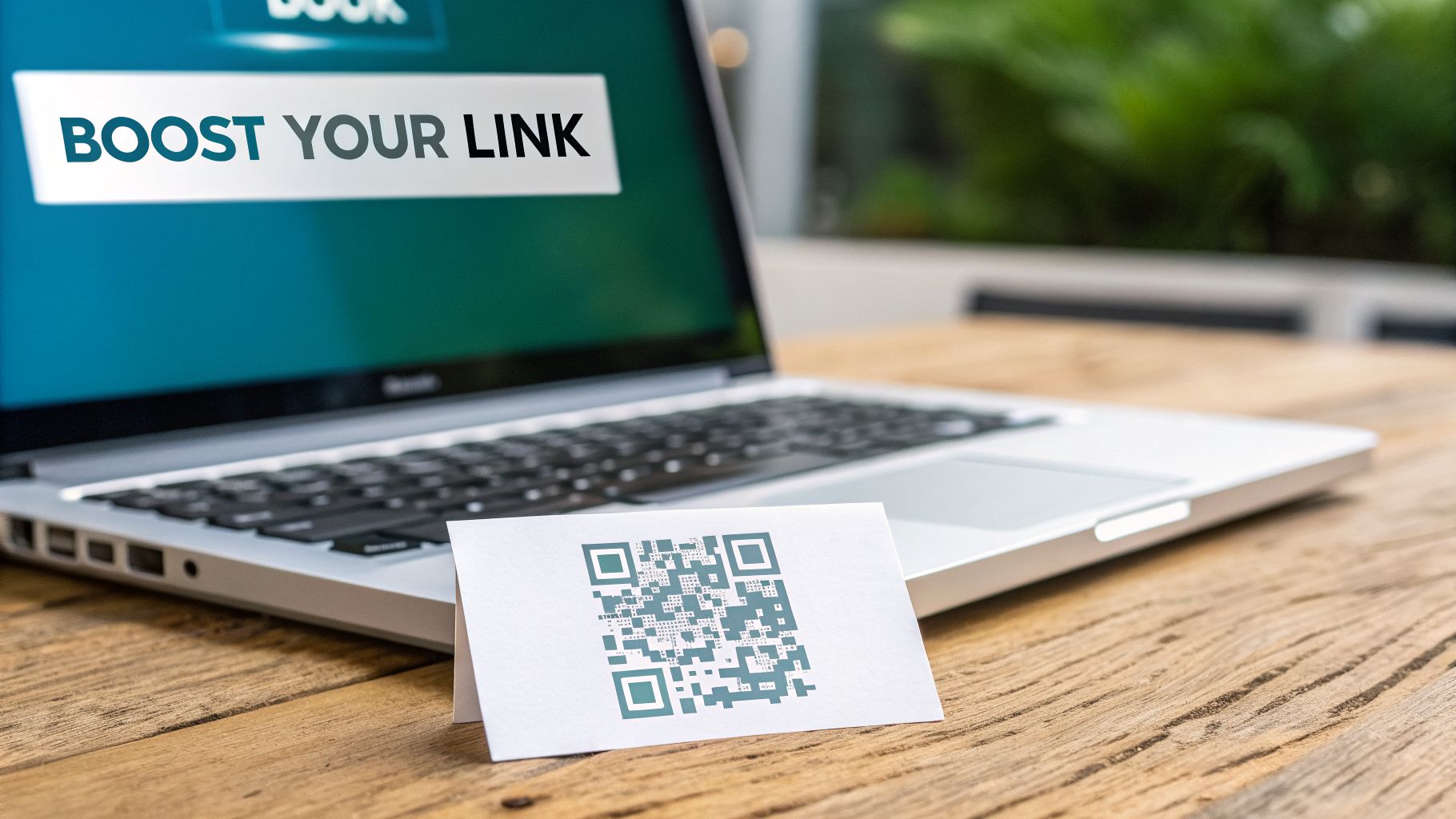
So you’ve polished your profile and customised your URL. Fantastic. But a great-looking link isn’t much use if it’s just sitting there. The next step is to get it in front of the right people.
Think of your LinkedIn profile link as a digital handshake. The most obvious places to put it are your email signature and your CV. Every time you send an email or apply for a role, you’re giving someone a direct, one-click path to your professional story. It’s a simple move that turns everyday communications into networking opportunities.
Expanding Your Reach Beyond the Basics
To really get the most out of your link, you need to think beyond the basics. Where else do you show up professionally online? The key is to make it easy for people to find you, no matter where they first encounter your name.
- Social Media Bios: Pop your LinkedIn URL into your bio on Twitter, Instagram, or any other platform where you have a professional presence.
- Business Cards: A classic for a reason. Adding a QR code that points to your profile is even better—it lets people connect with you instantly during a meeting.
- Author Bylines: If you contribute to blogs or online publications, make sure your LinkedIn link is part of your author bio.
Creating a QR code is dead simple with any free online generator. It’s a modern touch that bridges the gap between a face-to-face chat and a lasting digital connection.
Don’t just store your LinkedIn link—deploy it. Treat it as an essential component of your professional identity and embed it across all your communication channels for consistent and widespread visibility.
Tracking Your Link’s Performance
If you’re a bit of a data nerd like me, you can take this a step further. Want to know which of your efforts are actually driving people to your profile? The answer is UTM parameters. These are just small bits of code you add to the end of your URL.
For example, you could create a unique link specifically for your email signature and another one for your Twitter bio. By tracking clicks on each, you’ll see which channel is sending more traffic your way. This helps you figure out where to focus your energy. Just be mindful that a broken link can kill engagement, so it pays to understand how the LinkedIn link preview card works.
This approach is especially smart in places like Germany, where LinkedIn’s user base is shifting. While professionals aged 25-34 currently make up about 50.6 percent of active EU users, the 18-24 demographic is growing by nearly 30 percent each year. Knowing where your clicks come from helps you connect with the audience that matters most to you. You can find more data on LinkedIn’s growth in Europe on pettauer.net.
Controlling Who Sees Your Public Profile
Sharing your polished LinkedIn profile link is a great way to network, but it’s crucial to be intentional about what people see when they click it. You get to control the narrative. This is where your public profile settings become your best friend, letting you decide exactly what a potential client sees versus what your established connections see.
Think of it as setting the stage for your professional brand. You can fine-tune the visibility of almost every section, giving you the power to tailor your public-facing image to match your current career goals.
Adjusting Your Visibility Settings
Getting started is simple. Head over to your profile page and look for “Edit public profile & URL” in the top-right corner. Clicking this takes you to a dedicated settings page where all the magic happens.
On the right-hand side, you’ll find a master switch for “Your profile’s public visibility”. Toggling this off makes you almost invisible to anyone who isn’t logged into LinkedIn.
But the real power lies in the granular controls just below that main toggle. You can pick and choose which parts of your profile are visible to the public. These include:
- Your profile photo (you can set it to be visible to just your connections, your network, or all LinkedIn members).
- Your background photo.
- Your headline and summary.
- Specific sections like Articles & Activity, Experience, and Education.
Take a moment to view your own profile as the public sees it. This simple check ensures you’re presenting the exact professional image you intend to, without accidentally oversharing details with the wrong audience.
For example, if you’re actively job hunting, you’ll probably want most of your profile visible to attract recruiters. On the other hand, if you’re a consultant focused on a specific niche, you might hide past, irrelevant jobs to keep the focus tight. For more on this, check out our guide on how to look at LinkedIn profiles privately, which dives deeper into related privacy controls.
Got Questions About Your LinkedIn Link? Let’s Clear Things Up
Even after you’ve perfectly customised your LinkedIn URL, you might still hit a snag or two. It happens. Let’s walk through some of the most common questions and frustrations people run into and get you sorted out.
Why Can’t I Change My LinkedIn URL?
It’s a common headache: you try to update your URL, and LinkedIn just won’t let you. More often than not, it’s for one of a few simple reasons. The most likely culprit is that the URL you want is already taken. With hundreds of millions of users, popular names get snapped up fast.
It could also be a formatting issue. LinkedIn has rules: your custom URL must be between 3 and 100 characters long and can only contain letters and numbers. No spaces, no symbols, no funky characters. Lastly, to stop people from constantly changing their identity, LinkedIn puts a temporary lock on how often you can change your URL. If you’ve made a change recently, you might just have to wait a bit.
What to Do if Your LinkedIn Link Is Not Working
There’s nothing worse than sending someone a link to your profile only to have them say it’s broken. The fix is usually straightforward. First, just double-check that you’ve copied the entire URL. It’s surprisingly easy to miss the “https://“ at the beginning or chop off a few characters at the end, which will break the link instantly.
The other big thing to check is your public profile visibility. If you’ve set your profile to be super private, the link won’t work for anyone who isn’t already in your network or logged into LinkedIn. The easiest way to check this? Open your link in an incognito or private browser window. What you see is exactly what a stranger, like a recruiter, will see. This immediately tells you if your privacy settings are the problem.
Key Takeaway: Always test your link in an incognito window before you put it on your CV or in your email signature. It’s the quickest and most reliable way to make sure your public profile looks exactly how you want it to for new connections and potential employers.
Should I Use a Full URL or a Shortened Link?
This really comes down to where you’re putting the link. For most professional situations, being direct and transparent is the way to go.
-
Full Custom URL: Your clean, customised link (like
https://www.linkedin.com/in/yourname) is perfect for your CV, professional portfolio, and email signature. It looks professional and trustworthy because people know exactly where they’re going. - Shortened Link: A shortened link from a service like Bitly is your best friend when space is tight, like in a social media bio. It’s also incredibly useful if you’re running a campaign and want to track clicks using UTM parameters.
The golden rule is this: start with your clean, custom URL as the foundation. Only shorten it when you have a specific reason, like saving space or tracking analytics.
Does a Custom URL Affect My LinkedIn Search Ranking?
Yes, it does—in a good way. While it’s not the biggest factor in LinkedIn’s algorithm, having a custom URL that includes your name gives both LinkedIn and Google a very clear signal about who the profile belongs to. It reinforces your identity.
If you can also work in a relevant keyword naturally (for instance, jane-doe-marketing), you’re adding another small but helpful SEO boost. This makes it just a little bit easier for the right people to find you when they’re searching for your name or your area of expertise.
Ready to create compelling LinkedIn content that drives real engagement? Postline.ai is your AI-powered assistant for writing, improving, and scheduling standout posts in minutes. Discover how Postline.ai can elevate your LinkedIn presence.

Run every client pipeline in one place
Give each LinkedIn profile its own voice, calendar, approval flow, and analytics. Start in minutes.
Start free trial