
Preview LinkedIn Post: How to preview linkedin post drafts
Learn how to preview linkedin post drafts on desktop and mobile, with scheduling tips to fix issues and make a strong first impression.
That first handful of lines in your LinkedIn post? That’s your digital handshake. It’s what instantly decides whether someone keeps scrolling or stops to see what you have to say. A solid preview linkedin post is the difference between being ignored and making a real impact. It’s not just about the words; it’s about the entire first impression.
Why Your LinkedIn Post Preview Is Your Most Important Asset
Imagine the LinkedIn feed as a busy motorway, packed with information flying past at high speed. Your post preview is the one billboard that gets a split second to grab a driver’s attention.
If that billboard is compelling, people slow down, read, and maybe even take the exit to learn more. If it’s bland or confusing, they’ll zoom right past without a second thought.
That initial glimpse is genuinely your only shot to convince someone your content is worth their precious time.
The Power of the First Impression
Let’s be honest, the average user’s attention span is razor-thin. On a fast-moving platform like LinkedIn, those first two or three lines shown in the preview are all you get. This tiny snippet has to do a lot of heavy lifting to be effective:
- Spark Curiosity: It needs to ask a question, make a bold claim, or start a story that leaves the reader hanging, desperate for the conclusion.
- Show Relevance: It must immediately signal to your target audience, “Hey, this is for you!” by touching on a pain point or a topic they care about.
- Drive Action: The whole point of the preview is to earn that “See more” click. That single action expands your full post and, crucially, signals engagement to the algorithm.
A great preview doesn’t just show your content; it sells the value of clicking “See more.” It turns a passive scroller into an active participant.
How Previews Influence the LinkedIn Algorithm
The LinkedIn algorithm is obsessed with early engagement signals. When you hit “post,” it first shows your content to a small slice of your network. How that initial group reacts determines its future reach.
A compelling preview is the fuel for these vital early metrics.
When users click “See more,” like, or comment based on what that preview promises, they send a wave of positive signals to the algorithm. This tells LinkedIn your content is valuable, prompting it to push the post to a much wider audience.
On the flip side, a weak preview that gets scrolled past can kill your post’s reach before it ever has a chance to build momentum. For a deeper dive, our guide on improving LinkedIn post visibility breaks down even more strategies.
Mastering your preview isn’t just a best practice—it’s a fundamental part of working with the algorithm, not against it.
A Practical Guide to Previewing on Desktop and Mobile
Knowing the theory is one thing, but actually seeing your post exactly as your audience will is the final, non-negotiable step before hitting publish. Let’s get hands-on and walk through how to preview a LinkedIn post directly on the platform, both on the desktop site and the mobile app.
Each platform has its quirks, and getting familiar with both is the only way to make sure your content looks sharp everywhere.
When you open the post composer on your desktop and start writing, you’re already in a basic preview mode. As soon as you add a link, for instance, LinkedIn fetches the data and spits out a preview card. This is your first line of defence against embarrassing mistakes.
Does the headline look right? Is it pulling the correct image? Mismatches here are surprisingly common and can completely tank your post’s performance. If you do run into trouble, we have a detailed guide on fixing a stubborn LinkedIn link preview card.
Checking the Desktop Preview
Once your text is drafted and any media is attached, the desktop composer gives you an instant visual check. It’s the ideal place to verify the small details that make a big difference in engagement.
Here’s a quick checklist of what I always look for:
- Text Formatting: Are your line breaks creating clean, readable paragraphs? A solid wall of text is an instant scroll-past for most people, so make sure your spacing is deliberate.
- Visuals: If you’ve attached an image or a PDF with a custom thumbnail, does it look exactly right? Is it cropped weirdly? Is the resolution crisp?
- Link Snippets: For any articles you share, really scrutinise the headline and description in that preview card. This is often the first thing people read, and it has to be compelling and accurate.
A classic mistake is forgetting to check how those first few lines look before the “See more” cut-off. Those lines have to be strong enough on their own to earn the click that expands the rest of your post.
Mastering the Mobile Preview
Never, ever assume a great desktop preview will look just as good on a phone. With over 60% of LinkedIn’s traffic now coming from mobile devices, this check is arguably the most important one you’ll do. The smaller screen can radically alter how your post is perceived.
To preview on mobile, just open the LinkedIn app, tap “Post,” and build your content there, same as you would on a desktop.
Pay extra close attention to how much text is visible before that “See more” link. A hook that looks perfect on a wide desktop screen might get chopped off at a really awkward point on a phone. Even a single word spilling onto a new line can ruin the whole effect.
Likewise, check how your image or document thumbnail scales down. Does it stay clear and impactful, or does it become a blurry mess? Your goal is a mobile experience that’s just as slick and professional as the desktop version. Taking a few extra seconds to preview your LinkedIn post on both is a simple quality check that pays off big time in engagement.
How Scheduling Tools Give You a Preview Superpower
Sure, you can get a basic glance at your draft using LinkedIn’s native interface, but let’s be honest—it’s not enough for creators who care about precision. This is exactly where third-party scheduling tools come into play. They don’t just offer a preview; they turn it into a genuine strategic advantage.
Think of a good scheduler as the final quality control station before your content goes live. It gives you a hyper-realistic, pixel-perfect preview that updates in real time as you type and tweak. This is your chance to catch those subtle but critical mistakes that the native platform might gloss over, ensuring your post lands exactly the way you pictured it.
The real win here is seeing precisely how your post will render across different formats. A solid scheduling tool lays it all out for you—text formatting, line breaks, how your images look, and whether that carousel is ready for prime time.
See It Before Your Audience Does
One of the most common traps on LinkedIn is awkward text truncation. You can write the most brilliant hook in the world, but if the “See more” link cuts it off mid-sentence, it’s completely wasted. Schedulers are fantastic at showing you that exact cut-off point.
This immediate visual feedback is a game-changer. It lets you rewrite your opening lines to be punchy and self-contained, all within that crucial preview limit. It’s a tiny detail that makes a massive difference in whether someone stops scrolling to read more or just keeps on going.
The preview pane in a scheduling tool isn’t just a feature; it’s your creative sandbox. It’s where you experiment with different hooks, calls to action, and visual placements until every element is perfectly aligned for maximum impact.
This level of control is essential if you’re serious about building a professional brand. In Germany, for example, making a strong first impression is crucial for connecting with the 22 million professionals on the platform. By March 2025, that figure represented 26.9% of the country’s entire population, with the 25-to-34 age group being the largest user base. Nailing your presentation matters when you’re trying to reach an audience of that scale.
The Advantage of a Dedicated Preview Pane
Beyond just text, a dedicated preview pane gives you a crystal-clear view of your media. You can instantly confirm that your carousel’s first slide is compelling enough to make someone swipe, or that your image is framed perfectly without any key details getting cropped out.
For anyone juggling multiple accounts or a packed content calendar, this feature is an absolute lifesaver. You can craft, refine, and schedule dozens of posts, knowing with full confidence that each one has been meticulously checked. It’s a far more organised and efficient workflow than trying to draft everything natively on LinkedIn.
To truly unlock this ‘preview superpower’ for your LinkedIn content, you should explore what the best LinkedIn scheduling tools have to offer.
Comparing Native LinkedIn Preview vs Third-Party Schedulers
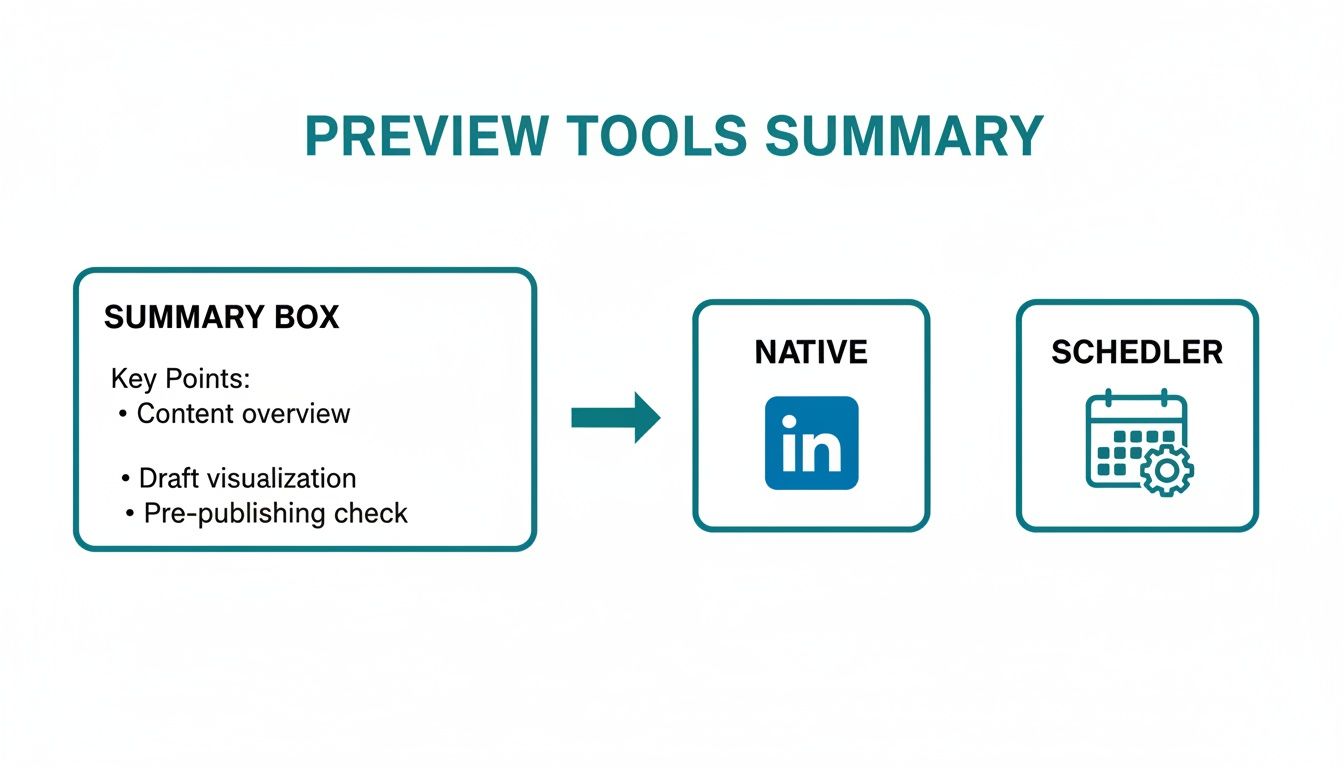
While LinkedIn’s built-in preview is a start, it’s pretty basic when you put it side-by-side with a specialised tool. Here’s a quick breakdown of what you get with each.
| Feature | Native LinkedIn Preview | Third-Party Scheduling Tools |
|---|---|---|
| Real-Time Updates | Limited; may require refresh | Yes, updates instantly as you type |
| “See More” Cut-Off | Not explicitly shown | Clearly indicates the cut-off point |
| Link Preview Accuracy | Generally reliable | Often more robust with troubleshooting |
| Mobile vs. Desktop View | Shows a single, generic preview | Often provides both mobile and desktop views |
| Carousel Previews | Basic view of the first slide | Full interactive preview of all slides |
| Workflow Efficiency | Basic drafting, one post at a time | Advanced, allows for bulk scheduling/editing |
As you can see, the difference is significant. Native previews are fine for a quick check, but third-party tools are built for professionals who need to get it right every single time.
Ultimately, these platforms give you something incredibly valuable: peace of mind. By allowing you to preview your LinkedIn post with such accuracy, they eliminate the guesswork and anxiety that can come with hitting “publish” on important content. You can find a comprehensive breakdown of the best social media scheduling tools and see how platforms like Postline.ai integrate these features to help you create standout content faster.
Troubleshooting Common LinkedIn Preview Glitches
Nothing kills the momentum of a great post faster than a technical glitch. You’ve nailed the copy, found the perfect article to share, and then you paste the link… only to see a broken image preview. Or an old, outdated headline. It’s frustrating, but it’s almost always fixable.
Most of these preview headaches come down to one thing: how LinkedIn reads your website’s Open Graph (OG) tags. Think of these as little signposts in your site’s code that tell social media platforms exactly which title, description, and image to display. When they’re missing or out of date, LinkedIn has to guess—and it often guesses wrong.
The good news? You don’t need to be a developer to get this sorted. With a little know-how and a free tool from LinkedIn itself, you can take back control and make sure your links always look sharp.
Your First Stop: The LinkedIn Post Inspector
Your go-to tool for solving 90% of preview problems is LinkedIn’s own Post Inspector. It’s essentially a “refresh” button for LinkedIn’s memory.
Here’s why it’s so important. The first time a link is shared, LinkedIn “scrapes” the data from that URL and saves it in its cache. This makes links load faster for everyone else later on, but it creates a problem if you update your webpage. Even if you change the headline or featured image on your blog post, LinkedIn will cling to that old, cached version.
Using the Post Inspector couldn’t be simpler. Just head over to the Post Inspector page, paste in your URL, and hit “Inspect.” This one click forces LinkedIn to clear its cache for that specific link and pull the fresh, current information directly from your website.
The results will show you exactly what title, image, and description LinkedIn is seeing, making it easy to spot if something is still amiss.
A Practical Checklist for Flawless Previews
What if the Post Inspector doesn’t immediately solve it? That’s a sign the problem isn’t with LinkedIn’s cache, but with the OG tags on your actual webpage. Time to do a little digging.
Here’s a quick checklist to run through:
-
Check Your OG Tags: You can see what LinkedIn sees by looking at your page’s source code. In your browser, right-click on your webpage and select “View Page Source.” Use the search function (Ctrl+F or Cmd+F) to look for
"og:title"and"og:image". Make sure they exist and point to the correct content. - Verify Your Image Specs: LinkedIn is a bit particular about its images. For link previews, it strongly prefers images that are at least 1200 x 627 pixels. If your OG image is too small, LinkedIn might just ignore it, leaving you with no image at all.
-
Allow Crawler Access: Make sure your website isn’t accidentally blocking LinkedIn from visiting. You’ll need to check your
robots.txtfile to ensure it isn’t blocking the user-agent named “LinkedInBot“.
Getting your technical presentation right is vital. In early 2025, LinkedIn had 21.0 million registered members in Germany, a significant 16.7% increase from the previous year. Making sure your preview linkedin post is flawless helps you stand out in an increasingly active professional space. You can discover more insights about LinkedIn’s growth in Germany from DataReportal.
By running your links through the Post Inspector first and then checking your site’s OG tags if problems persist, you can solve just about any preview glitch you encounter. It’s a simple process that keeps your content looking professional and click-worthy every single time.
Crafting a LinkedIn Preview That Demands a Click
Getting the preview to show up correctly is just step one. The real magic happens when you craft a preview so compelling that people have to click. This is where your strategy comes to life, turning a simple link summary into a powerful magnet for engagement.
It all starts with that very first line. You’ve got a split second to stop the scroll in a crowded feed. Make it count.
Write a Magnetic Opening Line
Think of your opening sentence as the most valuable piece of real estate in your entire post. It has one job and one job only: to spark enough curiosity to get that “See more” click.
Forget the bland introductions. You need a hook that grabs your reader by the collar. What makes you stop and read something? It’s usually a bold claim, a relatable problem you didn’t know you had, or a question that makes you think.
- Weak Opening: “I recently learned about a new marketing strategy that I think is really interesting.”
- Strong Opening: “99% of marketing strategies are just rehashed ideas. This one is different.”
See the difference? The second example throws down a gauntlet. It challenges a common assumption and promises a unique payoff, making it almost impossible not to want to know more. This is the essence of a great preview—maximise curiosity, drive the click. If you’re looking for more ways to get those clicks, check out these tips to improve your click-through rates.
Optimise Your Link Headlines for Benefits
When you share an article, the headline that appears in the link preview is just as crucial as your post’s opening line. Too many people just accept the default article title, but that’s a huge missed opportunity.
Your mission is to reframe that headline to be all about the benefit for your LinkedIn audience. Don’t just tell them what the article is about; show them what it will do for them.
Let’s look at an example:
- Original Headline: “A Study of Q3 Productivity Metrics”
- Optimised Headline: “The One Productivity Hack That Saved Our Team 10 Hours a Week”
The optimised version speaks directly to a common pain point and promises a real, tangible result. That one tiny change shifts the entire frame from passive information to an active, must-have solution.
Your link preview shouldn’t just be a pointer to content; it should be a promise of value. Clearly communicate what the reader stands to gain by clicking.
With a massive and growing professional audience in Germany, these small optimisations are key to standing out. As of August 2025, LinkedIn users in Germany hit 23.1 million, making up 28.3% of the population, with the 25-to-34 age group leading the charge. This audience values efficiency and results, so a benefit-driven headline resonates strongly.
Use Hashtags Smartly Within the Preview
Hashtags are your ticket to discoverability, but just tacking a block of them onto the end of your post can look messy and a bit desperate. A much more elegant move is to weave one or two of your most important hashtags right into your preview text.
This clever trick helps the LinkedIn algorithm categorise your post for the right audience without cluttering up the reading experience.
It keeps your preview clean while still giving you that visibility boost. For more tips on structuring your posts for maximum engagement, take a look at our complete guide on LinkedIn post writing tips.
By mastering these three elements—the hook, the headline, and the hashtags—you’re not just sharing a link. You’re building a preview for your LinkedIn post that’s engineered to perform.
Common Questions About LinkedIn Post Previews
Even with the best tools, a few nagging questions about how to preview a LinkedIn post always seem to crop up. These are the little uncertainties that can shake your confidence just before you hit publish. Let’s clear them up once and for all.
Getting these details sorted ensures your content looks professional and works the way you want it to, no matter how your audience is viewing it.
Why Does My Preview Look Different on Mobile?
Ah, the classic desktop-to-mobile surprise. You’ve crafted the perfect post on your computer, but on your phone, the line breaks are a mess and your killer hook is awkwardly cut off. The reason is simple: screen width. Mobile screens are much narrower, so your text wraps completely differently.
What looks like two crisp lines on a desktop can easily turn into four jumbled ones on a phone. There isn’t a magic fix, but a good rule of thumb is to write your opening hooks in shorter, punchier sentences. They tend to hold up much better across different screen sizes and keep your message sharp.
Always, and I mean always, do a final check using the LinkedIn mobile app. It’s the only way to be 100% certain your preview shows up exactly as you planned for the majority of users.
How Can I Create a Custom Preview Image for a Link?
When you share a link to your blog, LinkedIn automatically pulls the “og:image” you’ve set for that page. If you want to use a different preview image specifically for your LinkedIn post, you can’t change it on the platform after you’ve pasted the link.
The best way to manage this is at the source—your website. Most content management systems, like WordPress with the Yoast SEO plugin, have a dedicated “social” tab. Here, you can upload a specific image just for platforms like LinkedIn. This gives you total control, letting you design a compelling image with a text overlay that grabs way more attention than a generic blog banner.
Does Editing a Post Update the Link Preview?
This is another common point of confusion. Let’s say you publish a post with a link, but the preview shows an old headline. You go use the Post Inspector to refresh the link, then you edit your live LinkedIn post. Does the preview update for everyone?
Unfortunately, the answer is often no. Once a post is live, LinkedIn’s cache can be incredibly stubborn. Even if you edit the post’s text, the original, cached link preview might stick around for users who saw it first. The new preview might show up for some, but it’s never guaranteed. This is exactly why getting the preview for a LinkedIn post perfect before you publish is so critical. It’s your one shot to make a flawless first impression.
Ready to stop guessing and start creating standout LinkedIn content with confidence? Postline.ai combines powerful AI writing with a smart scheduler and a realistic preview pane, so you can see exactly how your post will look before it goes live. Turn your ideas into polished, high-performing posts in minutes. Explore all the features at https://postline.ai.

Run every client pipeline in one place
Give each LinkedIn profile its own voice, calendar, approval flow, and analytics. Start in minutes.
Start free trial