
Mastering LinkedIn Text Bold to Make Your Posts Stand Out
Learn how to use LinkedIn text bold to capture attention and boost engagement. Our guide covers safe tools, strategic use, and common mistakes to avoid.
So, you want to make your LinkedIn text bold? It’s a common question, and the answer is surprisingly simple. Since LinkedIn doesn’t give us a built-in formatting button, the trick is to use a third-party Unicode text generator. You just type what you want to say into the tool, copy the newly styled text, and paste it straight into your LinkedIn post or comment.
Why Bold Text Is Your Secret Weapon on LinkedIn
With over two million posts hitting the LinkedIn feed every single day, plain, unformatted text just gets lost in the crowd. Using bold text is a surprisingly effective way to cut through all that noise. It acts as a visual anchor, stopping the scroll and pulling your reader’s eyes exactly where you want them. This isn’t just about making things look nice; it’s about creating a better reading experience.
Creating Visual Hierarchy and Emphasis
When you strategically bold key phrases, interesting statistics, or your main call-to-action, you create a clear visual hierarchy. This simple technique makes your posts far more scannable, which is a massive win for busy professionals who are just skimming their feeds. Think of it as guiding your reader through your content, making sure your most important messages don’t get missed.
This is especially important in competitive professional spaces. Take the German market, for instance. It’s not just large; it’s growing incredibly fast. In early 2025, LinkedIn had 21.0 million members in Germany—a huge 16.7% jump from the year before. That means your content is fighting for the attention of almost 30% of all German adults. Strategic formatting isn’t a “nice-to-have” anymore; it’s essential to stand out. You can read more about LinkedIn’s growth in Germany and see how it’s shaping content strategy.
A well-formatted post guides the reader along the narrative you’re trying to convey, helping you get your point across more succinctly.
The Impact on Engagement and Professionalism
It’s simple: when people can easily digest your content, they’re far more likely to engage with it. Bolding text improves readability, which can directly lead to more likes, comments, and shares. It also sends a signal of professionalism and attention to detail, showing your audience that you’ve put thought into their experience.
Here are a few ways bold text can strengthen your posts:
- Hooks Readers Instantly: A bolded opening sentence is a fantastic way to grab attention right from the start.
- Adds Authority: Highlighting key data or impressive results makes your claims feel more credible and impactful.
- Drives Action: An emphasised call-to-action is much harder for a reader to scroll past and ignore.
At the end of the day, using linkedin text bold transforms a basic update into a compelling piece of content built for maximum impact.
How to Add Bold Text to Your Posts (The Safe Way)
Since LinkedIn doesn’t offer a built-in bold button, we have to get a little creative. The best and safest workaround is using what’s known as a Unicode text generator. These are simple websites that swap your normal text for special characters that look just like bold lettering.
It’s a surprisingly easy trick. You’re not actually applying formatting in the traditional sense, like you would in Microsoft Word. Instead, you’re copying a different set of characters that just happen to appear bolded. This is why it works everywhere on LinkedIn—from posts to comments.
A Quick Guide to Using a Unicode Generator
Once you find a “bold text generator” you like, the whole process takes less than a minute.
- Type your text: Pop the word or phrase you want to make bold into the generator’s text box.
- Pick a style: You’ll see a few options, like serif or sans-serif bold. From my experience, the sans-serif styles are usually the most readable and work best across different devices.
- Copy the result: Hit the copy button next to the style you’ve chosen. This places the new Unicode characters on your clipboard.
- Paste it into LinkedIn: Head back to your LinkedIn post, comment, or profile, and paste. That’s it!
This method is brilliant because it works just as well on your mobile app as it does on a desktop. You can make your linkedin text bold whether you’re at your desk or posting on the move.
The secret to effective formatting isn’t just knowing how to do it, but also why. Each stylistic choice should serve the goal of making your content clearer, more scannable, and more impactful for the reader.
For a deeper dive into making your content pop, check out our complete guide on formatting LinkedIn posts, which goes way beyond just bolding.
Using a good generator lets you add that much-needed visual punch to your content. It helps your key messages stand out in a busy feed, all without needing any fancy software or technical know-how. It’s a simple, effective technique for making your writing more engaging.
Picking the Right Bold Text Generator
When you see bold text on LinkedIn, it’s not the same as hitting ‘Ctrl+B’ in a Word document. It’s actually a clever workaround using special Unicode characters that just look like bold letters. This trick is fantastic for making your posts stand out, but choosing the wrong tool to generate them can backfire.
The biggest headache is compatibility. Some older phones or operating systems just don’t recognise these special characters. If that happens, your killer opening line turns into a string of empty boxes (we’ve all seen them: ☐☐☐) or random symbols. Not quite the professional look you were going for.
The whole process is pretty simple: you type your text into an online generator, copy the styled version, and then paste it directly into your LinkedIn post or comment.
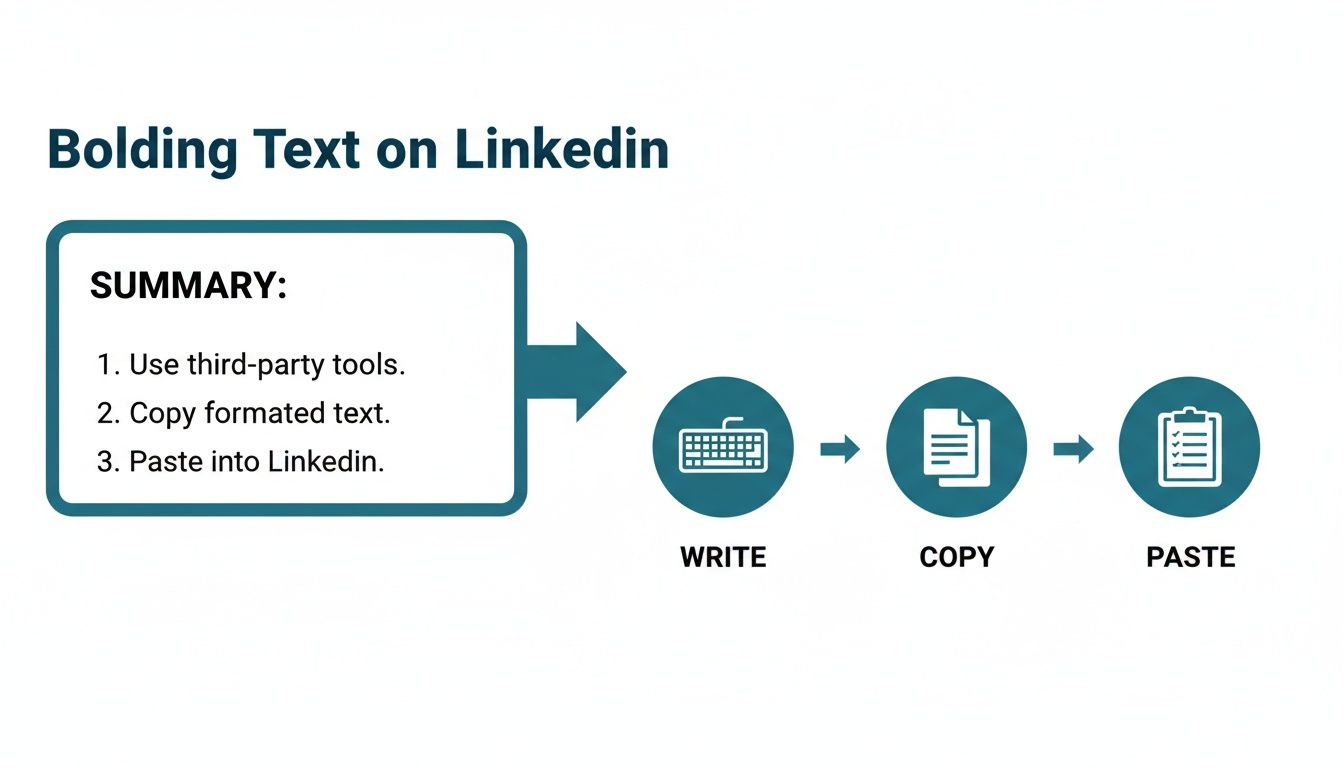
While the workflow is straightforward, the hidden tech means you need to be smart about which generator you use.
Why Accessibility and Reliability Matter
Visual glitches are one thing, but accessibility is a far more important concern. Screen readers, the software used by visually impaired professionals to navigate the web, often get completely tripped up by these Unicode characters. A screen reader might try to spell out each character individually or, even worse, just skip the text altogether, leaving a huge gap in your message.
So, how do you avoid these pitfalls? Look for a generator that checks these boxes:
- Uses widely supported Unicode: Your best bet is to stick with sans-serif bold styles. They are far more likely to display correctly across different devices than the more decorative or script-like fonts.
- Is reputable and secure: Only use well-known, trusted tools. You don’t want to be copying and pasting from a dodgy website.
- Has a simple, no-fuss interface: The goal is to format your text quickly and get back to creating content.
Comparing Unicode Bold Styles for LinkedIn
Not all “bold” Unicode is created equal. Some styles are more reliable than others, and your choice can impact how your audience experiences your content. This table breaks down some of the most common options you’ll find in online generators.
| Unicode Style | Appearance | Best For | Potential Issues |
|---|---|---|---|
| Mathematical Bold | Example Text | General use, high compatibility | Can sometimes be read aloud oddly by screen readers (e.g., “mathematical bold capital e”). |
| Sans-Serif Bold | 𝗘𝘅𝗮𝗺𝗽𝗹𝗲 𝗧𝗲𝘅𝘁 | Headings, call-to-actions, good cross-device support. | Widely supported but still not 100% universal on very old systems. |
| Serif Bold | 𝐄𝐱𝐚𝐦𝐩𝐥𝐞 𝐓𝐞𝐱𝐭 | More stylistic emphasis. | Slightly lower compatibility than sans-serif; can be harder to read in long sentences. |
| Bold Italic | Example Text | Adding extra emphasis to a single word. | Combines issues of both bold and italic styles; use sparingly. |
Ultimately, sticking with a clean, sans-serif bold style offers the best balance of visual impact and reliability. It ensures your text is readable and professional for the widest possible audience.
Choosing a reliable generator isn’t just a technical decision; it’s an act of inclusivity. It ensures your message lands clearly for everyone in your network, no matter what device or assistive technology they’re using.
By keeping these points in mind, you can use bold text strategically without compromising the user experience. For a tool that handles all of this for you, check out the built-in LinkedIn text formatter from Postline.ai.
Strategic Ways to Use Bold Text for Engagement
Knowing how to make your LinkedIn text bold is one thing, but the real secret lies in knowing when to use it. If you go overboard, your post just looks like a cluttered mess. But when you use it strategically, you can seriously boost readability and get people to actually engage with what you’ve written.
Think of bold text less like decoration and more like a signpost, guiding your reader’s eyes to the most important parts of your message.
One of the most powerful things you can do is bold the very first sentence. It acts as an instant hook that stops the scroll, making people curious enough to click that little “…see more” link. In a fast-moving feed, it’s often your only shot at grabbing someone’s attention.
Bolding is also your best friend when you need to highlight critical data points or statistics. A sentence like, “we saw a 45% increase in qualified leads,” just hits harder when that key number pops off the screen.
Highlighting Key Takeaways and Actions
Another brilliant way to use bold text is for your main takeaway or a clear call-to-action (CTA). After you’ve told a story or shared an insight, summarising the core lesson in bold helps it stick.
When it comes to your CTA, bolding phrases like “What are your thoughts?“ or “Download the guide here“ leaves no doubt about what you want your reader to do next. It’s a direct invitation to interact.
Just think about the audience in Germany, where LinkedIn’s user base is expected to hit 23.1 million by June 2025. Grabbing the attention of that professional network—which is 28.3% of the whole population—means your content has to be scannable and valuable. If you want to dive deeper into these figures, you can explore more detailed stats about German LinkedIn users on NapoleonCat. For more on this, check out our guide on https://postline.ai/blog/2/how-to-increase-linkedin-engagement.
Bolding isn’t just for emphasis; it’s a tool for clarity. It helps your audience quickly understand the value you’re offering and what you want them to do next, turning a passive reader into an active participant.
To see if your bolding strategy is actually working, it’s worth looking into social media monitoring tools that track LinkedIn engagement. At the end of the day, a little thoughtful formatting can turn a simple post into something that truly connects and delivers results.
A Better Workflow: Using an Integrated Formatter
Let’s be honest, toggling between your LinkedIn draft and a separate website just to make linkedin text bold is a real drag on your productivity. Every time you have to copy, paste, and switch tabs, you break your creative flow and open the door to formatting mistakes. It’s a clumsy, multi-step dance that serious creators just don’t have time for.
Now, picture this: you’re writing your post, and you can apply bold, italics, or other styles right there in the editor. No leaving the page, no extra steps. That’s exactly what an integrated tool like Postline.ai’s LinkedIn Formatter brings to the table. It puts the formatting tools right where you need them, making a tedious task a seamless part of your writing process.
Where Smart Formatting Meets AI Writing
Things get really interesting when you combine this convenience with smart AI. For example, Postline.ai’s Post Generator does more than just draft content—it automatically suggests and applies bolding to key phrases to make sure your post has maximum impact right from the start. It reads your message and intuitively highlights the words and ideas that will grab a reader’s attention.
What this means for you is a professionally formatted post without all the manual tweaking. The AI takes care of the strategic formatting, letting you stay focused on refining your message. By building formatting directly into your writing routine, you save a ton of time and know that every post is ready for peak engagement.
An integrated formatter removes the friction between writing and styling. It turns formatting from a chore you do at the end into a natural part of crafting compelling content.
To really get your system down, it helps to map out your entire https://postline.ai/blog/2/content-creation-workflow. And if you want to see how these tools fit into the bigger picture, you can explore a comprehensive guide to AI marketing tools that cover everything from writing to analytics. A smooth, efficient system is a huge advantage.
Your Questions About LinkedIn Bold Text, Answered
Once you start playing with text formatting on LinkedIn, a few questions naturally pop up. I hear them all the time. Getting the details right is key to making sure your content looks great without causing unintended problems.
Will Using Bold Text Hurt My Post’s Reach?
This is probably the most common question I get, and it’s a fair one. The short answer is no, not directly.
The LinkedIn algorithm doesn’t penalise your post just for using styled Unicode characters for bolding. What it does care about is genuine engagement – the likes, comments, and shares your content generates. If using bold text makes your key points stand out, improves readability, and encourages more people to interact, it can actually give your post a little boost.
How Does Bold Text Look on Mobile?
Another big concern is how your carefully crafted post will appear on a phone. Good news: for the most part, it looks just fine.
The standard sans-serif bold styles generated by most tools are supported across almost all modern devices and operating systems. That said, I always recommend a quick gut check. Before you hit “Post,” it’s worth a quick glance on your own phone to ensure none of your text shows up as weird empty boxes (we’ve all seen it happen).
What About Accessibility?
This is the most important consideration of all. As mentioned earlier, screen readers—the software used by professionals with visual impairments—can sometimes have a tough time with these non-standard Unicode characters. Instead of reading the word, they might spell it out letter-by-letter or skip it completely.
To make sure your content is inclusive and accessible to everyone, stick to these best practices:
- Be selective. Don’t bold entire paragraphs. Use it strategically for a single powerful statistic, a key phrase, or a call-to-action.
- Don’t rely on it. Your sentence should still make perfect sense even if the bolded part was invisible. The formatting should enhance the point, not be the only thing that makes it.
- Avoid fancy fonts. Those ornate, script-like Unicode fonts are the biggest culprits for causing issues. Stick to the clean, standard bold styles for maximum compatibility.
Your goal is to make your message clearer, not to build a wall around it. Thoughtful formatting shows you respect every single person in your audience, making your insights accessible to all. When you balance visual punch with accessibility, you create content that’s both effective and inclusive.
Ready to create perfectly formatted LinkedIn posts without all the copy-pasting? With Postline.ai, you can apply bold text, structure your content with hooks and calls-to-action, and schedule everything in one place. Stop juggling tabs and start creating content that gets noticed. Give Postline.ai a try today.

Run every client pipeline in one place
Give each LinkedIn profile its own voice, calendar, approval flow, and analytics. Start in minutes.
Start free trial