
Boost Your Reach With LinkedIn Open to Work
Boost recruiter visibility with LinkedIn Open to Work. Learn to optimize your profile, craft standout messages, and leverage automation for a faster job search.

LinkedIn Open To Work is a profile feature that adds a green badge or a private signal to your header. It flips your profile from a passive brochure into a bulletin for recruiters.
How LinkedIn Open To Work Signals Availability
Imagine a shop window lighting up with an “Open” sign. That small badge on your profile does exactly that, telling everyone you’re on the market.
This tweak feeds LinkedIn’s algorithm the right signals, so you rise in searches for roles that match your skills. Here’s what we’ll cover next:
- Choosing The Right Visibility Mode To Balance Discretion With Reach
- Specifying Job Titles, Locations And Start Dates For Laser-Focused Matches
- Weighing Benefits Like Higher Search Rankings Against Possible Trade-Offs
- Crafting Messages And Templates For Different Audiences
- Automating Outreach And Scheduling Posts With Postline.ai
In Germany, LinkedIn use among employers and recruiters has grown dramatically. Regional data and secondary studies show a strong professional penetration across Europe, shaping German hiring trends. You can explore those stats at SQ Magazine.
Tuning your Open To Work settings is as crucial as refining your CV. Next, we’ll show you how to switch this on from desktop and mobile, optimise your discoverability, sidestep local pitfalls and stay in sync with market expectations.
LinkedIn launched Open To Work in 2020 and saw uptake soar among people seeking jobs.
Since then, millions of professionals have used it to cut through the noise and land in front of hiring teams.
- Faster Discovery Through the LinkedIn Recruiter Platform
- Clear Signalling Of Role Preferences And Working Style
- Smarter Matches Driven By The Platform’s Algorithm
That simple badge becomes a potent career signal when you understand the context.
With those basics in place, we’ll walk you through choosing the right mode and fine-tuning your settings.
Up next: step-by-step setup instructions, a side-by-side comparison of the frame versus private signal and tactics for automating posts with Postline.ai.
Understanding Open to Work Signals
Imagine walking past a shop window and spotting a bright “Open” sign glowing inside. On LinkedIn, your Open to Work badge acts in exactly the same way. It tells recruiters right away that you’re ready for new opportunities.
You have two visibility modes to choose from: a public green photo frame or a private signal seen only by recruiters. Think of the photo frame as a neon billboard and the private signal as a discreet memo. Either way, you decide who gets the memo about your job search.
- Photo Frame wraps your profile picture in green and can lift your views by up to 73%.
- Private Signal Only keeps your search under the radar, sparking targeted conversations with hiring managers.
LinkedIn’s system treats both modes as flags, adjusting your ranking in search results accordingly. Recruiters using the paid LinkedIn Recruiter tool spot private signals first, while the green frame draws attention across your entire network.
For example, a mid-level software engineer switched on the public frame and saw a 150% jump in profile views within 48 hours. That spike led to three interview requests in just five days.
How Signals Influence Visibility
When you opt for recruiter-only, LinkedIn tags your profile behind the scenes. That hidden tag pushes you to the top of search results for hiring managers. According to industry data, this discreet cue can triple your response rate.
Different sectors and regions have their own norms. In privacy-sensitive fields, many professionals favour the recruiter-only option. In more open industries, a visible badge can spark conversations across a broader network.
“Choosing the right visibility mode is like picking the right tool for the job—it shapes recruiter behaviour from first glance.”
Below you’ll find an infographic that maps out when to use each setting based on your career stage and privacy needs.
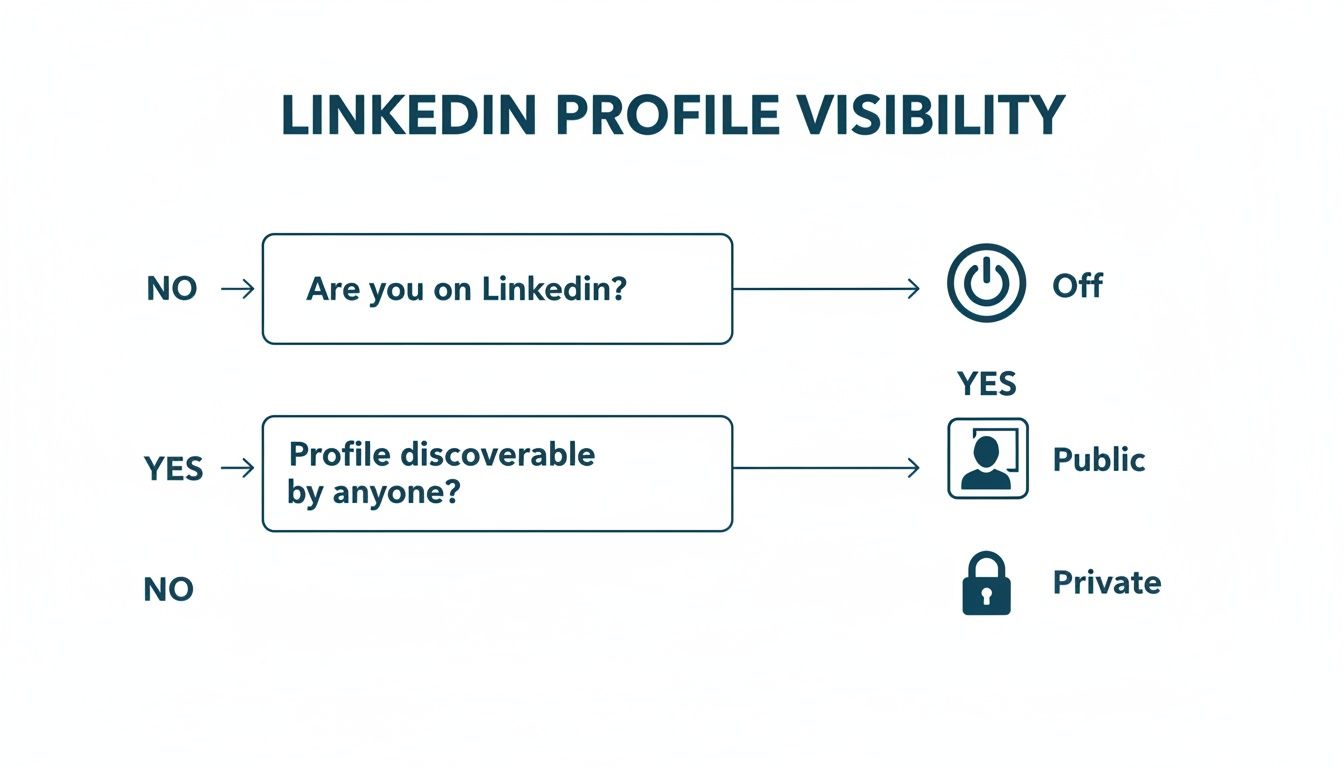
Comparison of Photo Frame versus Private Signal Modes
This table breaks down the key differences between the visible Open to Work photo frame and the private signal only visible to recruiters, helping readers choose the right mode for their goals.
| Feature | Photo Frame | Private Signal Only |
|---|---|---|
| Visibility | Public profile badge | Hidden to peers |
| Audience | Entire network | Recruiters with LinkedIn Recruiter |
| Privacy Level | Low | High |
| Recruiter Search Boost | Higher initial spike | Consistent targeted reach |
| Peer Perception | Very open | Discreet |
By comparing these modes side by side, you can decide whether broad visibility or discreet outreach aligns better with your job-hunting strategy.
Case Study Example
A junior marketing manager in Berlin chose the recruiter-only setting and watched her InMail responses jump by 200%. Within two weeks, she secured two interviews with top local firms.
This real-world scenario highlights how privacy and precision can work together to deliver results.
Maximising Recruiter Matches
Match your chosen mode with your career stage and industry expectations. Tech professionals often benefit from the public frame during hiring booms, while finance or legal experts may prefer a low-profile approach. Over time, testing both settings reveals which yields the best InMail response.
- Review recruiter feedback and network engagement to see if your mode is working.
- Rotate between public and private every quarter to compare response rates.
Initial Open To Work Setup
Getting your Open to Work signal live on LinkedIn is quick on both desktop and mobile. Follow these steps to activate and configure in just a few clicks.
On the LinkedIn desktop site, start by clicking your profile photo at the top right and selecting View Profile. Then hit Add Open to Work under your headline to open the setup panel.
- Click your Me icon at the top right.
- Select View Profile from the dropdown.
- Click Add Open to Work (or the pencil icon if it’s already active).
- Enter up to 5 job titles, preferred locations, and work types.
Desktop Configuration
Choose between the green frame or a recruiter-only notice to control who sees your status.
Under Visibility, pick Public or Recruiters Only depending on your privacy needs.
- Public: Your entire network spots the green badge.
- Recruiters Only: Only recruiters using LinkedIn Recruiter see you’re open.
Save all changes in one go to prevent any toggles from resetting. Pro Tip: Refresh your page afterwards to confirm your badge is live.
Set Up On Mobile
Open the LinkedIn app and tap your profile picture, then choose View Profile. Scroll to Open to and select Finding a new job.
Fill in the same job titles, locations, and work types you set on desktop. Finally, set visibility and tap Save at the top. This syncs across all your devices instantly.
Configuring settings in one go reduces misalignment between desktop and mobile.
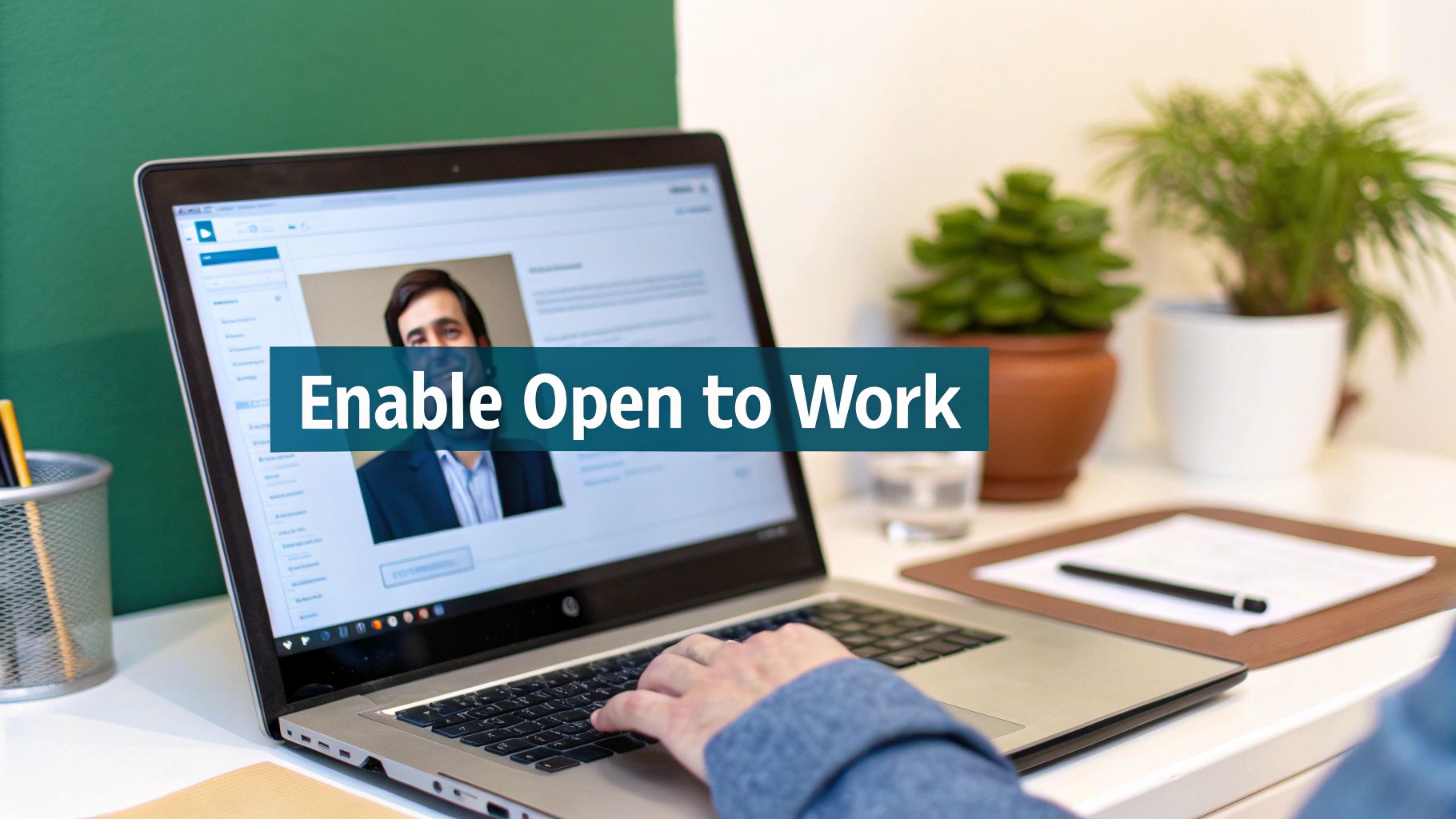
The screenshot above shows the Open to Work settings panel, letting you update job titles, locations, and work types within a single dashboard.
Hidden Mode Toggle
Need to switch off the public badge? Simply edit your Open to Work badge and set Visibility to Recruiters Only. This hides the green frame from peers but keeps recruiters in the loop.
Tips To Avoid Pitfalls
- Don’t save one field at a time—complete everything before tapping Save.
- Use job titles that match recruiter searches exactly.
- Confirm your choices with a quick profile refresh.
For a deeper dive on adjusting your work status, see our step-by-step guide.
Field Explanations
- Job Titles: Define the roles you want—this directly affects search results.
- Locations: Up to 5 areas ensure you show up in key markets.
- Start Date: Choose Immediately or Flexible to set recruiter expectations.
- Work Types: Let recruiters know if you prefer On-site, Hybrid, or Remote.
- Employment Types: Select Full-time, Part-time, Contract, or Internship for precise filtering.
Save Best Practices
- Double-check all entries to avoid typos.
- Save settings in one session to prevent partial updates.
- Refresh your profile to see the badge or private signal.
- Reopen the panel if any field resets unexpectedly.
Ready For Recruiters
Once you’ve saved, your profile will broadcast availability or silently alert recruiters. Over the next week, watch your profile metrics to see how visibility boosts your reach.
Final Review
Refresh and view your profile as others would. Confirm the green badge or hidden signal appears exactly where you expect. Your profile is now fully primed for recruiters—happy job hunting!
Pros and Cons Of Open To Work
Enabling the Open to Work badge on LinkedIn is like lighting up a neon sign over your profile. Recruiters spot it immediately and often respond faster. Yet, it can also flood your inbox with generic messages and even carry a tinge of stigma in certain fields.
Benefits Of Open To Work
- Higher Profile Views: Profiles with a public badge attract up to 80% more recruiter visits.
- Search Ranking Boost: You pop up in a wider range of relevant job queries.
- InMail Response Increase: Recruiters are 2x more likely to send a message when they see your availability.
- Early Trend Indicator: A surge in badges can preview hiring waves before official reports arrive.
These perks make it easier to shine during peak hiring seasons and zero in on the roles you want. Next, let’s balance that excitement with a look at the potential downsides.
Drawbacks To Consider
-
Generic Outreach
Increased visibility often leads to broad, untargeted InMails that drain your time. -
Signal Fatigue
Recruiters exposed to countless badges may start skimming past yours. -
Industry Stigma
In finance or consulting, a public badge can be read as desperation rather than enthusiasm.
Germany’s labour market data from Destatis (2016 to January 2023) shows how closely LinkedIn signals can track official hiring trends. Visit Destatis for details.
Key Insight
Recruiter signals on LinkedIn often shift before official employment numbers move.
When To Use Or Hide The Badge
| Scenario | Use Public Badge | Opt For Private Signal |
|---|---|---|
| High-Demand Season | Broad exposure in Q1 and Q3 hiring booms | Keeps search discreet in niche fields |
| Stealth Job Search | Risky if your current employer checks | Prevents signalling to colleagues |
| Early Market Indicator | Signals trend pickup to recruiters | Lets you test interest quietly |
This table helps you decide when to broadcast your status and when to stay low-key.
Check out our guide on how to look at LinkedIn profiles privately for tips on a stealthy job search.
Best Practices For Timing The Badge
- Switch it on at the start of Q1 when new budgets roll out in January.
- Hide it in late Q4 to avoid holiday slowdowns and recruiter backlogs.
- In Q2 and Q3, toggle between public and private modes to gauge recruiter response before summer breaks.
Keep an eye on weekly metrics—profile views, message quality and response rates—to fine-tune your schedule and visibility settings.
Key Takeaways For Your Strategy
- Match your badge setting to your career goals for sharper recruiter matches.
- Compare public versus private signals over time to discover what brings better leads.
- Watch labour-market indicators to anticipate hiring surges and plan your badge activations.
- Review response metrics monthly and update your job preferences for ongoing relevance.
Crafting and scheduling your badge announcement with Postline.ai ensures you post when engagement peaks.
Seasonal Hiring Patterns
In Germany, hiring often spikes in spring and autumn. Activating your badge in March or September taps directly into these busy recruitment cycles.
Happy job hunting ahead.
Messaging Best Practices And Templates
Consider your opening message as your personal elevator pitch. It needs to grab attention in a heartbeat. Keep it concise, genuine and stamped with your personality.
Below you’ll find three scripts designed to start meaningful conversations with recruiters, alumni and hiring managers. Each snippet includes timing tips, a clear call to action and spots for customisation.
- Recruiter Outreach: Sharp subject line, mention of your Open To Work tag and a straightforward next step.
- Alumni Network: Lean on shared experiences to spark curiosity.
- Hiring Manager Follow-up: Circle back with thanks and fresh project highlights.
Timing can make all the difference. Aim to send recruiter messages early in the week, alumni notes around mid-week and follow-ups to hiring managers shortly after interviews or updates.
“Personalisation increases response rates by 43% when you mention a mutual connection or recent project.”
Use these templates as a starting point. Then mould them to reflect your story and voice.
Check out our guide on message outreach to recruiters on LinkedIn for extra tips: Learn more about messaging recruiters on LinkedIn.
Template Examples
Recruiter Outreach Template
- Subject line uses the exact job title from your Open To Work settings for easy matching.
- First sentence flags your LinkedIn Open To Work status without overselling.
- Drop in a note about a recent job posting or a shared connection.
- Close with a clear CTA: suggest a brief 15-minute call or offer two next-step options.
Alumni Network Template
- Start with your common alma mater to build rapport.
- Weave in your Open To Work status by saying you’re exploring new chapters.
- Offer a quick insight on a trend you both care about.
- End with an invite for coffee (in person or virtual).
Hiring Manager Follow-Up Template
- Remind them of your last chat or interview date.
- Share a short update on a relevant project or achievement.
- Ask if they have further questions or next steps to discuss.
- Offer to send work samples or case studies in a click.
Best Practices For Messaging
- Tailor every note to the recipient’s role and projects.
- Skip overused openers like “hope you are well”; aim for fresh intros.
- Keep it under 150 words—recruiters often spend just 30 seconds per message.
- End with two CTAs to lower the hurdle for a reply.
Personalisation isn’t optional. It’s the ticket to being noticed.
The right subject line boosts open rates by 46% and can be the difference between read and ignored.
Always view your draft through the recipient’s lens. Follow up consistently—without crossing into pushy territory.
| Template Type | Best Timing | Key Personalisation |
|---|---|---|
| Recruiter | Tue–Wed 9–11 am | Role match, Open To Work |
| Alumni | Lunch 12–2 pm | Shared alma mater |
| Hiring Manager | 48 hrs post-interview | Project update |
Integrate Postline Ai Into Workflow
Draft, polish and schedule your outreach with Postline.ai to save hours each week. The tool suggests tweaks that still sound like you.
- Step 1: Paste your draft into Postline.ai’s prompt field.
- Step 2: Review grammar, tone and personalisation cues.
- Step 3: Schedule messages at optimal times based on analytics.
This routine cuts down on errors and ensures your follow-ups land exactly when they should.
Using AI to polish messages can improve response quality by 25%, according to industry insights.
Marry Postline.ai’s suggestions with thoughtful timing and you’ll see better engagement.
Common Mistakes To Avoid
- Generic subject lines will bury your message in a noisy inbox.
- Mass-sending the same note without customisation can hurt your reputation.
- Ignoring follow-up etiquette makes you seem impatient.
Test different angles and always respect the recipient’s time.
Subject Line Strategies
Think of the subject line as a shop sign that beckons recruiters in. When referencing LinkedIn Open To Work, clarity is key.
Blend the role, company and a touch of personalisation for maximum impact. For example:
‘Marketing Lead at Siemens – Hello Maria’
Craft Follow-Up Cadence
A simple plan pairs your initial message with two follow-ups at 3- and 7-day intervals. Keep each note concise, restate your open status and close with a polite alternative CTA.
Monitor responses, tweak your approach and watch your outreach succeed.
Integrate Postline Ai Into Your Workflow
Bringing Postline.ai into your LinkedIn Open to Work routine lets you draft outreach posts in minutes without losing your personal voice. Simply paste a rough version of your elevator pitch and let the tool refine tone, grammar and style nuances.
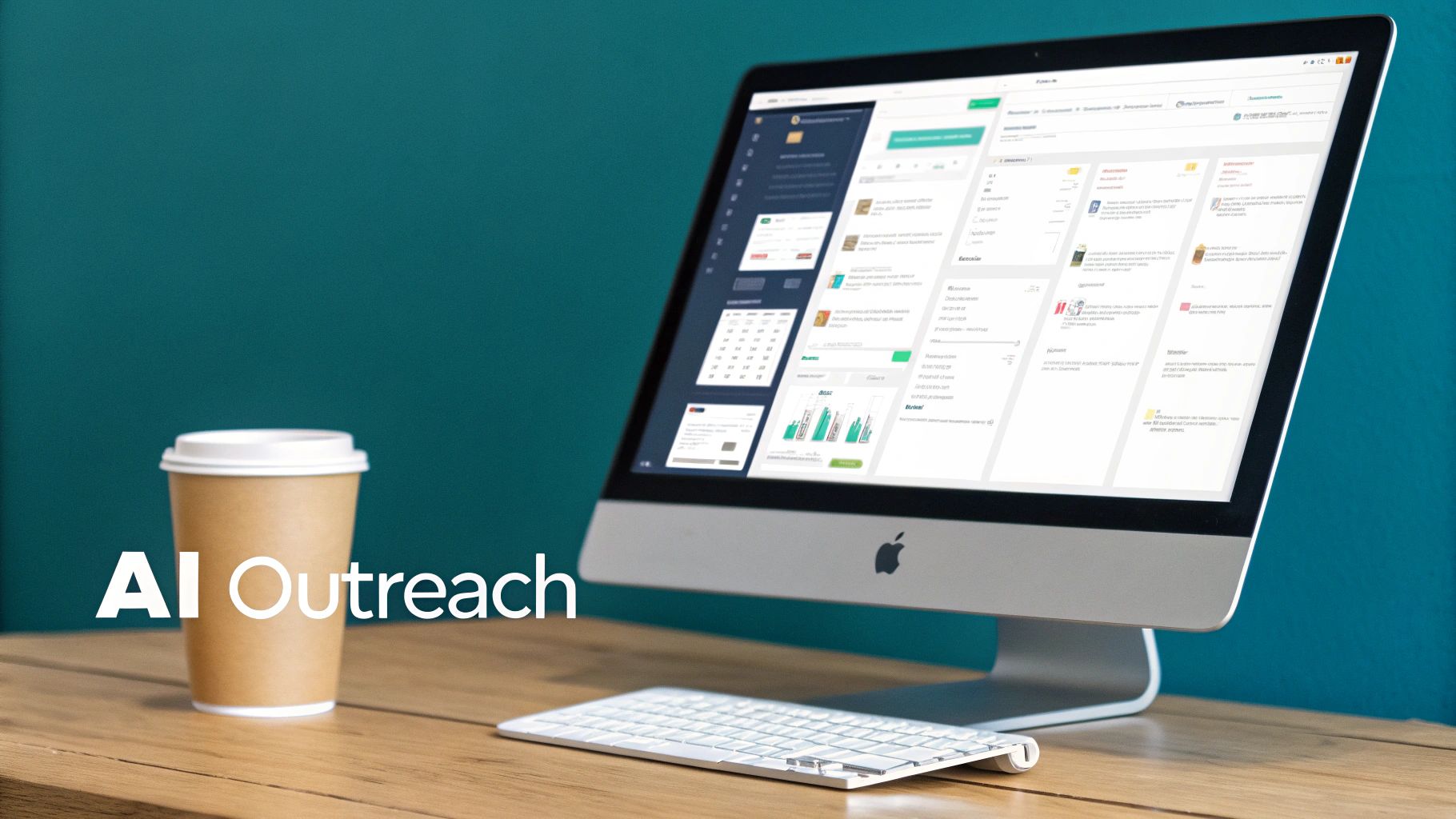
- Step 1: Feed your base message into the prompt field for initial suggestions.
- Step 2: Review tone and grammar edits in the history panel to keep your authentic voice.
- Step 3: Schedule posts during peak recruiter hours, using analytics insights.
Step By Step Workflow
Begin by logging into your Postline.ai dashboard and locating the prompt field. Add details from your LinkedIn Open to Work preferences so the AI understands context.
- Paste your draft into the prompt and click Generate.
- Scan through suggestions and pick edits that match your style.
- Use the built-in calendar to set send times when recruiters are most likely online.
These steps can shave hours off manual drafting and make your posting cadence reliable.
“Postline.ai helped me cut content creation time by 50% while still sounding like myself,” says recruiter Anna Meyer.
Blend Human Warmth With AI Efficiency
After AI polishing, insert a personal anecdote or highlight a recent achievement. Mentioning a shared LinkedIn group or a recent project makes each post feel genuinely yours.
- Tip Analyse which AI suggestions you accept most to fine-tune future prompts.
- Tip Label drafts by theme—such as “Industry Insight” or “Skill Showcase”—to stay organised.
- Tip Tag key contacts so your posts land in their feeds and spark quicker engagement.
Scheduling around recruiter peak hours increases visibility when inboxes are fresh. Postline.ai’s analytics will recommend slots based on past performance. Always check local German time zones to avoid off-peak posting.
Monitor And Refine Your Strategy
Set aside time each week to review metrics like post reach, comments and click-through rates. If certain phrases drive more InMail inquiries, weave those into your next draft.
You can also run A/B tests within Postline.ai to compare two versions of the same message:
| Metric | Version A | Version B |
|---|---|---|
| Reach | 1,200 | 1,450 |
| Comments | 45 | 60 |
| Click-Through Rate | 4.2% | 5.1% |
- Log your findings in a simple spreadsheet for quick reference.
- Export detailed reports from Postline.ai to spot emerging trends.
- Update your job titles and preferred locations each quarter.
Over time, these insights will guide you to prompts that consistently capture your ideal tone and structure.
Check out Postline.ai for all details.
Integrating this link ensures you have seamless access to your AI writing assistant whenever you need to craft or schedule posts. By blending your own anecdotes with AI suggestions, your LinkedIn Open to Work updates will stand out in recruiters’ feeds.
- Automate draft creation, but review every suggestion.
- Schedule posts for early mornings or late afternoons.
- Respond promptly to recruiter replies.
Pair Postline.ai scheduling with LinkedIn analytics to optimise timing each month. This continuous cycle of writing, editing and scheduling builds momentum in your job search—so you can focus on networking and interviews instead of drafting repetitive messages.
Frequently Asked Questions
This section tackles the most common questions about LinkedIn Open to Work so you can optimise your visibility and safeguard your privacy. Each answer includes practical steps and pointers to additional resources.
What Happens When I Switch To Private Signal Only
When you choose recruiter-only mode, LinkedIn removes the familiar green photo frame. That means your peers won’t pick up on your job hunt, but recruiters using LinkedIn Recruiter will still see your availability.
Even behind the scenes, your profile ranking gets a gentle lift in targeted searches.
How Do I Update My Open To Work Preferences Across Devices
Your Open to Work settings sync across desktop and mobile instantly via LinkedIn’s cloud. To make sure everything saves correctly:
- Make all edits in a single session on either your desktop or your phone
- Wait for the confirmation message before navigating away
- Refresh your browser or app to verify the changes
This approach prevents any partial updates or conflicting statuses.
Will Using Open To Work Hurt My Professional Brand
In most sectors, that green badge reads as “proactive” rather than “desperate.” If you’re worried about perceptions, switch to private mode and lean on compelling project highlights to showcase your strengths.
You keep a polished profile while still signalling you’re open to new roles.
What Metrics Should I Track To Measure Open To Work Effectiveness
Focus on these three core metrics:
- Profile views
- InMail response rates
- New connection requests
Track weekly trends before and after you activate the badge to see real impact. Also, pay attention to the quality of outreach by comparing personalised messages against generic ones.
“Switching between public and private modes lets you test what resonates best with recruiters and peers,” says career coach Douglas Meyer.
Below is a quick comparison table of key metrics to track and tools to use.
| Metric | Before Badge | After Badge |
|---|---|---|
| Views | Baseline | Increase |
| InMail | x% response | y% response |
| Requests | z per week | z+∆ per week |
Use these insights to refine your messaging cadence and timing.
Streamline your LinkedIn outreach? Try Postline.ai at Postline.ai

Run every client pipeline in one place
Give each LinkedIn profile its own voice, calendar, approval flow, and analytics. Start in minutes.
Start free trial