
Mastering the Link in LinkedIn Post to Maximize Engagement
Tired of your link in LinkedIn post falling flat? Learn how to strategically place, optimize, and track links to drive real traffic and boost engagement.
Ever shared a link on LinkedIn only to watch it get almost zero reach? It’s a common frustration, and it’s not just in your head. LinkedIn’s algorithm is built to keep people on LinkedIn, so it naturally pushes down posts that send users elsewhere. To drive traffic without killing your visibility, you have to be strategic.
Why Your LinkedIn Link Strategy Is Falling Flat
We’ve all been there: you write a great post, share a link to an amazing resource, and then… crickets. The engagement is abysmal. The problem is baked into the platform’s business model. LinkedIn makes its money when users stick around, scrolling and interacting with content on the site.
When you post an external link, you’re basically showing your audience the exit door. This puts your goal (getting traffic to your website) in direct conflict with LinkedIn’s goal (keeping users on the platform). The algorithm usually resolves this by burying your post, showing it to just a tiny slice of your network. It’s a recipe for disappointment.
Understanding the Algorithm’s Bias
Think of your LinkedIn feed as a carefully curated gallery. The algorithm is the curator, picking and choosing which pieces of art—which posts—will get the best placement to keep visitors engaged. A text-only story, a document carousel, or a native video are “safe” bets for the algorithm because the entire experience happens right there on LinkedIn.
An external link, on the other hand, is a gamble. It’s a potential exit point. To get around this, you need a smarter approach than just copying and pasting a URL. The trick is to provide so much value in the post itself that the algorithm sees it as high-quality, while also making the click-through absolutely irresistible. You have to learn to work with the algorithm, not against it.
This guide goes way beyond the basics to give you tactics that actually work. We’ll get into:
- The right way to add links so they look professional and clean.
- The great debate: Should the link go in the post or the first comment?
- Smarter optimisations, like using URL shorteners and UTM tracking.
- Proven templates for everything from promoting a blog post to getting event sign-ups.
Master these techniques, and you can transform your LinkedIn from a dead-end into a powerful source of quality traffic. Your links will finally start doing what you want them to do: deliver real, measurable results.
How to Properly Add a Link to Your LinkedIn Post
On the surface, adding a link to your LinkedIn post seems straightforward. But how you do it can be the difference between a professional-looking post that gets clicks and one that looks messy and gets ignored.
Let’s break down the mechanics, starting with the most direct approach.
When you copy and paste a URL into the post composer, LinkedIn works its magic and generates a preview card. This card pulls in a title, a short description, and an image from the webpage, giving your audience a sneak peek of where you’re sending them.
Here’s the pro move: once that preview card appears, you can actually delete the raw URL text from your post. The preview card stays put, and the whole thing becomes a clickable element. This one small tweak instantly cleans up your post and makes it look far more polished.
Gaining More Creative Control
But what if that automatic preview is… underwhelming? Or what if you have a killer visual you’d rather use? This is where you can ditch the default preview and take full creative control.
The trick is to upload your own media first.
- Start with a custom image or video. This becomes the main visual for your post, grabbing way more attention than a standard, often generic, link preview ever could.
- Write your post copy. Build context and curiosity around the visual you just uploaded. This is your chance to tell a story or highlight a key takeaway.
- Drop the link right into the text. Instead of letting LinkedIn generate a preview, you’re simply including the URL within the body of your post.
Key Takeaway: By uploading your own media, you command the visual narrative. This lets you use a powerful custom graphic or a snappy video clip, then add the link in your LinkedIn post as a clear call-to-action. You get the clicks without being stuck with a boring preview.
For example, instead of letting LinkedIn pull a generic header image from a blog post, you could share a striking infographic that summarises one key statistic. Then, in the copy, you’d add the link and invite people to “see the full analysis”. This method often boosts engagement because the algorithm loves native media, and you still get to drive traffic to your website.
The Great Debate: Link in the Post Body vs. the First Comment
Where should you put your link on LinkedIn? This is probably one of the most heated debates among creators. It’s a classic standoff: user experience on one side, and a long-held belief about pleasing the algorithm on the other. Let’s cut through the noise and figure out what actually works.
For years, the go-to advice was to drop your link in the first comment. The logic seemed solid: if you don’t put an external link in the post itself, the algorithm treats it as native content and gives it a better initial push. This tactic was designed to rack up likes and comments before you sneakily directed people off the platform.
This method definitely forces a certain kind of engagement. Anyone who wants the link has to go find your comment, which signals to the algorithm that people are interacting. But let’s be honest, it’s also a bit of a pain for the reader. That extra click creates friction, and that’s a real downside.
Prioritising a Clear User Journey
Placing the link directly in your post body is all about making things easy for your audience. It’s the clearest, most direct route from your content to wherever you want to send them—be it a blog post, a product page, or a newsletter sign-up. No hunting, no scrolling. The call-to-action is right there.
While many creators still worry about the algorithm penalising external links, LinkedIn has pretty much debunked this as a myth. The truth is, high-quality content that includes a relevant, valuable link can perform exceptionally well.
Our Take: If your main goal is to drive immediate, high-intent traffic, put the link in the post body. Don’t make your most interested followers work to find what you’re offering. Make it easy for them to take that next step.
To give you a clearer picture, here’s a side-by-side comparison of the two approaches.
Link in Post vs. Link in First Comment Comparison
| Feature | Link in Post Body | Link in First Comment |
|---|---|---|
| User Experience | Excellent. Seamless, one-click journey for the user. | Poor. Adds friction; users have to search for the link. |
| Initial Reach | Potentially lower if the content isn’t compelling enough to overcome the link. | Potentially higher, as the algorithm might favour “native” content initially. |
| Engagement Type | Focuses on clicks and conversions. Engagement is based on content quality. | Encourages comments like “link please,” which can feel artificial. |
| Best For | Driving direct traffic, promoting offers, sharing articles, lead generation. | Sparking initial discussion, testing algorithm theories. |
| Downsides | Some believe it’s deprioritised by the algorithm. | Can frustrate users and looks spammy if not done well. |
Ultimately, there’s no single “right” answer—it all comes back to your objective. Are you chasing broad visibility and conversation, or are you focused on getting targeted clicks and conversions?
Speaking of performance, compelling research shows just how much engagement can vary. For instance, in the EMEA region, sponsored updates hit a 4.05% conversion rate, and posts shared by employees saw 8 times more engagement. Understanding these nuances can help you decide on the best strategy.
Your choice of where to place a link should directly support your primary goal for that post. To get a better grasp on all the factors that play into your content’s reach, I highly recommend reading our detailed guide on how to improve your LinkedIn post visibility. It’ll help you make a more informed decision every time you post.
Optimising Your Links for Clicks and Tracking
Just dropping a link into your post is half the battle. To really make an impact, you need to make that link work for you. That means making it clean, compelling, and—most importantly—trackable.
A great first step is using a URL shortener like Bitly or Rebrandly. These tools take a long, messy URL and turn it into a short, tidy link. It not only looks more professional but also saves you precious character space. That simple aesthetic tweak can make your call-to-action feel much more approachable.
The Power of UTM Tracking
Beyond just looking good, the real magic happens when you can track your link’s performance. This is where UTM parameters come in. Think of them as simple tags you add to your URL that tell your analytics tools exactly where your traffic is coming from.
For instance, a standard UTM-tracked link would look something like this:
yourwebsite.com/blog-post?utm_source=linkedin&utm_medium=social&utm_campaign=q3_blog_launch
This string of code tells you the click came from LinkedIn (the source), through a social post (the medium), and was part of your specific Q3 blog launch campaign. This kind of data is invaluable for proving ROI.
Suddenly, you can see precisely how your LinkedIn efforts translate into website traffic, leads, or even sales. It turns your posts from simple updates into measurable assets. If you want to dive deeper into connecting this data, our guide on understanding LinkedIn post analytics is the perfect next step.
This decision tree gives you a great visual for figuring out whether your goal is better served by putting the link directly in the post for immediate clicks or in the comments to potentially boost reach.
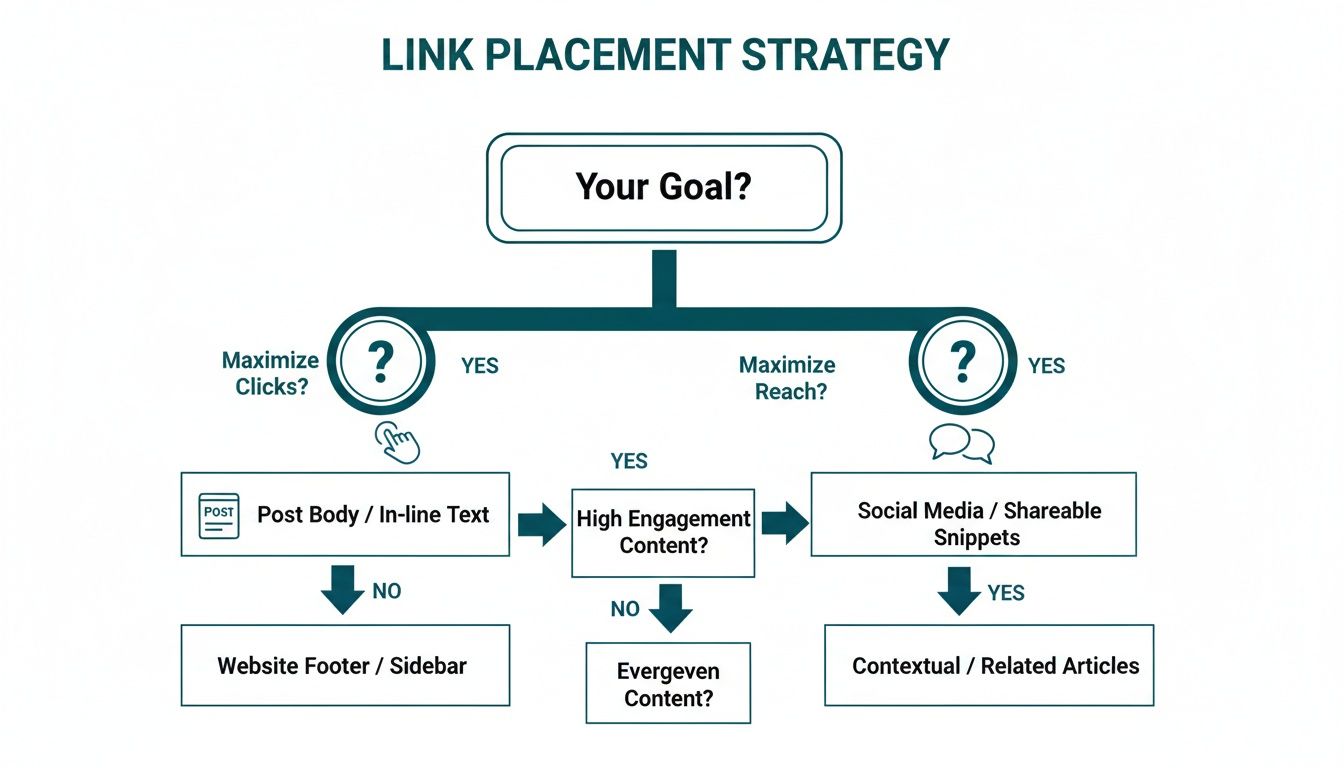
The key takeaway here is that your link strategy should always be driven by your goals, not by old myths about the algorithm. To really drive those clicks, you need to pair a well-placed link with a powerful prompt. For a deeper look at that, check out these tips to boost conversions with strong calls to action.
How to Fix Common Link Preview Problems
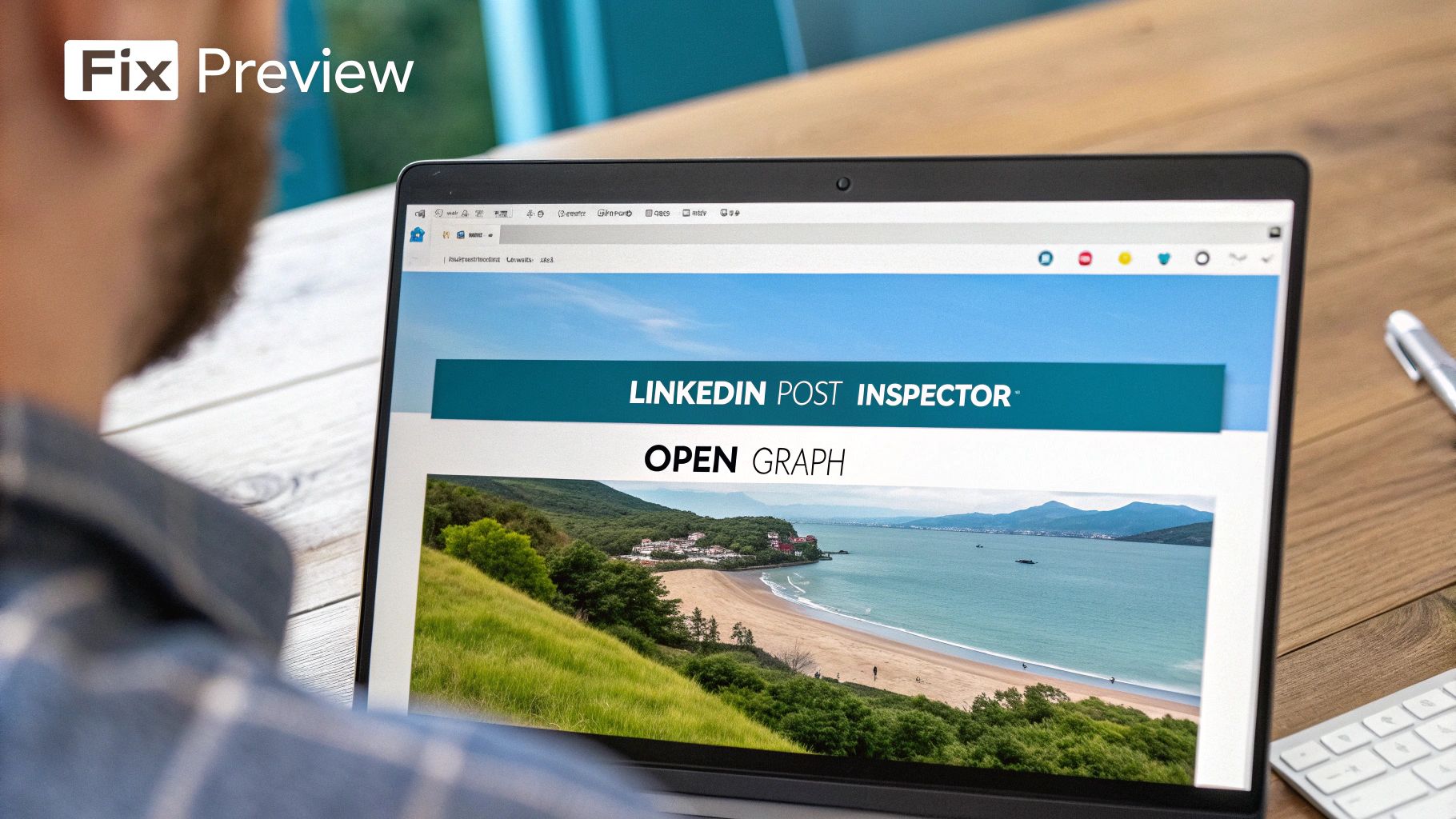
There’s nothing worse than pasting a link into a carefully crafted post, only for the preview to break or show an old, ugly thumbnail. We’ve all been there. A post with “Cannot display preview” looks sloppy and tanks your click-through rate before anyone even reads your caption.
So, what’s the culprit? Almost every time, it comes down to something called Open Graph (OG) tags. These are little bits of code on the webpage you’re linking to. They tell social platforms like LinkedIn which title, description, and image to pull for the preview card. If they’re missing or wrong, LinkedIn gets confused.
Using the LinkedIn Post Inspector
Luckily, LinkedIn gives us a free tool to sort this out: the Post Inspector. Think of it as a magic refresh button for your link previews.
Here’s what you do:
- Head over to the LinkedIn Post Inspector.
- Pop your URL into the search bar.
- Hit “Inspect.”
The tool scrapes your page and shows you exactly what information it’s pulling for the preview. Even better, it forces LinkedIn to clear its cache and grab the very latest version of your page’s data.
Pro Tip: I make it a habit to run every single link through the Post Inspector before I even think about publishing. This way, I know for a fact that any recent updates to a blog post’s featured image or title will show up correctly. It’s a simple step that guarantees a perfect preview every time.
If you want to get really granular and make your visuals stand out, our guide on optimising your LinkedIn link preview card is a must-read. Mastering these small technical details is what ensures every link in a LinkedIn post you share looks professional and gets the clicks it deserves.
Real-World Scenarios and Proven Templates
Theory is great, but seeing how it works in the wild is what really makes things click. Let’s shift gears from concepts to concrete examples with a few templates you can steal and adapt for your own use. Think of these as frameworks to help you craft a more effective link in a LinkedIn post right away.
The common thread in each of these is a strong hook, just enough context, and a crystal-clear call-to-action (CTA).
Template for Sharing a New Blog Post
This is probably one of the most common reasons to share a link: driving traffic to your latest article. Instead of just dropping a link with “New post!”, try this approach.
- Hook: Kick things off with a provocative question or a surprising statistic you pulled from the article. Something like, “Did you know that 75% of projects fail for the same avoidable reason?”
- Context: Briefly touch on the problem your article digs into. You’re not summarising the whole piece, just mentioning one or two key takeaways the reader will get.
- CTA with Link: End with a direct invitation. “I break down the full strategy to prevent this in my latest article. Have a read here: [your link]”
Template for Promoting a Webinar
When you’re promoting a webinar, you need to build a bit of urgency and show the value upfront. This structure works like a charm.
- Hook: Lead with the end result. “Imagine closing deals 30% faster next quarter. We’re showing you how.”
- Context: Give a quick rundown of what attendees will actually learn. Use bullet points to make it scannable—list out 2-3 specific skills or insights they’ll walk away with.
- CTA with Link: Make the next step obvious. “Seats are limited. Register for our free webinar on [Date] to secure your spot: [your link]”
The trick is to sell the value of the click, not just the link itself. With Germany’s LinkedIn audience growing by 16.7% in a single year to over 21 million members, your posts are fighting for attention in a very busy space. You have to make your value proposition impossible to scroll past. Learn more about Germany’s digital trends.
Of course, these are just starting points. The best posts take these frameworks and infuse them with a unique industry perspective and a personal voice. If you’re looking for more inspiration, we’ve put together a whole collection of ready-to-use LinkedIn post templates that cover a ton of different professional scenarios.
Burning Questions About LinkedIn Links
Let’s tackle some of those nagging questions that pop up right before you hit ‘Post’. Here are the quick, no-fluff answers to the most common queries I hear about sharing links on LinkedIn.
Can I Just Edit My Post and Add a Link Later?
Technically, yes. But you really shouldn’t.
The LinkedIn algorithm gives your post its main push in the first few hours after it goes live. If you circle back to edit it—especially to shoehorn in an external link—you risk resetting its momentum. The algorithm often re-evaluates edited posts, and not always in your favour. It’s always best to get that link in there from the start.
What’s the Perfect Image Size for a Link Preview?
Aim for 1200 x 627 pixels.
This 1.91:1 ratio is the sweet spot. It ensures your image looks sharp and professional across both desktop and mobile, without any awkward or unflattering crops. First impressions count, and a crisp preview image makes a world of difference.
Do URL Shorteners Like Bitly Hurt My Reach?
Not at all. There’s zero evidence that using a reputable link shortener like Bitly harms your post’s reach.
These tools are standard practice for branding your links and tracking clicks. The LinkedIn algorithm treats them just like any other external link, so feel free to use them for cleaner, trackable URLs.
When you’re scheduling, keep your audience in mind. In Germany, the biggest user group on LinkedIn is the 25-34 cohort, which includes 7.8 million people. To get in front of them, think about posting on Tuesdays and Wednesdays around 10 am. You can find more detailed LinkedIn demographics for Germany here.
Ready to create standout LinkedIn content without all the guesswork? Postline.ai uses smart AI and real-time research to help you craft engaging posts in minutes. You can schedule a whole week of content that sounds just like you—only better. Start writing with Postline.ai.

Run every client pipeline in one place
Give each LinkedIn profile its own voice, calendar, approval flow, and analytics. Start in minutes.
Start free trial