
Mastering the Link in LinkedIn to Boost Your Engagement
Discover how to strategically use a link in LinkedIn. Our guide shows you how to optimize links in your profile, posts, and articles to drive real traffic.
A well-placed link in linkedin is your secret weapon. It’s a direct bridge connecting your profile to potential clients, future employers, and interesting collaborators. Think of it less as a simple URL and more as a strategic tool, designed to pull passive profile viewers into your world and turn them into active leads.
Why Your Link in LinkedIn Is a Business Superpower
Let’s be real: just having a LinkedIn profile doesn’t cut it anymore. To make an impact, you need to transform it into a dynamic hub that’s constantly working for you. Every single link you share is like a digital handshake, inviting someone to see your portfolio, read your insights, or book a quick chat. It’s how you turn a static CV into a lead-generation machine.
By placing links strategically, you’re not just listing accomplishments; you’re actively guiding your audience. You’re showing, not just telling. This simple, proactive step is what makes you stand out in a sea of profiles and builds genuine professional authority.
Turn Views into Opportunities
Your main goal? Make every click count. Each link needs a clear purpose that ladders up to a bigger business objective. What can a single link do?
- Drive traffic straight to your company website, latest blog post, or creative portfolio.
- Generate leads by pointing people to a contact form or a valuable free download.
- Build authority when you share insightful articles, detailed case studies, or in-depth white papers.
- Expand your network with compelling content that makes people want to connect.
This visual shows exactly how an optimised profile can become the central command for your entire professional brand.
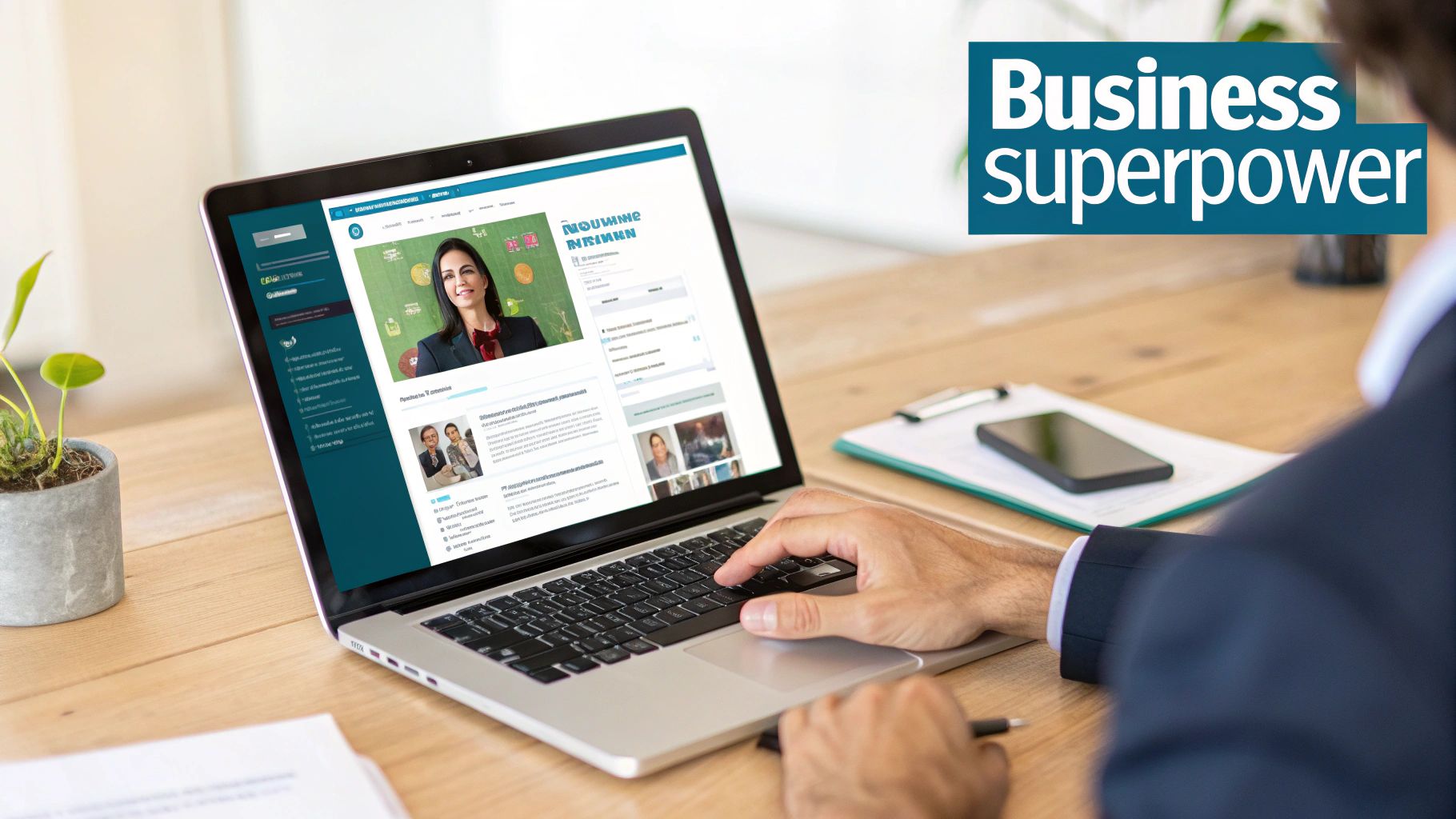
Notice how links in the intro and Featured sections are used to immediately pull visitors towards important external pages.
The real power of a link on LinkedIn is its ability to shorten the distance between introduction and conversion. It’s the fastest way to move a connection from passive interest to active engagement.
This is particularly true in economically powerful regions. Take the DACH region (Germany, Austria, and Switzerland), for example, where LinkedIn boasts over 19 million members. Hiring trends on the platform there closely reflect official labour market data, showing just how integrated it is into the professional world.
This vibrant ecosystem turns every link into a potential business deal. When you learn how to generate leads on LinkedIn, you’re tapping directly into this massive user base. Using your links smartly also sharpens your ability at effectively building career connections and growing your professional circle.
Placing Links Across Your Profile for Maximum Impact
Think of your LinkedIn profile as more than just a digital CV. It’s a dynamic landing page, and if you play your cards right, it can drive serious traffic. This means being strategic about where you place links, guiding visitors to your most valuable content. Every section is prime real estate with a unique chance to grab attention and earn a click.
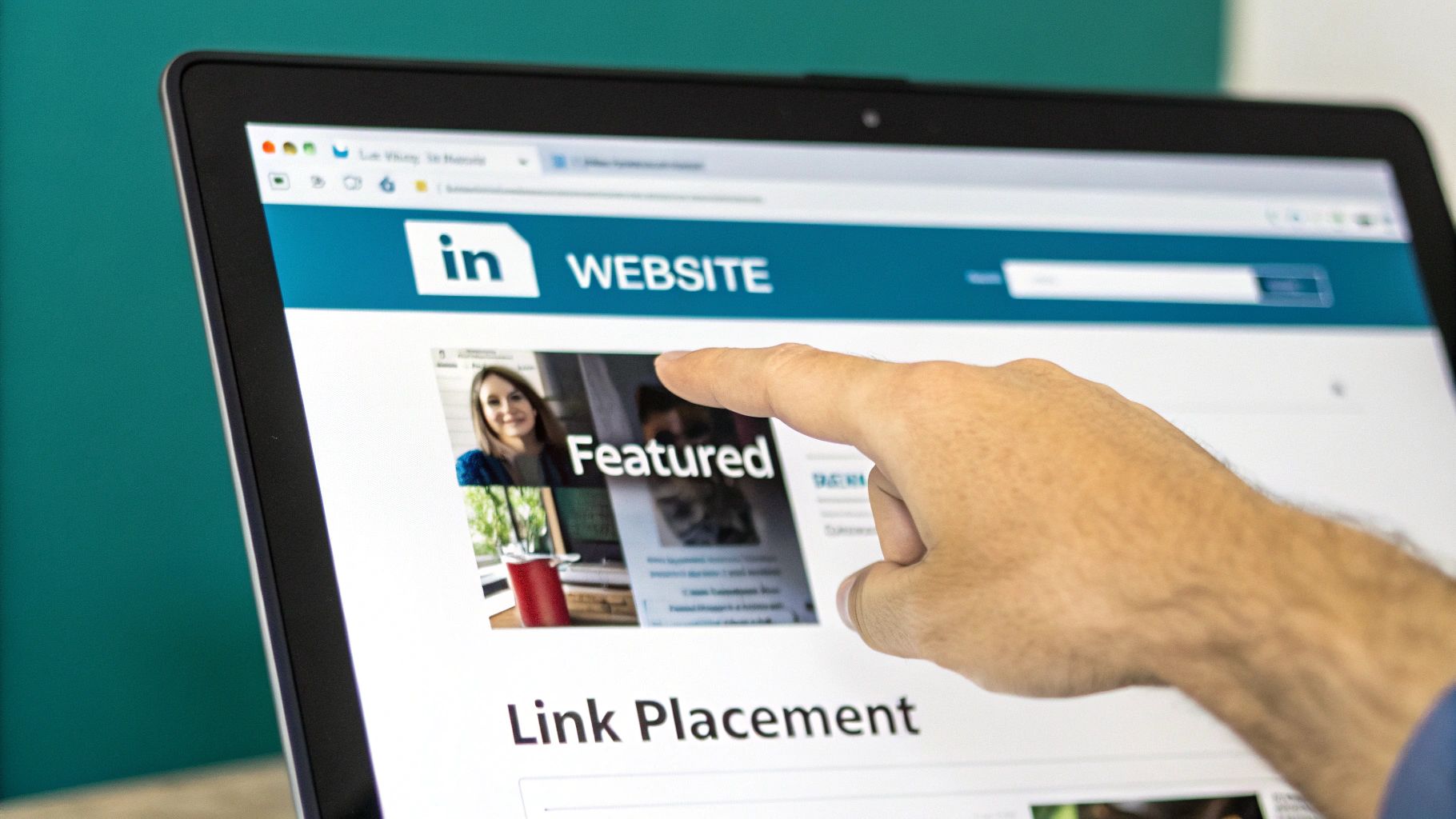
This kind of strategic thinking is vital in active professional markets. Take Switzerland, for example, where LinkedIn’s user base shot up to 5.3 million from 4.5 million in just one year. That explosion in growth shows just how essential a well-placed link in linkedin has become for professionals, especially in a high-income hub where decision-makers are constantly active. You can read more about Switzerland’s LinkedIn growth here.
To help you visualise this, here’s a quick breakdown of the best spots on your personal profile to add links and how to make the most of them.
Where to Place Your Links on a LinkedIn Profile
| Profile Location | Primary Purpose | Optimisation Tip |
|---|---|---|
| Profile Intro | Driving a single, high-priority action | Customise the link text with a strong call-to-action (CTA) instead of the default “My Website.” |
| Featured Section | Showcasing your best work and top content | Curate a visual portfolio of case studies, popular articles, or videos—your greatest hits. |
| Experience Section | Providing tangible proof of your achievements | Embed links to specific projects, product pages, or press mentions directly in your job descriptions. |
Each of these locations serves a different purpose, but together, they create a powerful, interconnected hub that guides visitors exactly where you want them to go. Let’s dig into how to set them up.
Customise Your Main Profile Link
Right in your intro section, LinkedIn gives you one spot for a prominent website link. Too many people just paste their company’s homepage URL and call it a day. Honestly, that’s a massive missed opportunity for a powerful call-to-action (CTA).
Instead of using generic link text like “My Website,” get descriptive and make it compelling. This tiny tweak turns a passive link into an active invitation.
- For Consultants: Try something like “Book a Free 15-Min Consultation”
- For Authors: How about “Download My Free Ebook”?
- For Freelancers: Something like “View My Portfolio of Work” works wonders.
This customisation tells people exactly what they’ll get when they click, which dramatically increases the odds they actually will.
Showcase Your Best Work in the Featured Section
The Featured section is your personal billboard. It sits right near the top of your profile and lets you visually highlight posts, articles, media, and, of course, external links. This is the perfect spot to pin your greatest hits—the content that truly shows off your expertise and value.
Don’t just link to your homepage here. Instead, think of it as a curated gallery of your most impactful assets:
- A killer case study that shows real client results.
- A link to your most-read blog post or an article you had published.
- Your speaker reel or a recording of a popular webinar.
Think of your Featured section as a mini-portfolio. It should instantly answer the question, “What’s the most important thing I want a visitor to see?” Curate it carefully to tell a powerful story about what you can do.
Before you start adding links all over the place, it’s worth double-checking that your public profile is set up correctly. You can check out our guide on how to get your LinkedIn URL to make sure it’s clean, professional, and easy to share.
Embed Proof in Your Experience Section
Every single entry in your Experience section is another chance to add a contextual link in linkedin. This is where you can back up your claims with tangible proof.
Did you lead a project that got a write-up in the news? Link to the article. Did you help launch a new product? Link directly to the product page.
Adding these links right inside your job descriptions adds a layer of credibility that text alone just can’t match. It lets recruiters and potential clients see your work in action, turning your experience list from a simple resume into an interactive, verifiable record of your career.
Creating Posts and Articles That Drive Clicks
Sharing a link on LinkedIn isn’t a one-size-fits-all game. Your strategy for a quick, punchy post should be completely different from how you approach a long-form article. Each format serves a unique purpose, and understanding those nuances is the secret to turning your content into a consistent source of traffic.
Posts are built for immediate engagement and sparking conversations in the feed. Articles, on the other hand, are your chance to establish deep expertise and provide lasting value. Let’s break down how to handle a link in linkedin for both.
The Great Post Debate: Link in Post vs. First Comment
One of the most persistent debates among LinkedIn creators is where to actually put your link. Should it go directly in the post body, or is it better to drop it in the first comment?
For years, the common wisdom was that LinkedIn’s algorithm penalised posts with external links, throttling their reach to keep users on the platform. While the algorithm is always in flux, many creators still swear they see better initial traction by tucking the link away in the comments.
But there’s a trade-off. A link in the comments adds friction. Your reader has to actively hunt for it, and that extra step can absolutely tank your click-through rate.
So, what’s the right move? Test it yourself. There’s no universal answer here.
- Week 1: Put all your links directly in the post body. Track your impressions, engagement, and of course, your click-throughs.
- Week 2: Switch it up. Place every link in the first comment and compare the data.
Your audience’s behaviour is the only truth you need. Ultimately, the goal is to write copy so compelling that people want to find your link, no matter where you hide it.
Crafting Compelling Copy for Clicks
A link without context is just noise. If you want people to click, you have to build curiosity and clearly spell out the value hiding behind that URL. You need to make clicking feel like the obvious next step.
Start with a strong hook that stops the scroll, then give them some context. Don’t just say, “Read my new blog post.” That’s boring. Instead, pull out a surprising statistic, a controversial opinion, or a key takeaway from your piece. Give them a reason to care before you ask them to click.
Your post copy is the sales pitch for your link. If the pitch is flat or confusing, nobody is going to click, regardless of where the link is. Focus on starting a conversation first, then offer the link as the next step.
Also, pay attention to how your link preview looks. A broken or ugly preview can kill your click-through rate before you even get started. Make sure you know how to optimise your LinkedIn link preview card so it always looks professional and enticing.
Embedding Links in Long-Form Articles
LinkedIn Articles offer a completely different canvas. Unlike short-form posts, articles are the perfect place to embed multiple, contextual links that add depth and credibility to your writing. Here, links aren’t a distraction; they’re a valuable part of the reader’s journey.
When you’re writing an article, weave your links in naturally to:
- Cite sources and data: Back up what you’re saying by linking to original research or reports.
- Promote other content: Point readers to your own related blog posts, case studies, or portfolio pieces.
- Define concepts: If you mention a specific tool or methodology, link to a resource that explains it in more detail.
The trick is to use descriptive anchor text. Instead of a lazy “click here,” write something like, “Our recent study on user engagement showed a significant trend…” This approach is miles better for both readability and SEO, turning your articles into powerful, long-term assets for driving targeted traffic.
Advanced Strategies to Optimise Every Link You Share
Dropping a link into a post is easy. But if you want to see real, measurable returns from your efforts, you need to think a bit more strategically. It’s time to move beyond just sharing URLs and start treating every link as a data point.
This means tracking what works, cleaning up how your links appear, and writing calls-to-action that genuinely persuade people to click. When you get this right, you shift from just “sharing stuff” to building a predictable marketing channel.
The first step? Figuring out where your traffic is actually coming from. It’s one thing to see a spike in website visits, but it’s another to know with certainty that it came from the specific LinkedIn post you shared on Tuesday morning.
Demystify Your Traffic with UTM Parameters
This is where UTM parameters come in. They’re just little tags you add to the end of a URL. Don’t worry, they don’t change the destination page. What they do is feed crucial data into your analytics tools, like Google Analytics, telling you exactly which link, on which post, drove a specific visitor to your site.
Setting them up is simpler than it sounds. A standard UTM-tagged link usually has three core components:
-
Source (
utm_source): The platform sending the traffic. For our purposes, this will always belinkedin. -
Medium (
utm_medium): The marketing channel. This could besocial,organic, orpost. -
Campaign (
utm_campaign): The name for your specific effort, likeq4_ebook_launchorweekly_newsletter.
By using these tags consistently, you can finally answer questions like, “Did the link in my Featured section or my latest post drive more sign-ups?” This data is gold. Once you’re gathering this info, you can export data from LinkedIn Analytics to Excel for even deeper analysis and reporting.
Use Link Shorteners for Cleaner, Trustworthy URLs
Long, clunky URLs, especially those packed with UTM codes, can look messy and even a little sketchy in a LinkedIn post. That’s where link shorteners save the day. Tools like Bitly or Rebrandly not only tidy up your links but also come with their own handy click-tracking analytics.
Even better, using a custom branded short domain (like yourbrand.co/promo) reinforces your brand identity and has been shown to increase click-through rates by up to 34%. It’s simple, really. A clean, branded link just feels safer and more professional than a long string of random characters. If you want a more complete look at managing your content flow, check out this ultimate guide to scheduling LinkedIn posts.
A shortened, branded link does more than save space. It builds trust. In a feed full of noise, a clean and recognisable URL is a signal of professionalism that encourages clicks.
Craft Powerful Calls to Action
Putting a great link out there with a weak call-to-action (CTA) is a huge missed opportunity. Your CTA is the text that surrounds your link, the words that actually compel your audience to act. It needs to be direct, benefit-driven, and solve a specific problem.
Ditch generic phrases like “Click here.” They’re lazy and uninspiring. Instead, focus on the value you’re offering.
- Weak CTA: “Check out my new guide.”
- Strong CTA: “Ready to save 5 hours a week? Download my free productivity guide.”
See the difference? The stronger CTA works because it clearly articulates the benefit for the reader. It connects the action (clicking) with a desirable outcome (saving time). Always frame your CTA around what your audience will get, not just what you want them to do. This subtle shift makes all the difference.
Solving Common and Frustrating LinkedIn Link Issues
We’ve all been there. You craft the perfect post, drop in your link, and the preview is a total mess—wrong image, an old title, or worse, just a blank box. These little glitches instantly make your content look unprofessional and can kill clicks before anyone even reads your first sentence.
The good news? Most of these problems are surprisingly easy to fix. They usually come down to simple caching issues or tiny formatting mistakes. Think of this as your go-to manual for making sure every single link in linkedin you share looks and works exactly the way you want it to.
The Magic of the Post Inspector
When a link preview is broken, the culprit is almost always LinkedIn’s cache. The first time a link is shared, LinkedIn saves a version of its preview data. If you go back and update your webpage’s image or title, LinkedIn will stubbornly keep showing the old, cached version.
To fix this, you need to force a refresh. This is where LinkedIn’s own free tool, the Post Inspector, becomes your best friend. Just paste your URL into the inspector, hit the button, and it will pull the latest version of your page’s metadata—title, description, and preview image. This one move solves the vast majority of preview problems.
A broken link preview is a trust-killer. Before you post, always run your URL through the Post Inspector to ensure it looks clean, professional, and accurately represents your content. It’s a two-second check that can save you a lot of headaches.
Handling Incorrectly Flagged Links
Every now and then, you might find that a perfectly safe link gets flagged by LinkedIn as potentially unsafe. This tends to happen with links from newer or less common domains. It’s usually just an automated protective measure getting it wrong. Don’t panic.
First, quickly double-check the URL for any typos or weird characters that might be setting off the filter. If the link is correct, you can report the issue directly to LinkedIn’s support team. Just give them the URL and explain that it’s been flagged by mistake. It might take a little time, but their team can review the link and get it whitelisted.
This flowchart maps out a simple process for optimising every link you share.
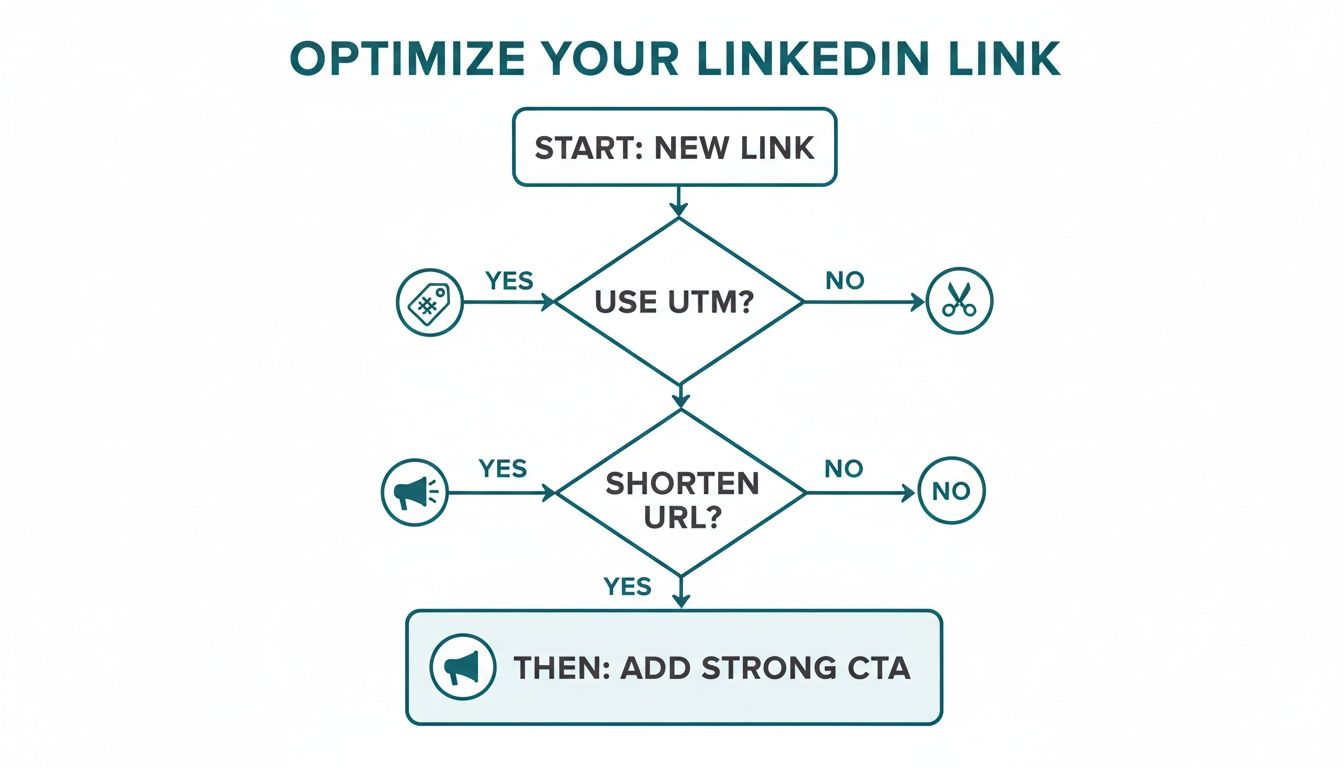
As you can see, whether you use UTMs or a link shortener, a strong call-to-action is the non-negotiable final step for driving results.
Spotting Simple URL Formatting Errors
Sometimes the problem isn’t some deep technical glitch; it’s just a simple typo. Before you start pulling your hair out, always run through these quick checks:
- Extra Spaces: Did an accidental space sneak in at the beginning or end of your URL when you pasted it?
-
Complete URL: Have you copied the whole thing, including the
https://at the start? - Broken Characters: Look for any odd characters or encoding issues that might have popped up during the copy-paste.
These tiny errors are surprisingly common and will completely break your link. A quick proofread of the URL itself is often the fastest fix.
Answering Your Top Questions About LinkedIn Links
Even when you’ve got the basics down, a few tricky questions always seem to pop up. Let’s tackle some of the most common ones I hear from professionals trying to get every bit of value out of the links in linkedin they share. We’ll cut through some of the persistent myths and get straight to the practical solutions.
Does Putting a Link in the First Comment Still Work?
Ah, the classic LinkedIn debate. This whole strategy started from a long-held belief that the algorithm punishes posts with external links in the main text because it wants to keep users on the platform.
While the algorithm is always in flux, plenty of people still swear they see better initial reach by dropping the link in the first comment. But here’s the trade-off: this tactic creates friction. You’re making your audience hunt for the link, which can seriously hurt your click-through rate.
My advice? A/B test it for your own audience. Don’t just follow the crowd. Try each method for a week and let your own data tell you what works. At the end of the day, a genuinely engaging post will get clicks no matter where you put the link.
How Can I Add a Link to My Video or Image Post?
This is a common point of confusion. You can’t actually embed a clickable hyperlink directly into an image or video file on LinkedIn. The link has to live in the post text that goes along with your media.
To make it work, you need to place the URL prominently in your post’s description. A simple emoji like ‘👇’ or ‘➡️’ can work wonders to visually guide your reader’s eyes right to it. If you’re creating a video, it’s also a great idea to verbally mention the link and remind viewers to check the description. It just reinforces that call-to-action.
A common mistake is just assuming people will find the link. You have to be explicit. Always spell out your call-to-action and make your link impossible to miss, especially in media-rich posts where the visuals are the main event.
Why Does My Link Preview Show the Wrong Information?
This is almost always a caching issue. The first time a link is shared on LinkedIn, the platform grabs the metadata—the title, image, and description—and saves it. If you go back and update that webpage later, LinkedIn often clings to the old, cached version it already has stored.
The fix is simple: you need to force a refresh using LinkedIn’s official Post Inspector tool.
- Head over to the Post Inspector.
- Paste your URL into the field.
- Hit the “Inspect” button.
This tells LinkedIn to re-crawl your page and grab the latest info, which will update the preview for all future shares. It’s also a good habit to ensure your webpage’s Open Graph tags (like og:title and og:image) are set up correctly in the first place for more consistent results.
Ready to create standout LinkedIn content without the guesswork? Postline.ai combines powerful AI writing with real-time research to help you craft and schedule posts that sound like you and get results. Stop staring at a blank screen and start building your authority today. Explore how Postline.ai can transform your LinkedIn strategy.

Run every client pipeline in one place
Give each LinkedIn profile its own voice, calendar, approval flow, and analytics. Start in minutes.
Start free trial