
Master the carousel post linkedin: 2024 Edition
Unlock a high-impact carousel post linkedin strategy with design tips, copy, specs, and AI tools to boost engagement.

A carousel post on LinkedIn is a seriously effective way to share multiple images or document slides in one go. Think of it as a mini-presentation or a visual story that lives right in the feed, built to stop the scroll and get people clicking.
Why LinkedIn Carousels Drive Unmatched Engagement

Before we get into the nuts and bolts of how to make one, it’s worth understanding why they work so well. What is it about a carousel that makes it a powerhouse for likes, comments, and shares compared to a simple image or text update?
The magic is in a mix of how the platform works and a little bit of human psychology.
The multi-slide format practically begs for interaction. Every swipe is a small action from your audience, keeping them glued to your post for longer. This increased dwell time is a massive green flag for the LinkedIn algorithm. It sees people sticking around and rewards your content with more visibility. It’s a simple, powerful cycle: more engagement signals value, which leads to more reach.
The Psychology of the Swipe
A carousel flips the script on passive scrolling. Suddenly, your audience is part of the action. It creates a natural curiosity—a little “story loop”—that makes people want to swipe just to see what’s next. This makes your content feel more like a conversation and less like a billboard.
You can use this to your advantage to:
- Break down complex ideas: Turn a tricky concept into a series of simple, easy-to-digest slides.
- Tell a compelling story: Walk your audience through a case study, showing the journey from problem to solution.
- Share genuinely useful tips: Offer a list of actionable advice or a step-by-step guide that people can use right away.
- Build your authority: Share unique industry data or sharp analysis to show you really know your stuff.
Carousels are just one piece of the puzzle, but they fit perfectly within broader strategies for boosting professional presence and engagement on LinkedIn.
To see just how much of a difference the right format makes, let’s look at how carousels stack up against other post types.
LinkedIn Post Format Engagement Snapshot
The numbers don’t lie. While every format has its place, carousels consistently punch above their weight when it comes to getting people to interact. This quick snapshot shows you why they’re a go-to for so many top creators on the platform.
| Post Format | Average Engagement Rate | Best For |
|---|---|---|
| Carousel Posts | ~3-5% | Storytelling, tutorials, data visualisation |
| Video Posts | ~2-4% | Behind-the-scenes, interviews, product demos |
| Single Image Posts | ~1-3% | Announcements, quotes, event photos |
| Text-Only Posts | ~0.5-2% | Personal stories, industry commentary, questions |
As you can see, the interactive nature of carousels often translates directly into higher engagement, making them a fantastic choice for content designed to educate and inspire.
Data-Backed Performance
The performance gap isn’t just a hunch; the data backs it up completely. Industry reports from early 2025 showed that carousel posts in Germany hit an average engagement rate of 24.42%. For comparison, standard text posts hovered around just 6.67%. That’s a massive difference, and it proves just how well this format grabs and holds attention.
By leaning into storytelling and strong visuals, a good carousel does more than just share information—it creates an experience. That’s how you stop the scroll and start real conversations on a busy network like LinkedIn.
Ultimately, carousels work because they tap into how we consume content today: visually, interactively, and in bite-sized pieces. If you’re ready to explore more ways to hook your audience, check out our deep dive on how to increase LinkedIn engagement. This is how top accounts generate meaningful discussions, not just passive views.
Getting the Technical Details Right
Even the most brilliant idea for a LinkedIn carousel can fall completely flat if you trip up on the technicals. Blurry text, awkwardly cropped images, or frustrating upload errors can instantly shatter your credibility.
It’s best to think of these specs not as rigid rules, but as the foundation for a professional, smooth experience for anyone swiping through your content.
While you might see older advice out there talking about individual images, the most reliable and modern way to build a carousel is with a document upload. LinkedIn has really optimised this feature, making it the clear winner.
Choosing Your File Format
Forget about trying to juggle a bunch of separate JPGs or PNGs. The go-to format for a carousel post on LinkedIn these days is a PDF. It has become the unofficial standard for good reason: it locks in your fonts, layouts, and image quality perfectly on every slide.
This guarantees a consistent, polished look from start to finish.
You can also use other formats:
- PPT/PPTX: PowerPoint files work just fine and can be uploaded directly from your computer.
- DOC/DOCX: Word documents are also supported, though they can be a bit trickier to work with if you’re aiming for a highly visual, design-heavy carousel.
But honestly, for maximum control and peace of mind, exporting your final design as a PDF is the way to go. It’s a simple step that prevents any nasty surprises with formatting shifts, ensuring what you designed is exactly what your audience sees.
Sizing and Dimensions for Impact
To make your carousel look sharp and grab attention on both desktop and mobile, getting the dimensions right is non-negotiable. The two best options are square and vertical. Choosing the right aspect ratio is crucial for readability and making your visuals pop. If you want to dive deeper, you can learn more about perfecting your LinkedIn post images size.
Here’s a quick reference to set up your design canvas:
- Square (1:1 Ratio): Go with 1080 x 1080 pixels. This is a classic, versatile size that always looks clean and balanced in the feed.
- Vertical (4:5 Ratio): Use 1080 x 1350 pixels. This format takes up more vertical screen real estate, which is a massive advantage for stopping the scroll, especially on mobile.
LinkedIn’s own guidelines for document uploads spell out the key technical limits you need to know.
The screenshot confirms a max file size of 100MB and a huge slide limit of 300 pages. Now, you’d probably never create a 300-slide carousel, but this gives you total freedom to create incredibly detailed, valuable content without bumping into technical walls. Sticking to these guidelines ensures your carousel uploads without a single hitch.
Designing Carousels That Stop the Scroll
 Once you’ve got the technical details sorted, it’s time for the fun part: turning your raw ideas into a visual story that people actually want to read. A truly effective carousel post on LinkedIn isn’t just a slide deck. It’s a journey, carefully designed to grab someone’s attention and hold it until the very last slide.
Your design is the first—and honestly, the best—shot you have at stopping someone from scrolling right past your post. It needs to look sharp, feel engaging, and pull the reader’s eye from one slide to the next without them even thinking about it.
Crafting a Powerful First Slide
Think of your opening slide as the most important piece of real estate in your entire carousel. It’s your headline, your book cover, and your first impression all rolled into one. If it doesn’t immediately hook someone and promise something valuable, they’re gone. You’ve lost the swipe.
To really nail it, you need to lead with a bold statement, a question that makes people think, or a shocking statistic that hits on a major pain point for your audience. It’s exactly like the opening line of a great article; its only job is to create enough curiosity to earn that next swipe.
For instance, ditch a boring title like “Marketing Tips.” Instead, go for something specific and punchy, like “The 3 Marketing Mistakes Costing You Leads Today.” See the difference? It immediately creates urgency and makes your content feel relevant.
Maintaining Visual Consistency
Consistency is what makes a design look professional instead of like a jumbled, amateur mess. Every single slide needs to feel like part of the same story. This creates a smooth, cohesive experience that’s easy on the eyes.
“Consistency is what engages users. Use the same design language, colour palette, and font for all the slides. We’ve found that consistent-looking carousels have higher completion rates than inconsistent-looking carousels.” - Luca Dal Zotto, Co-founder at Rent a Mac
Before you even start designing, get your branding guidelines straight:
- Colour Palette: Stick to your core brand colours. Using them consistently doesn’t just look good; it builds brand recognition with every swipe.
- Typography: Pick one or two fonts that are dead simple to read and stick with them. Decide on specific sizes for your headings and body text and don’t deviate.
- Layout: Keep the structure of your slides similar. When you put your logo, page numbers, or main headings in the same spot on each slide, you create a familiar rhythm that makes the content easier to follow.
This kind of organised approach isn’t just about looking good. It actually makes it easier for your audience to process the information you’re sharing.
Encouraging the Next Swipe
A great carousel doesn’t just sit there waiting to be swiped; it actively encourages it. You have to give your audience little visual nudges that tell them there’s more good stuff coming. It’s surprising how a few subtle design tricks can keep people moving forward.
Think about adding visual cues that point the way. Simple things like arrows pointing right, a progress bar ticking along the bottom, or even an unfinished sentence that cleverly breaks off at the edge of the slide can work wonders.
Another killer technique is using split images. Place a graphic or a photo so it gets cut off by the edge of the slide. This creates what’s called an “open loop.” The human brain is wired to want to see the whole picture, which practically forces people to swipe just to satisfy that curiosity. It’s a simple trick that turns a passive scroll into an active, engaging experience.
Writing Copy That Connects and Converts
Great visuals are what stop the scroll, but it’s the copy that truly seals the deal. Your words are the engine of your carousel post on LinkedIn, turning passive viewers into genuinely interested followers. The trick is to blend clarity with impact, both on the slides themselves and in the main post that tees everything up.
Each slide in your carousel should be laser-focused on one single, powerful idea. Trying to cram too much onto a single slide is a guaranteed way to overwhelm your audience and lose them before they get to the end. Think of it like a conversation; you wouldn’t throw five different topics at someone all at once. Keep it sharp and to the point.
This approach forces you to be concise, making your message far easier for people to digest. A confused mind never swipes.
Structuring Your Carousel Narrative
Every great carousel tells a story, even if it’s a short one. To guide your audience effectively, your copy needs a clear beginning, middle, and end.
This narrative structure usually follows a simple but powerful pattern:
- The Hook (First Slide): Grab their attention immediately. Lead with a bold claim, a surprising statistic, or a problem your audience knows all too well. Its only job is to spark enough curiosity to earn that first swipe.
- The Value (Middle Slides): This is the heart of your carousel. Deliver on the promise you made in your hook with actionable tips, insightful data, or a clear step-by-step breakdown.
- The Action (Final Slide): Don’t leave them hanging. End with a clear and compelling call-to-action (CTA). Tell your audience exactly what you want them to do next—leave a comment, visit your website, or follow your page.
A great carousel post doesn’t just present information; it builds a case. Each slide should logically flow from the last, building momentum toward the one thing you want the reader to do.
Crafting the Main Post Copy
That chunk of text above your carousel? It’s just as crucial as the slides themselves. This is your prime real estate to add context, set the stage, and convince people your carousel is worth their time. Never treat it as an afterthought.
A great way to use this space is to pose a thought-provoking question that your carousel answers. For instance, instead of a flat “Here are some productivity tips,” try asking, “What if you could save 5 hours every week with three simple changes?” See how that immediately frames the value? This is just one of many powerful LinkedIn post writing tips that can seriously boost your engagement.
Finally, give your post the reach it deserves by adding 3-5 relevant hashtags. I find a mix of broad industry tags (like #Marketing) and more niche, specific ones (like #ContentStrategyTips) works best to attract the right kind of attention. Your main copy and hashtags are a team—they work together to get your carousel in front of the people who need to see it most.
Using AI to Create Carousels Faster
Let’s be honest, putting together a really good carousel post on LinkedIn from scratch can be a huge time sink. You’ve got the research, the copywriting, and then designing each slide one by one. But this is where modern AI tools are changing the game, helping you get from a rough idea to a polished draft in minutes without skimping on quality.
Platforms like Postline.ai essentially become your creative sidekick. You can start with something as simple as a prompt, a link to a blog post, or even a YouTube video. The AI will then break down the source material and whip up a complete, multi-slide carousel draft. It’ll even include a hook, several value-packed middle slides, and a clear call-to-action.
This completely sidesteps that dreaded “blank page” problem that stalls so many of us. Instead of building everything from the ground up, your job shifts to refining and tweaking the AI’s output. It’s a much smarter and faster way to work.
From AI Draft to Polished Post
The real magic happens when you collaborate with the AI. Think of the initial draft as your starting point, not the finished article. From there, you can quickly edit the text, sprinkle in your own unique expertise and personal stories, and make sure the tone of voice is a perfect match for your brand.
The AI does the heavy lifting—structuring the content and getting the initial ideas down. This frees you up to focus on adding the human touch that makes your content truly connect with people. Many of these tools are also designed to think like content marketers, so the drafts they produce are already optimised for engagement right out of the gate.
The goal of AI isn’t to replace your creativity; it’s to accelerate it. By automating the foundational steps of carousel creation, you can spend more time on high-level strategy and adding the personal insights that only you can provide.
Tools like Postline.ai bring this entire workflow together on a single platform. For a deeper dive into how these tools operate, check out our guide on finding the best LinkedIn post generator for your needs.
Streamlining the Entire Workflow
Beyond just writing the copy, AI platforms can help with the whole carousel production line. They can help you schedule your finished carousel to go live at peak engagement times, making sure it reaches the biggest possible audience. This kind of end-to-end support turns a once-manual chore into a slick, repeatable system.
This diagram breaks down the core elements of great carousel copy. It all starts with a strong hook, delivers clear value, and finishes with a decisive call to action.
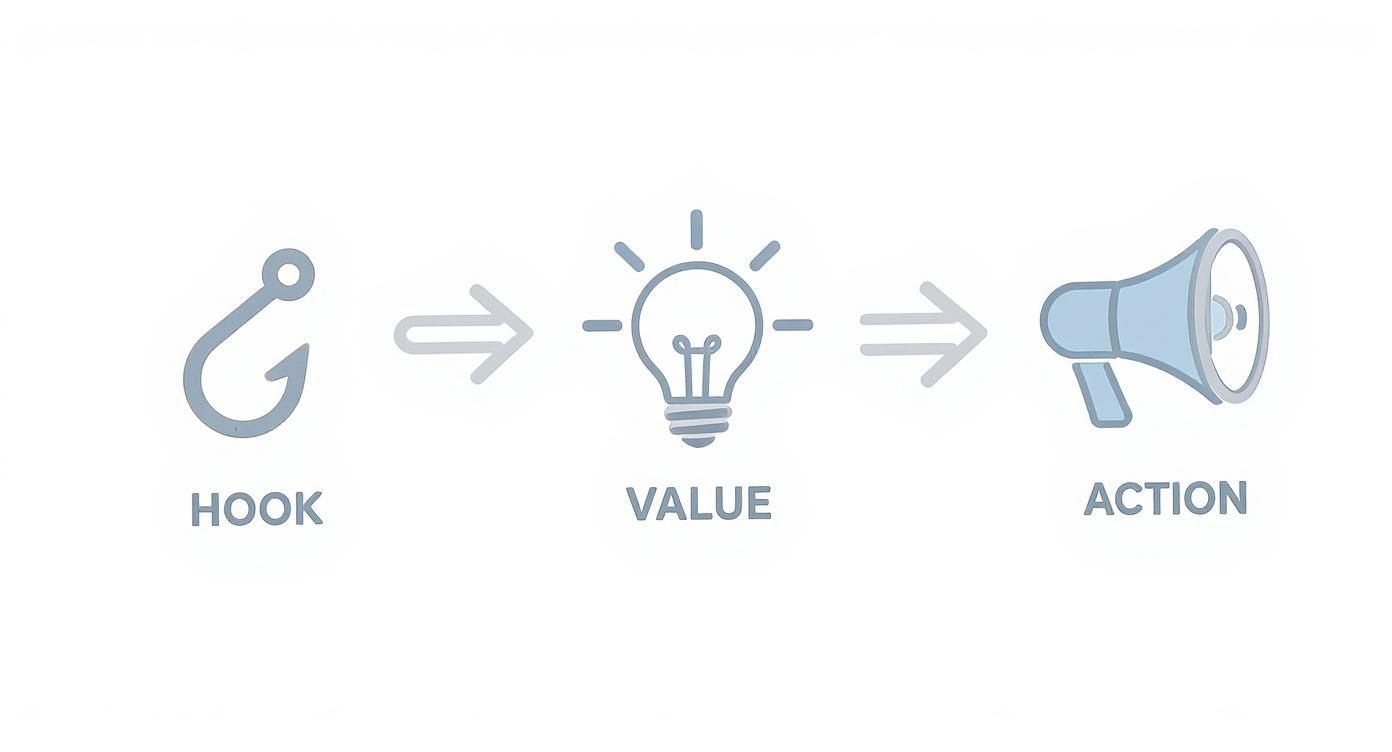
This simple three-part structure—Hook, Value, Action—is the narrative backbone of almost every successful carousel post you’ll see on LinkedIn.
And for creating visuals? You can speed things up there, too. In visually-driven industries, tools like AI fashion image generators can be a massive help in producing diverse, high-quality images quickly. By weaving AI into both the copywriting and design stages, you can pump out top-notch, engaging carousels more consistently and in a fraction of the time. This efficiency means you can maintain a strong presence on LinkedIn without letting content creation take over your entire schedule.
How to Measure and Improve Your Performance
Hitting ‘Publish’ on your carousel is the starting line, not the finish. Real growth comes from digging into the results, figuring out what your audience loves, and learning from what falls flat. LinkedIn’s own analytics give you everything you need to turn a one-off success into a repeatable strategy.
But don’t get hypnotised by vanity metrics. You need to focus on the numbers that actually tell the story of your content’s impact. For every carousel you put out there, these are the core metrics you should be tracking.
Key Metrics to Monitor
- Impressions: This is simply how many times your carousel popped up in someone’s feed. It’s your baseline for overall reach.
- Click-Through Rate (CTR): This is the percentage of people who saw your post and actually clicked on it to see the slides. A high CTR is a great sign that your cover slide and opening text are doing their job.
- Engagement Rate: This lumps together all the reactions, comments, and reposts your carousel gets, measured against its impressions. It’s the clearest signal of whether your content actually sparked a connection.
The real insights come from looking at how these metrics play off each other. Think of it this way: high impressions but a pitiful CTR almost always means your cover slide was weak. The algorithm gave you a shot by showing it to people, but the hook just wasn’t strong enough to earn the click.
The most valuable data isn’t in one number, but in the relationship between them. A high swipe-through rate paired with crickets in the comments might mean your content was interesting, but you didn’t include a strong enough call-to-action to get a conversation started.
A Simple Framework for A/B Testing
If you want to get better, you have to experiment. A/B testing, where you tweak just one thing at a time, is the clearest way to learn what your specific audience responds to.
Start by creating two versions of a carousel with just one key difference. For example:
- Test the Headline: Keep all the slide content the same but design two different cover slides with distinct headlines. Maybe one poses a question while the other makes a bold, declarative statement.
- Test the CTA: Make the carousel identical, but change up the final slide. One version could ask for comments, while the other points people to a link in your bio.
- Test the Design: Try out two completely different visual styles. One could be clean and minimalist, while the other uses bright, attention-grabbing colours.
Post them a week or two apart, then sit back and compare the analytics. Do this consistently, and you’ll build an invaluable picture of the headlines, designs, and calls-to-action that genuinely move the needle. This is how you stop guessing and start building a carousel strategy that actually works.
Got Questions About LinkedIn Carousels?
Even with the best strategy, you’re bound to run into a few specific questions when you start creating carousels. It happens to everyone. Let’s tackle some of the most common ones I hear all the time.
Can You Still Post a Carousel on LinkedIn?
Yes, you absolutely can, but the way we do it has changed. LinkedIn quietly got rid of its original, native image carousel feature a while back.
The modern—and honestly, much better—method is to upload a document. You’ll design your slides in a tool like Canva or even PowerPoint, save the final file as a PDF, and then upload it to your post as a document. LinkedIn automatically turns that document into the slick, swipeable carousel we all know and love. It’s a simple workaround that has become the standard for creators.
Can I Add Clickable Links Inside a Carousel?
This is a big one: no, you cannot embed active, clickable hyperlinks directly within the slides of your PDF carousel. Any web addresses you include in your design will just be static text. They won’t work.
Your call-to-action slide needs to clearly direct people to the link in your post’s main text or to the link in your bio. Make the instruction impossible to miss—think big arrows and clear text like “Link in caption!” or “Tap the link in my bio to get started.”
Heads Up: The only place for a live link is in the text of your post itself. Use your on-slide CTAs to either drive engagement (like asking a question for the comments) or to point people to that all-important link in the caption.
Do I Have to Use a PDF File?
While PDF is the go-to for a reason, it’s not your only option. LinkedIn will also let you upload:
- PPT/PPTX (PowerPoint presentations)
- DOC/DOCX (Word documents)
That said, PDFs are easily the safest bet. They lock in your fonts, images, and layout perfectly. This guarantees your design looks exactly as you intended on every single device, with zero weird formatting surprises. Sticking with a PDF is the professional standard for a polished, reliable carousel post.
Ready to create stunning LinkedIn carousels in a fraction of the time? With Postline.ai, you can turn a simple idea or link into a fully drafted, professionally formatted carousel in minutes. Let our AI assistant streamline your content creation today!

Run every client pipeline in one place
Give each LinkedIn profile its own voice, calendar, approval flow, and analytics. Start in minutes.
Start free trial