
Your Guide to Finding and Using LinkedIn Saved Posts
Stop losing great content. Learn how to find your LinkedIn saved posts, organize them into collections, and turn them into your best professional asset.
Let’s be honest, we all do it. You’re scrolling through your LinkedIn feed, coffee in hand, and you spot a brilliant post—an insightful article, a clever marketing idea, or a career tip that really resonates. You hit ‘save’ and think, “I’ll come back to this later.” But do you?
That little save button is more than just a digital bookmark; it’s the start of your own private intelligence library. Think of it less like a passive ‘read later’ list and more like an active process of curating your professional world. Every single one of your LinkedIn saved posts is a breadcrumb, a clue to what truly interests and drives you, building a personalised knowledge base you can tap into anytime.

Why Your Saved Posts Are a Professional Goldmine
Most people treat the ‘save’ feature as a forgettable tool, but that’s a huge missed opportunity. When you start seeing it as a strategic asset, everything changes. Instead of letting golden nuggets of information vanish back into the endless feed, you’re actively building a private, hand-picked collection of high-value content.
This curated library is a powerhouse for your professional growth, a constant source of content ideas, and your secret weapon for staying ahead of the curve.
This guide is all about turning that forgotten list into a real strategic advantage. We’ll get into the nuts and bolts of how to use this curated content—especially when paired with smart AI tools like Postline.ai—to spark original ideas and strengthen your voice online. After all, learning how to build a personal brand on LinkedIn is crucial, and your saved posts are the perfect raw material.
A Curated Hub for Your Career
Your collection of saved posts is a mirror reflecting your professional ambitions and curiosities. When you get intentional about it, it can serve some powerful functions:
- A Well of Inspiration: Found a post with a killer hook, a unique format, or a question that sparked a great discussion? Save it. It’s your swipe file for when you’re staring at a blank screen.
- Your Personal Research Desk: You can collect key articles, fresh data, and expert opinions to keep a pulse on what’s happening in your industry without having to search from scratch every time.
- A Continuous Learning Path: Bookmark those in-depth tutorials, practical guides, and thought leadership pieces that will actually help you sharpen your skills and grow.
This organised method is a game-changer, especially in crowded professional spaces. In Germany, for example, the LinkedIn user base has swelled to around 22 million professionals, pushing well past other regional networks. In a market that dense, having your own library of insights isn’t just nice—it’s essential for standing out. You can dig into more insights on LinkedIn’s European growth to see the bigger picture.
How To Find Your Saved Posts On Any Device
You’ve saved a fantastic post on LinkedIn, full of actionable advice you want to revisit. But now… where did it go? It’s a common frustration, but your collection of saved content is actually just a few clicks away, whether you’re at your desk or on the move.
The trick is knowing that LinkedIn tucks this feature away in slightly different spots on the desktop website versus the mobile app. Once you know the paths, getting to your library of ideas becomes second nature.
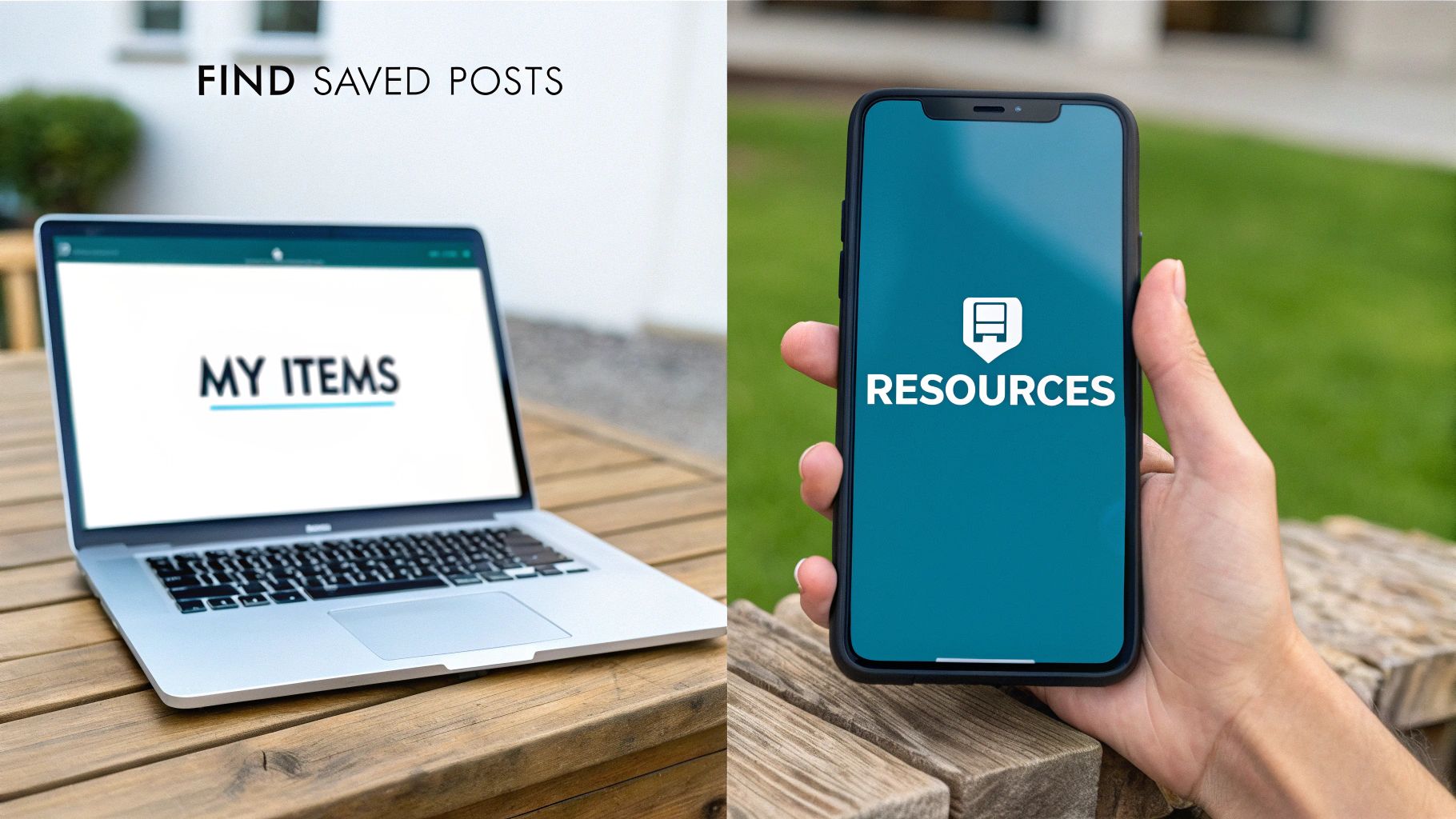
Let’s walk through exactly where to look on each platform.
Accessing Saved Posts On Your Desktop
When you’re on your computer, finding your saved items is pretty direct. LinkedIn groups all your personal content together in one central hub.
Start on your LinkedIn homepage and cast your eyes to the left-hand sidebar. This is the menu with links to your profile, groups, and events. In that same panel, you’ll spot a section called My Items.
Give My Items a click. This takes you to your personal content library, which defaults to showing your own posts. Look right next to that tab for the one you want: Saved posts. This is where you’ll find everything you’ve ever bookmarked.
Finding Saved Posts On The Mobile App
Things are a little different on the mobile app, but just as quick once you get the hang of it. LinkedIn considers your saved content a “resource” tied to your professional activity.
First, tap your profile picture in the top-left corner of the app. This slides out a menu with all your key account options.
In this menu, scan down until you find the Resources section. It’s usually just below your profile analytics (like ‘Who’s viewed your profile’).
Tap on My Items from there, and you’re in. You’ll see a clean interface letting you switch between your saved posts, articles, and other bookmarked content, perfectly designed for quick checks on the go.
To make it even clearer, here’s a quick-glance comparison of the navigation paths for each device.
Finding Saved Posts Desktop vs Mobile
| Device | Access Point | Navigation Path |
|---|---|---|
| Desktop | Left-hand sidebar |
Home Page > My Items > Saved posts |
| Mobile | Profile menu |
Tap Profile Picture > Resources > My Items |
As you can see, while the starting points differ, the destination is the same. Knowing both routes ensures you’re never more than a few taps away from the valuable content you’ve set aside.
Key Takeaway: On desktop, look for “My Items” in the left sidebar. On mobile, tap your profile picture and find it under the “Resources” section.
Mastering these simple pathways transforms your saved posts from a forgotten list into a genuinely useful tool. You can seamlessly pull up inspiration or reference material during your workday, no matter which device you happen to be using.
Organising Your Saved Content For Better Results
Saving posts is a great first step, but let’s be honest, an endless feed of saved items is just a digital junk drawer. The real magic happens when you bring some order to that chaos. This is where LinkedIn’s ‘Collections’ feature comes in, turning your pile of good intentions into a powerful, strategic asset.
Think of Collections as personalised folders for your professional brain. Instead of one long, overwhelming stream of content, you can build themed libraries that tie directly into what you’re trying to achieve. It’s not just about being tidy; it’s about creating a searchable knowledge base you can actually put to work.
The process itself is wonderfully simple. Now, when you save a post, LinkedIn prompts you to pop it straight into a collection. Making this small shift—from just saving to saving and sorting—is a total game-changer for getting real value out of this feature long-term.
Create Collections That Work For You
The best collections are the ones built around your specific needs. Forget generic folders like “Interesting Articles.” Get specific and create categories that mirror your actual workflow. You can easily manage these, creating a system that grows and changes with your career. For a deeper dive, explore our guide on effective LinkedIn content management.
To get the wheels turning, here are a few practical examples from my own workflow:
- Content Inspiration: This is my swipe file. I save posts with brilliant hooks, clever formats, or engaging questions. It’s my first stop when I need to brainstorm ideas and kickstart my own content creation.
- Industry Reports & Data: A dedicated home for market research, statistical reports, and trend analysis. The next time I need a credible stat for a presentation or an article, I know exactly where to find it without hours of searching.
- Networking Follow-ups: Here, I save posts from people I’ve met at events or those I want to build a connection with. I might add a note to remind myself of the context, which makes my future outreach feel much more personal and less out-of-the-blue.
- Competitor Wins: I use this to track what competitors are doing well. It’s not about copying, but about analysing their successful campaigns and engagement strategies to see what I can learn and adapt.
Expert Tip: Don’t go overboard at the start. Begin with 3-5 broad collections that cover your main activities on LinkedIn. You can always get more granular and add specific folders later as you spot recurring themes in what you save.
Tidying Up Your Existing Saved Posts
So, what about that massive backlog of posts you’ve already saved? Don’t panic. You don’t have to start from scratch. Just block out 20 minutes and commit to a quick clean-up session.
Go through your existing list of saved items. As you scroll, start slotting each post into one of your shiny new collections. I know it sounds a bit tedious, but the payoff is immediate. That cluttered, forgotten list suddenly becomes an organised library, ready to fuel your next big idea or career move.
Turning Saved Posts Into High-Impact Content
Okay, so you’ve got your LinkedIn saved posts neatly sorted into collections. That’s the groundwork. Now for the fun part—turning that curated library into fresh, high-impact content of your own.
Think about it: a well-organised collection isn’t just a digital filing cabinet. It’s a launchpad. It’s the raw material you need to move from being a passive consumer of content to an active, respected voice in your industry.
Imagine you have a collection called “Industry Reports”. It’s packed with the latest data, expert takes, and trend forecasts. Instead of just reading and forgetting, you can pull from those posts to craft a compelling thought leadership article, offering your unique perspective on where things are headed.
This simple workflow is all about moving from a random, unsorted list to a set of organised, actionable collections that you can actually use.
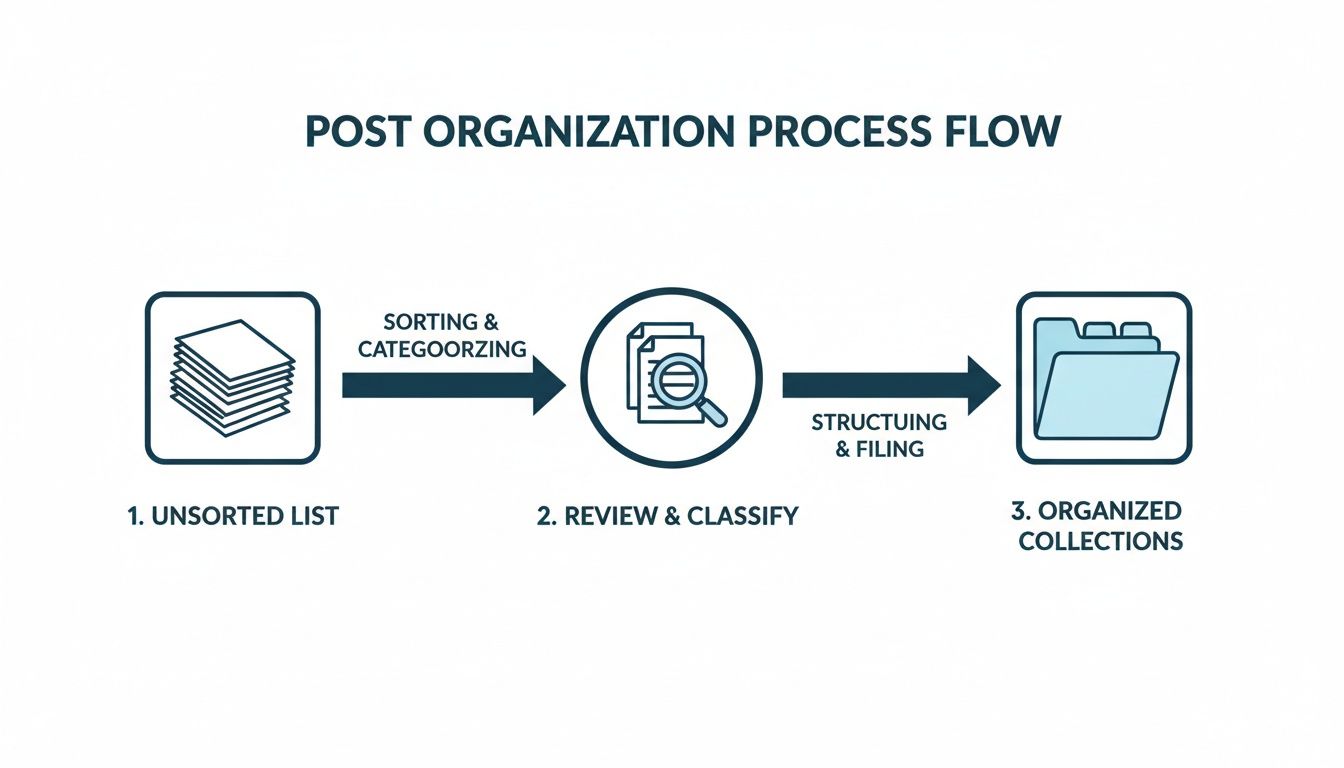
The real value isn’t in the raw list itself; it’s in the structured library you build from it. That’s where the magic happens.
From Curation To Creation: A Practical Workflow
Your content creation process can literally start the moment you open one of your organised collections. Let’s say you have a folder labelled “Audience Questions” where you’ve been stashing posts that highlight common pain points or queries in your field. This is pure gold.
You can systematically work through those saved posts, creating a series of short videos, carousels, or articles that directly answer each question. You’re not just creating content for the sake of it; you’re directly serving your audience with what they need, cementing your status as a go-to resource.
This strategy is particularly powerful when you consider how engagement is changing. In Germany, for example, professionals are leaning towards deeper interactions. Some data even suggests that a post save can generate up to 5 times more reach than a simple like because it signals a genuine intent to revisit the content. By creating valuable, save-worthy content, you’re tapping into how German users are building their personal knowledge libraries on the platform.
Partnering With AI For Faster Content Development
To really speed things up, bringing an AI partner like Postline.ai into the mix can be a game-changer. It’s not about letting AI write for you, but about using it to accelerate your own ideas.
Stuck on how to start? Feed a core theme or a direct quote from one of your saved posts into its ‘AI Post Generator’. It can help you brainstorm fresh angles or knock out a quick first draft, which is a fantastic way to beat the dreaded “blank page” syndrome.
You can also lean on its ‘Online Research’ feature to pull in current data and statistics to back up your points. This helps you ethically build upon the ideas you’ve curated, adding your own voice while making sure your content is credible and timely. For anyone looking to speed up this process, a whole ecosystem of AI writing tools exists to help generate new drafts and polish your ideas.
Key Takeaway: Start treating your saved post collections as content briefs. Each folder is a potential series, a thought leadership article, or a weekly insights roundup just waiting to be written.
This method also unlocks massive potential for repurposing content. That one saved post on a complex topic? It could become a simplified infographic, a detailed article, and a quick-tip video. To dive deeper into this, check out our guide on effective content repurposing strategies.
By connecting your curation habit with a smart creation workflow—and amplifying it with the right tools—you transform your LinkedIn saved posts from a passive list into one of your most valuable professional assets.
Running into Trouble? Common Saved Post Fixes
Even a straightforward feature like saving posts can hit a snag now and then. If you’re an active LinkedIn user, you’ve probably run into a little quirk or two. The good news is that most of these issues are easily explained and quick to solve.
Let’s talk about the most common frustration: the vanishing post. You’re certain you saved something brilliant, but when you check your list later, it’s nowhere to be found. In 99% of cases, this isn’t a glitch. It simply means the original author deleted their post. Once the original content is gone, it’s removed from everyone’s saved list, too.
It’s a small detail, but a crucial one. If you find a piece of content that’s absolutely vital, your best bet is to screenshot it or copy the key takeaways into a separate file. Don’t rely solely on the save feature for your most important finds.
When Your Saved List Just Won’t Load
Ever clicked on “My items” only to be met with a blank screen or an endlessly spinning wheel? This is another common headache, but it’s almost always a local issue on your end—not a major problem with your LinkedIn account.
Before you start pulling your hair out, run through these quick fixes:
- Clear Your Cache: Your browser and mobile app store temporary data that can get corrupted over time. Clearing the cache is often an instant fix for loading problems.
- Update the App: If you’re on mobile, make sure your LinkedIn app is up to date. An old version can easily cause compatibility issues with new features.
- Check Your Connection: It might sound obvious, but a spotty internet connection is a frequent culprit. Try switching from Wi-Fi to mobile data (or vice versa) to see if that gets things moving.
Working through these steps will resolve most loading issues and get you back to your curated content in no time.
Key Takeaway: Most “disappearing” posts are just deleted by the author, and loading errors are typically simple tech hiccups on your device. Knowing this saves a lot of frustration and helps you use the feature more effectively.
Understanding these quirks is especially important for the millions who rely on LinkedIn for professional development. For instance, in Germany, the 25-34 age group is the platform’s largest demographic, with 8.8 million members actively curating content. For them, a smooth experience is essential to their workflow. You can dive deeper into LinkedIn’s user demographics in Germany.
By knowing why a post might disappear or how to fix a simple loading error, you can use the saved posts feature with more confidence. And if you’re curious about who sees what on the platform, our guide on understanding LinkedIn post visibility is a great next read.
Got Questions About Saved Posts? You’re Not Alone.
Even with a solid system in place, some specific questions about how LinkedIn’s save feature works always seem to come up. Let’s clear up those lingering uncertainties so you can use it with total confidence.
Think of this as your go-to reference for the most common queries about privacy, limits, and what happens when the content you’ve saved suddenly changes.
Can Anyone Else See My Saved Posts on LinkedIn?
This is easily the number one question, and I can give you a simple, direct answer: no. Your entire library of saved posts, including any custom collections you’ve created, is for your eyes only.
It’s designed to be your private, personal scrapbook. You can save posts for any reason at all—maybe you’re quietly researching competitors, gathering intel for a job hunt, or just collecting brilliant content ideas—and no one in your network will ever know. It never shows up on your profile.
Your Privacy is Locked In: Think of your saved items as a personal knowledge base. You can build it freely without ever worrying about how it looks to your professional network.
Is There a Limit to How Many Posts I Can Save?
Officially, LinkedIn hasn’t published a hard limit on the number of posts you can save. For all intents and purposes, you can save a massive amount of content without ever hitting a wall.
The real limitation isn’t technical; it’s practical. If you save thousands of posts without organising them, the feature becomes almost useless. That’s exactly why getting into the habit of using collections is so critical. It’s what stops your library of great finds from turning into a digital junk drawer. The aim is to build a useful resource, not just a ridiculously long list.
What Happens If the Original Post Gets Deleted?
This is a really important one to remember. If the original author deletes their post, it will vanish from your saved items as well.
You won’t get a notification or anything—it will just be gone the next time you look for it. This is precisely why you shouldn’t treat the save feature as a permanent, bulletproof archive for mission-critical information.
If you find something truly essential—a killer statistic, a powerful quote, or a tutorial you know you’ll need again—get into the habit of taking a quick screenshot. Or, just copy and paste the key text into a separate notes app like Notion or OneNote. This creates a backup that you control, guaranteeing you’ll have it no matter what happens to the original post on LinkedIn.
Can I Save Things Other Than Just Posts?
Absolutely. The save feature is more versatile than you might think and works on more than just the standard updates you see in your feed. The process is pretty much the same for all sorts of content across the platform.
You can easily save a whole range of items, including:
- Articles: Those longer, more in-depth pieces published on LinkedIn.
- Newsletters: Regular updates from creators you follow.
- Videos: Any native video content shared in the feed.
- Events: Details for online and in-person events you want to track.
Everything you save lands in your main ‘My Items’ feed. From there, you can file them away into dedicated collections like ‘Must-Read Articles’ or ‘Industry Newsletters’ to keep it all tidy and easy to find when you need it.
Ready to turn your saved posts into standout content effortlessly? Postline.ai combines powerful AI writing with real-time research to help you brainstorm, draft, and schedule compelling LinkedIn posts in minutes. Discover how Postline.ai can elevate your LinkedIn presence today.

Run every client pipeline in one place
Give each LinkedIn profile its own voice, calendar, approval flow, and analytics. Start in minutes.
Start free trial