
How to Post Video on LinkedIn A Complete Guide
Learn how to post video on LinkedIn to maximize engagement. Our guide covers specs, optimization, and common mistakes for professional results.
Posting a video on LinkedIn is pretty straightforward. You just hit the ‘Start a post’ button on your homepage, click the video icon, and pick your file. Then, it’s all about adding a good caption, some relevant hashtags, and a custom thumbnail before you share it with your network.
Why Bother With Video on LinkedIn? It’s a Game-Changer

Before we get into the nuts and bolts of uploading, let’s talk about why this is such a powerful move. Video isn’t just another content option on LinkedIn anymore—it’s become a central part of building a professional brand and making real connections. In a feed crowded with text and static images, a moving video instantly grabs attention. It’s your chance to show your personality and expertise in a way a simple text post just can’t match.
Think of it as the next best thing to a face-to-face meeting. You can build trust and establish rapport, whether you’re breaking down a complex idea, sharing a company update, or giving a peek behind the scenes. This format really helps to humanise your professional profile.
The Clear Advantage in Engagement
The numbers don’t lie: video consistently outperforms other content types on LinkedIn. The platform’s algorithm gives a serious boost to native videos (the ones you upload directly), which often results in far more comments and shares. This isn’t just some global trend; it’s a reality right here in Germany.
A 2023 report, for example, showed that video posts accounted for roughly 30% of all content on German company pages. That’s a massive leap from just 10% back in 2019. On top of that, around 65% of LinkedIn users in the DACH region watched business-related videos on the platform last year, highlighting just how crucial it has become for local marketing.
If you’re not using video, you’re simply missing out on a huge opportunity to connect with a highly engaged professional audience that is actively looking for this kind of content.
At the end of the day, a solid video strategy is key if you want to increase LinkedIn engagement. It helps you:
- Build Trust, Faster: People can see and hear you, which forges a more personal and authentic connection.
- Explain Complex Ideas Simply: Visuals make it much easier to break down complicated topics for your audience.
- Stand Out from the Crowd: Motion is a natural attention-grabber that stops people from scrolling past your post.
- Showcase Your Expertise: Things like demos, tutorials, and expert commentary cement your status as a thought leader.
Setting Your Video Up for a Flawless LinkedIn Debut
A great LinkedIn video isn’t just about the content; it’s about the prep work you do before you even think about hitting ‘post’. Getting the technical details right from the start is the difference between a professional-looking video and a frustrating upload error.
Think of it as a pre-flight check. You wouldn’t just jump in a cockpit and hope for the best, right? Same goes for your video. A few minutes spent on the right specs will ensure your video looks crisp, loads smoothly, and performs exactly how you want it to.
Nail the Technical Specs First
First things first, let’s talk about the boring but essential stuff: the technical requirements. Getting these wrong is the most common reason videos fail to upload or look distorted. It’s a simple step that saves a ton of headaches down the line.
Here’s a quick reference table I always keep handy to make sure my video files are perfectly formatted for LinkedIn.
LinkedIn Video Technical Specifications
| Specification | Recommendation |
|---|---|
| File Format | Stick with MP4. It’s the most reliable format. |
| File Size | Anything from 75 KB up to 5 GB. |
| Video Length | Between 3 seconds and 10 minutes. |
| Aspect Ratio | 1:2.4 to 2.4:1 (Square 1:1 or Vertical 4:5 are best). |
A quick tip from my own experience: stick to a square (1:1) or vertical (4:5) aspect ratio. Why? Because it takes up more space on a mobile screen, making your video much harder to ignore as people scroll through their feed. If you’re looking for ideas on creating engaging short-form video, this guide on how to make a social media Reel has some great tips that translate well to LinkedIn.
What’s Your Content Plan?
Once the technical side is sorted, it’s time to think strategically about the content itself. You have a tiny window—literally the first 3-5 seconds—to stop someone from scrolling past. You need a hook. Start with a provocative question, a surprising statistic, or a visually arresting shot that makes them pause.
Keep it snappy. While LinkedIn lets you upload videos up to 10 minutes long, the sweet spot for engagement is almost always between 30 and 90 seconds. This gives you enough time to deliver real value without losing your audience’s attention. Planning your video’s length and message is a crucial part of a solid content creation workflow.
Here’s something people often forget: most videos on LinkedIn are watched with the sound off. If you don’t have captions, your message is lost. Preparing an accurate SRT caption file isn’t just a nice-to-have; it’s non-negotiable for both accessibility and impact.
Finally, get your other assets in order. Have you created a custom thumbnail? A great thumbnail is like a great book cover—it grabs attention and makes people want to see what’s inside. Don’t let LinkedIn just pick a random, blurry frame for you. Taking the time to create a clear, compelling thumbnail can dramatically increase your play rate.
Your Guide to Uploading a Video on LinkedIn
So, you’ve got your video file prepped and ready to make an impact. Let’s get it onto LinkedIn. The process is pretty much the same whether you’re posting from your personal profile or a Company Page, but a few small details can make all the difference.
You’ll start from your LinkedIn homepage, right where you’d normally create a post. Instead of just typing, look for the “Video” icon in the post creation box. Give that a click, and you’ll be prompted to find and select the video file from your computer.
This infographic lays out the whole journey, from that initial upload to the final click.
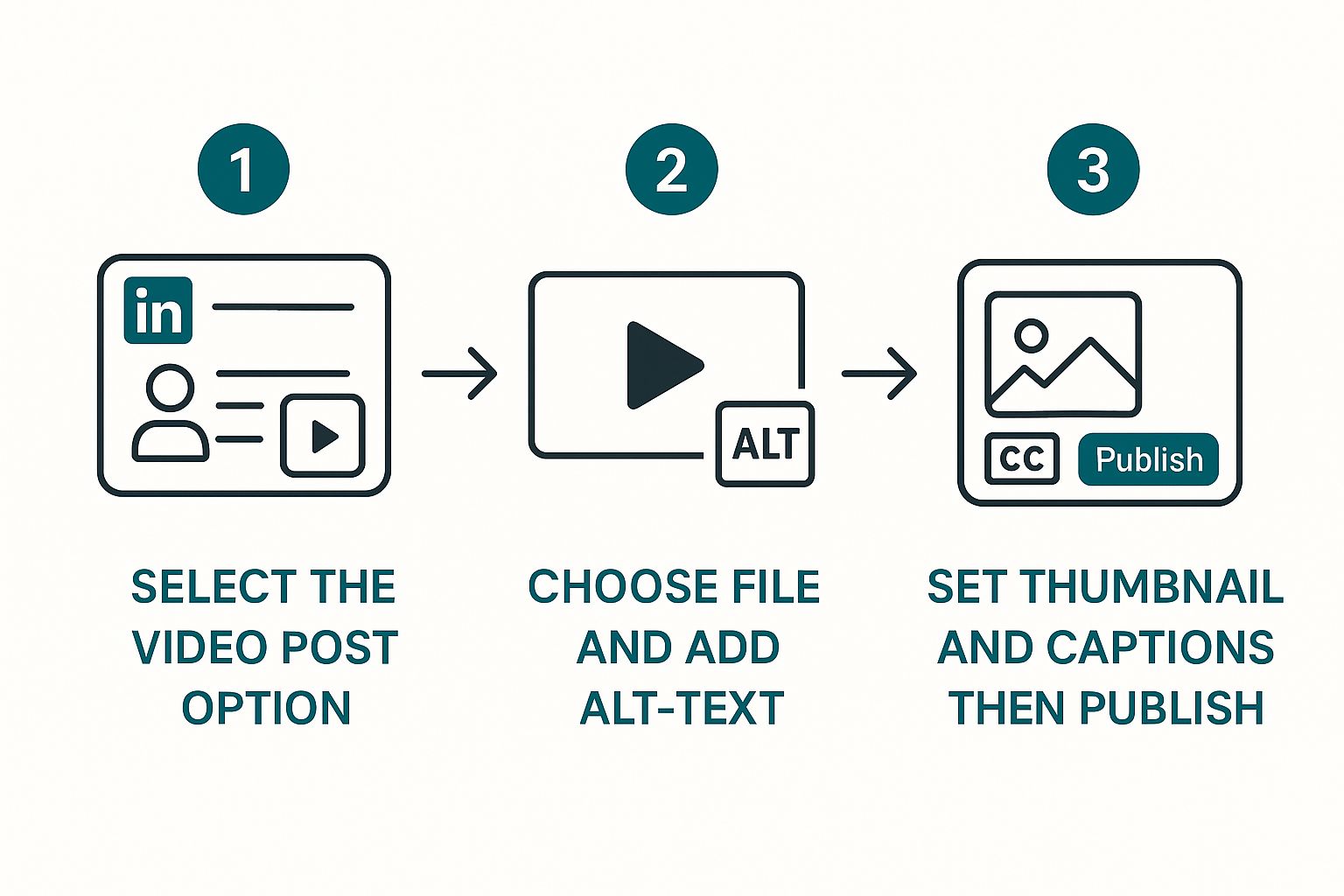
Seeing it visually really shows how simple the core steps are. As your video uploads, a progress bar will appear. Don’t just sit and watch it—this is the perfect time to get the rest of your post ready.
Fine-Tuning Your Video Settings
Once LinkedIn has finished processing your video, a few new options pop up. This is where you move from just uploading a video to truly optimising it. I can’t stress this enough: don’t skip these steps. They’re crucial for getting more views and making your content accessible.
This is the control panel for your video’s first impression. You’ll find options for your thumbnail, alt-text, and captions right here in the “Video settings” menu.
A quick but important task is to add descriptive alt-text. This is a short description of what’s happening in the video for anyone using a screen reader. It’s a simple way to make your content inclusive and shows you’ve put thought into your post.
Now for the two big ones:
- Thumbnail: LinkedIn will suggest a random frame from your video, but let’s be honest, it’s rarely the best one. Click “Change thumbnail” and upload that custom image you prepared. A sharp, engaging thumbnail is what convinces someone to stop scrolling and actually watch.
- Captions: Just below the thumbnail option is where you upload your .SRT caption file. This isn’t just a nice-to-have; it’s essential. The vast majority of people on LinkedIn watch videos with the sound off, so without captions, your message is completely lost.
With these settings locked in, you’re ready to craft the accompanying text and send your video out into the world. If you need some pointers on writing compelling copy for your post, take a look at our complete guide on how to post on LinkedIn.
Getting Your Video Seen: How to Optimise Your Post for Maximum Reach
Getting your video uploaded is a great first step, but the job isn’t done. I’ve seen too many brilliant videos fall flat simply because they weren’t packaged correctly. What you do next is what turns a simple upload into a genuine conversation starter that the LinkedIn algorithm can’t help but show to more people.
The text you write alongside your video is your hook. Don’t just summarise the content; give people a compelling reason to stop their scroll and press play. Think about starting with a provocative question, a surprising statistic, or a bold claim that piques their curiosity.
Writing Post Copy That Actually Works
Your post copy sets the stage. It should give just enough context to be intriguing without giving everything away. My advice? Keep your paragraphs short and snappy. Use bullet points or even emojis to break up the text and make it easy on the eyes.
Remember, the goal here is to kick off a discussion, not just to broadcast your message. Always, always end with a clear call-to-action (CTA). What do you actually want someone to do after they’ve watched?
- Pose a direct question to get the comments flowing.
- Ask them to share a similar experience or an opposing view.
- Point them to a link in the comments for more detail.
Something as simple as, “What’s one thing you’d add to this? Drop your thoughts below,” can dramatically boost your engagement.
A Smart Approach to Hashtags and Tagging
Think of hashtags as signposts that guide the right audience to your video. Just slapping on ten generic tags is a waste of time. What works is a more focused, strategic approach. I’ve found that a mix of 3-5 highly relevant hashtags is the sweet spot.
Combine broader industry terms with more specific, niche topics. For instance, instead of just #marketing, you’ll get much better traction with a combination like #B2Bmarketing, #demandgeneration, and #videocontentstrategy.
Tagging people or companies can also give your post a significant boost, but only if you do it with purpose. Only tag those who are either featured in the video or have a direct, genuine connection to the topic. Tagging randomly just looks spammy and can backfire.
That first hour after your video goes live is absolutely golden. LinkedIn’s algorithm pays very close attention to early engagement. The more likes, comments, and shares you get right out of the gate, the more the platform will reward you by pushing your content into more feeds.
This is exactly why your timing matters so much. You need to post when you know your audience is online and active. For some solid data on this, check out our guide on the best time to post on LinkedIn. And be ready to jump on those first comments as they roll in – that early interaction is a powerful signal that your content is valuable.
Common Mistakes to Avoid with LinkedIn Video

Getting LinkedIn video right often comes down to sidestepping the common pitfalls. I’ve seen some incredible videos fall completely flat because of a few simple, avoidable errors. Let’s walk through the mistakes that I see crop up time and time again.
The most frequent oversight? Forgetting that most people are on their phones. The vast majority of your audience will be scrolling through their feed on a mobile device, not a desktop. A wide, horizontal video just gets shrunk down to a tiny, unwatchable letterbox. You have to prioritise a square (1:1) or vertical (4:5) aspect ratio to command any real estate on the screen.
Forgetting the Silent Majority
Another huge one is posting a video without any captions. Think about where people use LinkedIn: in a quiet office, on the train, or during a meeting (we’ve all done it). Their sound is almost always off. If your message relies on audio, you’ve just lost your audience.
This goes beyond just being accessible, which is crucial in its own right. It’s about fundamental usability. You can’t make people scramble for headphones. Uploading an .SRT caption file is a small step that ensures your message actually lands with the people you’re trying to reach.
Don’t let LinkedIn choose your thumbnail for you. It almost always picks a blurry, unflattering frame that does nothing to attract clicks. A custom thumbnail is your video’s first impression—make it count.
Finally, resist the urge to simply drop a link from YouTube or Vimeo. It might feel like a quick shortcut, but the LinkedIn algorithm heavily penalises external links in favour of natively uploaded videos. Your reach and engagement will be throttled. Always upload the file directly.
Here are a few other pitfalls to keep an eye out for:
- A Weak Hook: You have maybe three seconds to grab someone’s attention. Don’t waste it on a slow-fade intro or a flashy logo. Dive straight into the most compelling part.
- No Clear Call-to-Action: What do you want people to do next? Don’t leave them hanging. Ask a question in the comments, point them to a link in your post, or invite them to share their own take.
- Poor Audio Quality: Tinny, muffled audio or distracting background noise is an instant turn-off. Viewers will forgive a slightly shaky camera, but they won’t tolerate bad sound.
Got Questions About LinkedIn Video? Here Are Some Quick Answers
Even with a solid plan, you’re bound to run into a few specific questions when working with LinkedIn video. Let’s tackle some of the most common ones I get asked all the time.
What’s the Ideal Length for a LinkedIn Video?
Technically, LinkedIn lets you upload a video that’s up to 10 minutes long. But honestly, you should almost never do that.
From what I’ve seen, the real sweet spot for keeping people hooked and actually getting them to engage is somewhere between 30 and 90 seconds. Your mission is to grab their attention in the first few seconds and get your main point across before their thumb starts scrolling again.
Should I Upload Natively or Just Share a YouTube Link?
This one’s easy: always, always upload your video file directly to LinkedIn. This is what we call posting natively.
The LinkedIn algorithm heavily favours content that keeps users on the platform. When you post natively, you get a massive boost in reach and engagement. Dropping a link from YouTube or Vimeo just won’t get you the same visibility in the feed—it’s a real performance killer.
Can I Edit a Video Post After It’s Live?
Yes, but your options are pretty limited. Once your video is published, you can go back and tweak the text in your post, adjust your hashtags, or change any people or companies you’ve tagged.
Heads up: You absolutely cannot swap out the video file, change the thumbnail, or upload a new captions file after the fact. If you need to change any of those core elements, you’ll have to delete the entire post and start over.
How Do I Add Captions to My LinkedIn Video?
Adding captions is a non-negotiable, and luckily, it’s straightforward.
When you’re uploading your video, wait for it to process. You’ll then see a “Video settings” option pop up. Click on that, and you’ll find a spot labelled “Video captions” with a “Select file” button. This is where you upload your SRT (SubRip Subtitle) file. Simple as that.
Ready to create standout LinkedIn posts in minutes, not hours? Postline.ai uses powerful AI to help you write, schedule, and optimise your content so it sounds like you and gets results. Start your free trial today.

Run every client pipeline in one place
Give each LinkedIn profile its own voice, calendar, approval flow, and analytics. Start in minutes.
Start free trial