
A Guide to Using Bullet Points on LinkedIn
Learn how to use bullet points on LinkedIn to create posts that are scannable, engaging, and impactful. Get copy-paste tricks, symbols, and formatting tips.
Using bullet points on LinkedIn is one of the smartest and simplest ways to make your content stand out. It’s a small formatting trick that does a big job: it breaks up heavy blocks of text, letting busy professionals pull out your key ideas without getting bogged down in a wall of words.
Why Bullet Points Are Your Secret Weapon on LinkedIn
Think about how you scroll through your own LinkedIn feed. It’s fast, right? You’re making split-second decisions on what’s worth your time. This is exactly why bullet points are so powerful. They aren’t just a design choice; they’re a strategic way to communicate effectively when every second counts.
Big, dense paragraphs are hard work for our brains. They create a high cognitive load, which is the mental effort needed to understand something. When someone sees a solid block of text, their brain immediately knows it’s going to take more effort to figure out the main message. Bullet points flip that script entirely.
- They promise clarity: A list format immediately sends a signal to the reader: “Here are the important bits, all neat and tidy for you.”
- They make scanning effortless: People can glance at the start of each bullet to instantly decide if the post is relevant to them.
- They give your post room to breathe: The white space created by a list makes the whole thing feel less daunting and much more inviting.
Cutting Through the Noise of a Crowded Feed
Let’s be honest, the LinkedIn algorithm loves engagement. It pushes content that keeps people on the platform, and posts that are easy to read get more likes, comments, and shares. That engagement signals to LinkedIn that your content is valuable, boosting its reach.
The professional audience on LinkedIn is massive and still growing. Just look at the DACH region (Germany, Austria, Switzerland), where the user base has recently hit 24 million professionals. This boom led to a 22% jump in interaction rates, with posts there now averaging over 11 engagements. The algorithm clearly favours well-structured, scannable content because it’s what hooks busy mid-career professionals—a huge chunk of the user base. You can dig deeper into these global LinkedIn user trends to see just how well structured content performs.
“Silence is a liability in a consulting market that thrives on trust and credibility. Too many consulting firms are quiet when they should be educating and inspiring.” - Luk Smeyers, The Visible Authority
This quote hits the nail on the head. You need to communicate your expertise clearly and directly. Bullet points are the perfect tool for educating and inspiring your audience without asking for too much of their time.
At the end of the day, using bullet points is really about showing respect for your reader. When you present your ideas in a clear, concise, and organised way, you’re delivering value right off the bat. That simple gesture builds trust and makes people want to engage with what you have to say. And if you want to make it even easier, tools like Postline.ai can automatically format your posts with bullet points, ensuring you’re set up to grab attention from the get-go.
How to Make Bullet Points on LinkedIn
You’ve probably noticed that LinkedIn’s post editor doesn’t have a handy “bullet point” button on its toolbar. It’s a strange omission, but don’t worry—getting those clean, scannable lists into your posts is actually quite simple once you know a few tricks of the trade.
Let’s break down the best ways to format your content so it grabs attention and gets your message across clearly.
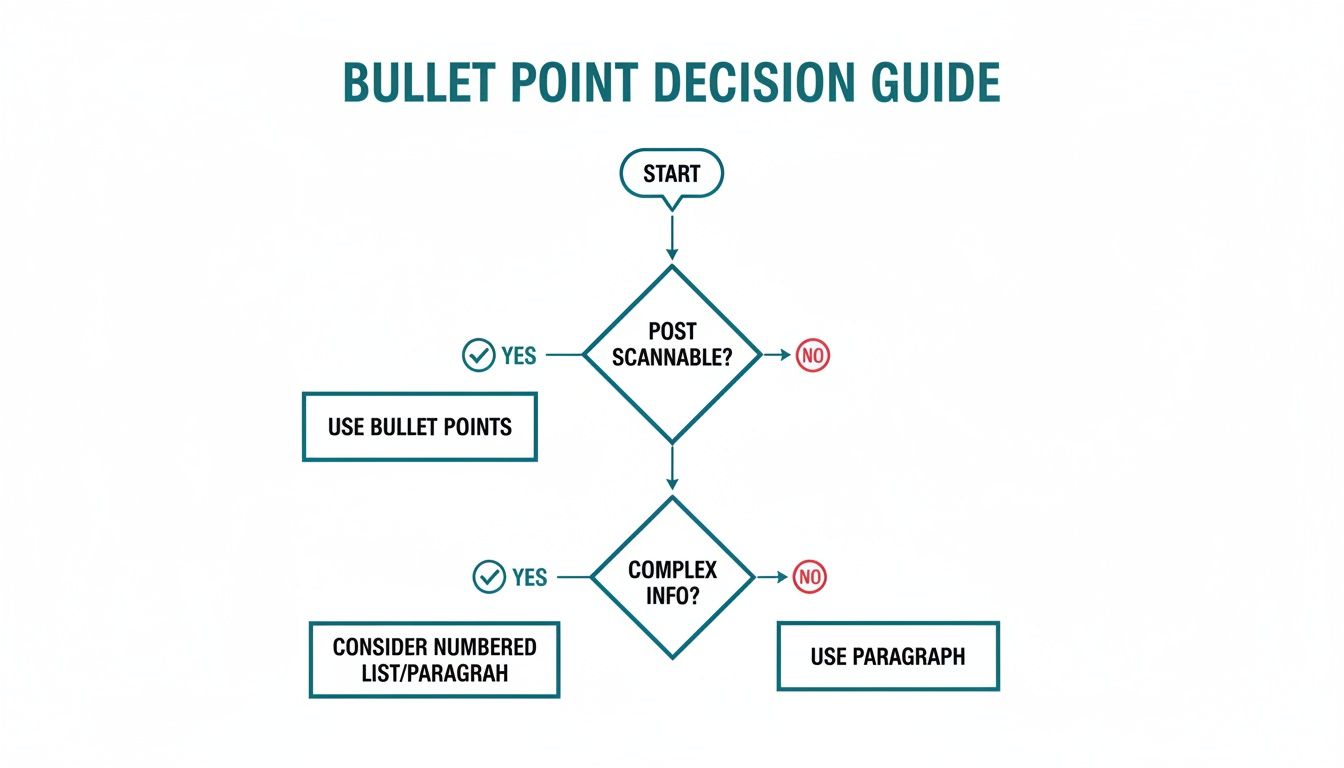
This guide is a great starting point. As you can see, if your goal is to make your post easy to scan and digest, structured lists are almost always the way to go. They’re a powerful tool for improving both clarity and reader engagement.
Quick Guide to Creating Bullet Points on LinkedIn
Choosing the right method often comes down to personal preference and what you’re trying to achieve. Here’s a quick comparison of the most popular techniques I use every day.
| Method | How It Works | Best For | Potential Issues |
|---|---|---|---|
| Copy & Paste | Write your list in a plain text editor (like Notepad), then copy and paste it into LinkedIn. | Ensuring consistent, clean formatting, especially for longer or more complex posts. | Requires an extra step outside of the LinkedIn platform. |
| Keyboard Shortcuts | Use specific key combinations (Alt + 0149 on Windows, Option + 8 on Mac) to create a standard bullet (•). | Quick, on-the-fly list creation directly within the LinkedIn editor on a desktop. | Can be cumbersome if you don’t remember the codes; doesn’t work on mobile. |
| Unicode & Emojis | Copy unique symbols (like ➡️, ✅, or 💡) from a character library or use your device’s emoji keyboard. | Adding personality, visual flair, and thematic relevance to your lists. | Overuse can look unprofessional; some symbols may not render correctly on all devices. |
Each approach has its place. I often find myself using a combination—keyboard shortcuts for quick replies and the copy-paste method for my main, pre-planned content.
The Reliable Copy-and-Paste Method
This is my go-to technique for a reason: it’s the most dependable way to get clean formatting. By drafting your post in a simple text editor first, you sidestep any weird background code that apps like Microsoft Word or Google Docs might sneak in.
Just open a basic editor like Notepad (Windows), TextEdit (Mac), or even the notes app on your phone. Type out your list using a standard dash (-) or an asterisk (). When you’re happy with it, select the text, copy it (Ctrl+C or *Cmd+C), and paste it straight into the LinkedIn post editor.
This one simple habit can save you a world of formatting headaches. If you want to automate this process, a dedicated LinkedIn text formatter can also handle these details for you.
Keyboard Shortcuts for Power Users
If you prefer working directly in LinkedIn, keyboard shortcuts are your best friend. They let you create classic, clean bullet points without ever leaving the platform. The command is a little different depending on your computer.
- For Windows users: Hold down the Alt key and type 0149 on your numeric keypad. This will generate a standard round bullet (•).
- For Mac users: The shortcut is even easier. Just press Option + 8 to get the same bullet symbol (•).
I find these shortcuts incredibly useful when I’m writing a quick comment or making a fast edit to a post. They consistently produce a professional-looking bullet that displays perfectly everywhere.
Remember, the goal isn’t just to list items but to guide the reader’s eye. A well-placed bullet point acts as a visual signpost, telling your audience, “Hey, pay attention to this part!”
Exploring Unicode and Emoji Bullets
Why stick to the classic black dot when a whole world of symbols is at your fingertips? Using Unicode characters or emojis as your bullet points on LinkedIn can add a layer of personality and visual interest that makes your post stand out.
You can find websites that host massive libraries of Unicode symbols, allowing you to simply copy and paste them into your post.
Think about using symbols that match your content’s theme:
- ➡️ An arrow for forward-thinking advice or next steps.
- ✅ A checkmark for actionable tips or completed tasks.
- 💡 A lightbulb for sharing a new idea or insight.
- 🚀 A rocket for posts about growth strategies or product launches.
Emojis work the same way and are fantastic for injecting a bit of colour and emotion. Just use them thoughtfully. A string of playful emojis might feel out of place in a serious financial analysis, but it could be perfect for celebrating a team milestone. The key is to make sure your chosen symbols enhance your message, not distract from it.
Using Strategic Formatting for Maximum Impact
Knowing how to pop a bullet point into a LinkedIn post is one thing. Knowing how to use it with intent? That’s what separates a post that gets scrolled past from one that actually makes an impact. Strategic formatting isn’t just about making things look pretty; it’s about guiding your reader’s eye and making your message stick.
Think of it this way: a solid wall of text feels like a lecture. But a well-formatted post is more like a conversation. Different list styles serve different purposes, and you get the best results when you match the format to your message. For instance, numbered lists are brilliant for outlining a step-by-step process or walking someone through a sequence of events, as they naturally imply order and progression. Standard bullets, on the other hand, are perfect for highlighting key benefits or features where the order is irrelevant.
Choosing Your List Style
The subtle differences between list types can completely change how your content is perceived. Your choice signals to the reader what kind of information they’re about to get, setting their expectations before they even read the words.
- Numbered Lists (1, 2, 3): Reach for these when you’re explaining a process, ranking items by importance, or sharing a sequence of events. The structure itself pulls the reader from one point to the next.
- Standard Bullets (•, -, *): These are your workhorses for highlighting features, benefits, or key takeaways that don’t need to be in any particular order. They simply say, “Here are several important, related ideas.”
- Emoji-Based Lists (✅, ➡️, 💡): These add a layer of personality and visual context. A checklist with ✅ emojis feels actionable and satisfying, while a list of ideas starting with 💡 feels creative and insightful.
This deliberate approach is especially powerful in markets with high user engagement. Take Germany, for example, where the LinkedIn scene recently soared past 22 million users. This growth is fuelled by professionals, especially those in the 25-34 age group, who use the platform for personal branding and are hungry for scannable, bullet-point-driven content that delivers clear career advice.
The goal is to make your key points impossible to miss. By varying your formatting, you create a visual hierarchy that tells your audience exactly where to look and what to remember.
To really nail this, it helps to see what great looks like. Reviewing effective bullet point examples can give you a ton of inspiration, as the principles of writing concise, powerful statements are directly transferable to your LinkedIn content.
Before and After Strategic Formatting
Let’s look at a real-world scenario. Imagine a consultant sharing an update on their work.
Before (The Wall of Text): “This quarter, our team focused on three core areas to drive client success. We started by overhauling our project intake process to better align with client goals from day one. Next, we implemented a new communication protocol using a shared dashboard to ensure full transparency on project milestones. Finally, we introduced a post-project feedback loop to gather actionable insights for future engagements, which has already improved satisfaction ratings.”
It’s informative, but a bit of a slog to get through, right?
After (Strategic Bullets): “Big wins for our clients this quarter! We focused on three key upgrades to our process:
✅ Revamped Intake Process: We now align every project with client goals from the very first conversation. ➡️ Transparent Communication: A new shared dashboard means clients see real-time progress on every milestone. 💡 Actionable Feedback Loop: We’re using post-project insights to get better with every engagement.
The difference is night and day. The second version is scannable, energetic, and far more likely to be read and remembered. This is the power of using formatting with purpose. And you can take it even further when you know how to bold words in a LinkedIn post to add that extra layer of emphasis.
Letting AI Handle Your LinkedIn Formatting with Postline.ai
Let’s be honest: manually adding bullet points, obsessing over character counts, and making sure every post looks just right is a grind. It’s the kind of tedious work that gets in the way of posting consistently. This is exactly where AI-powered tools come in, taking care of the heavy lifting so you can focus on your ideas, not the formatting headaches.
Instead of fumbling with keyboard shortcuts or copying and pasting from a separate editor, you can have an intelligent assistant do it for you. This isn’t just about saving a few minutes. It’s about creating a sustainable content system that consistently produces polished, algorithm-friendly posts without all the manual effort. Think about a busy consultant turning a quick voice memo into a perfectly structured post with a strong hook, clear bullet points, and a solid call-to-action—all in a fraction of the time.
Intelligent Formatting That Just Works
Today’s AI tools do much more than just spit out text. Platforms like Postline.ai are built with LinkedIn’s quirks in mind, knowing that scannability and structure are everything. For example, its AI Post Generator can take a simple prompt and naturally weave in bullet points or numbered lists where they’ll have the most impact. It turns a raw thought into a well-organised piece of content.
This is a huge leap forward from basic text spinners. The AI actually analyses your topic and figures out the best way to present the information for maximum clarity. That often means using bullet points on LinkedIn to make key takeaways pop or to outline a clear process for your reader.
As you can see, a simple idea gets expanded into a structured post that’s ready to go. By integrating the writing and formatting from the start, your final content isn’t just well-written—it’s visually tuned for the LinkedIn feed.
Get the Perfect Structure, Every Single Time
Beyond just writing the first draft, a dedicated LinkedIn Formatter feature makes sure every post follows best practices. It automatically handles things like optimal line spacing, adds relevant emojis for visual flair, and structures your content to grab attention and boost engagement. This built-in quality check means you never have to second-guess how your post will look on mobile versus desktop.
“The goal is to eliminate the friction between having a great idea and sharing it with your network. Automation handles the repetitive tasks, so your expertise can shine through.”
This kind of automation creates a powerful cycle. You spend less time stuck on formatting and more time interacting with your audience, which gives you better insights for what to post next.
The impact of proper formatting is massive. In fact, one experiment using a LinkedIn text formatter showed a staggering 512% increase in post views. It’s clear that how your content looks matters just as much as what it says.
See for yourself how https://postline.ai/ can sharpen your content strategy and make every post stand out.
We’ve all been there. You craft the perfect post in a document, hit copy, paste it into LinkedIn, and… your beautiful bullet points are a complete mess. It’s one of the most common frustrations content creators face, but once you understand what’s causing it, the fix is surprisingly simple.
The root of the problem is almost always invisible formatting code. When you copy text from a rich text editor like Microsoft Word or Google Docs, you’re not just copying the words—you’re also grabbing a bunch of hidden HTML and CSS styling. LinkedIn’s simple text editor can’t make sense of all that extra code, which results in broken lists, weird spacing, and other visual glitches.
Solving the Copy-Paste Conundrum
The easiest way to sidestep this is to use a plain text editor as a go-between. Before you paste your content into LinkedIn, drop it into an application like Notepad (on Windows) or TextEdit (on Mac) first. This simple action strips away all the hidden formatting, giving you clean text that plays nicely with LinkedIn.
It’s a quick, four-step habit that saves a ton of headaches:
- First, write your post in your usual editor.
- Next, copy the entire text.
- Then, paste it into your plain text editor to clean it.
- Finally, copy that clean text and paste it into LinkedIn.
Taking these few extra seconds ensures your bullet points on LinkedIn look exactly how you planned them, every single time.
Why Bullets Look Different on Mobile vs Desktop
Have you ever picked the perfect bullet symbol or emoji on your computer, only to see it show up as a generic square or question mark on your phone? This happens because different devices and operating systems don’t support the same set of Unicode characters. What looks great on your desktop might not exist on an older Android phone.
To avoid this, your best bet is to stick with universally supported symbols. Standard bullets (•), dashes (-), asterisks (*), and very common emojis (like ✅ or ➡️) are the safest choices for consistent display across all platforms.
If you’d rather not worry about memorising which symbols are “safe,” a dedicated LinkedIn tool can be a lifesaver. For example, a platform like Postline.ai handles this for you, automatically using characters that are known to display correctly everywhere. This takes the guesswork out of formatting and makes sure your post is perfectly readable for your entire audience, no matter what device they’re using.
Taking Your LinkedIn Posts to the Next Level
Okay, so you’ve got the basics of adding bullet points down. That’s the first step. But now it’s time to get a bit more strategic and use them to really make your posts stand out.
Think beyond simple lists. When you start combining different bullet styles, you create a visual hierarchy. This is a subtle but powerful way to guide your reader’s eye through your content, making sure they focus on what truly matters.
For example, if you’re breaking down a complex topic, use a main bullet for the core idea. Then, tuck the finer details into indented sub-bullets underneath. It’s a brilliant method for adding depth without making your post look like an intimidating wall of text. It shows you’ve organised your thoughts and are making them easy for others to digest.
Another great trick is to use your bullet points as hooks. Instead of just listing a dry fact, why not frame it as a question or a bold statement? This sparks curiosity and gives people a reason to stop scrolling and read what you have to say.
A Few Proven Post Templates
To give you a head start, I’ve pulled together three templates that I’ve seen work time and time again on LinkedIn. They’re effective because they tap into how busy professionals scan and absorb information on the platform.
-
The Classic Listicle: It’s a classic for a reason. This format is straightforward and promises clear, scannable value right from the headline.
- Hook: “5 Mistakes You’re Making in Client Meetings (and How to Fix Them)”
- Body: Use a numbered list or even a unique emoji for each mistake you break down.
- CTA: “Which one resonates most with you? Let me know in the comments.”
-
The Problem-Solution Framework: This one is perfect for positioning yourself as a helpful expert. You’re directly addressing a pain point and offering an immediate solution.
- Hook: “Struggling to stay productive while working from home? It often comes down to three common traps.”
-
Body:
- Problem 1 ➡️ Solution 1
- Problem 2 ➡️ Solution 2
- Problem 3 ➡️ Solution 3
- CTA: “Want more productivity tips? Follow me for weekly advice.”
-
The Personal Story with Key Takeaways: People connect with stories. Share a personal experience—a win or even a failure—and then use bullets to distil the lessons you learned.
- Hook: “I completely bombed a major presentation early in my career. It was awful, but it taught me three invaluable lessons.”
- Body: 💡 Lesson 1: Over-prepare, then let it flow naturally. 💡 Lesson 2: It’s okay to say, “I don’t know, but I’ll find out.” 💡 Lesson 3: The audience is on your side.
- CTA: “What’s a career lesson you had to learn the hard way?”
These structures are a great starting point. If you’re looking for more ideas, feel free to check out our other LinkedIn post examples for some extra inspiration.
Making It Relevant to Your Audience
Of course, a great template is only half the battle. You have to know who you’re talking to. For example, if your target audience is in Switzerland, it helps to know that by January 2025, the user base there hit 4.84 million. The dominant age groups are 25-34 and 35-54—professionals keen on content that shares skills and builds connections. You can learn more about LinkedIn’s growth in Switzerland and see how you can tweak your content for specific markets.
The most effective LinkedIn content doesn’t just share information; it starts a conversation. Use your bullet points not as final statements, but as invitations for your audience to engage with their own thoughts and experiences.
Ultimately, the goal is to make your content both valuable and effortless to read. When you use these strategies, your posts won’t just grab attention—they’ll build your authority and spark real conversations within your professional network.
Ready to stop fussing with formatting and focus on creating incredible content? Postline.ai blends smart AI writing with automatic formatting to help you craft polished LinkedIn posts in minutes. Try Postline.ai for free and see the difference for yourself.

Run every client pipeline in one place
Give each LinkedIn profile its own voice, calendar, approval flow, and analytics. Start in minutes.
Start free trial